In Lucy, integrations refer to the exchange of data between Lucy and the accountant's bookkeeping software.
This is distinct from the "Multisender" functionality used by entrepreneurs.Introduction to Integrations
We support three main types of integrations, depending on the software:
1. Direct API Integrations:
- Yuki
- Exact Online
- Wolters Kluwer
- Syneton DMS
2. FTP Integrations:
- Expert/M
- Vero Online
- Sage Bob
- Account 2000
- Adsolut
- Any package that supports FTP integrations
3. Email Integrations:
- Clearfacts
- Lyanthe
- Octopus
- Winbooks
- Zenvoices
- Scan Sys
- Admisol
- Wings
- Any package that can receive documents via email
Setting up the Integration
The portal
Setting up an integration starts on your office's portal. Make sure your user has administrator rights.
When you only want an email integration, you can skip this step.
Choose which link you want to set up. Your portal can have multiple integrations at the same time.
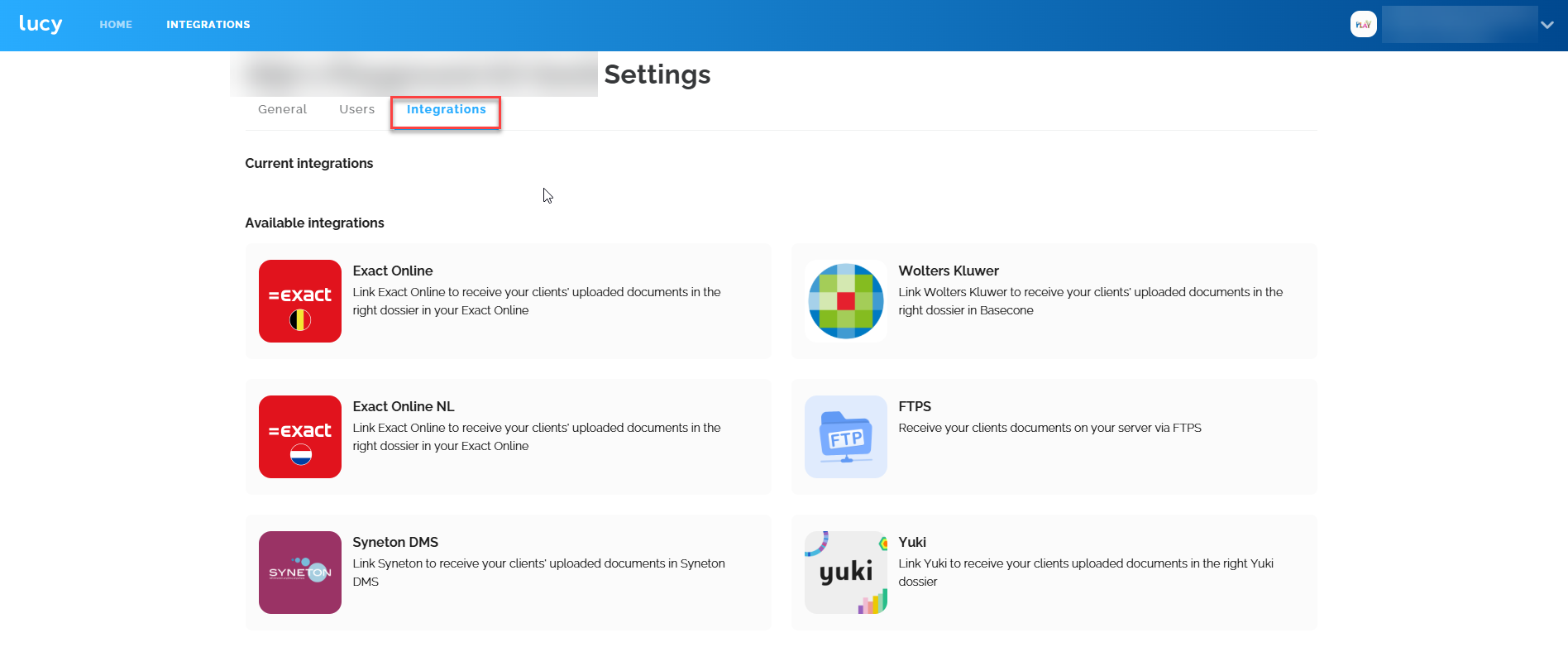
The setup of each integration is explained on specific pages listed at the bottom of this article.
After setting up the integration at the portal level, you will always be able to consult a status by clicking on the integration.

Now your link is set up, and the link at the dossier level can be configured.
Setting up a dossier
In the overview of your portal, you will be able to see the current status of this dossier.
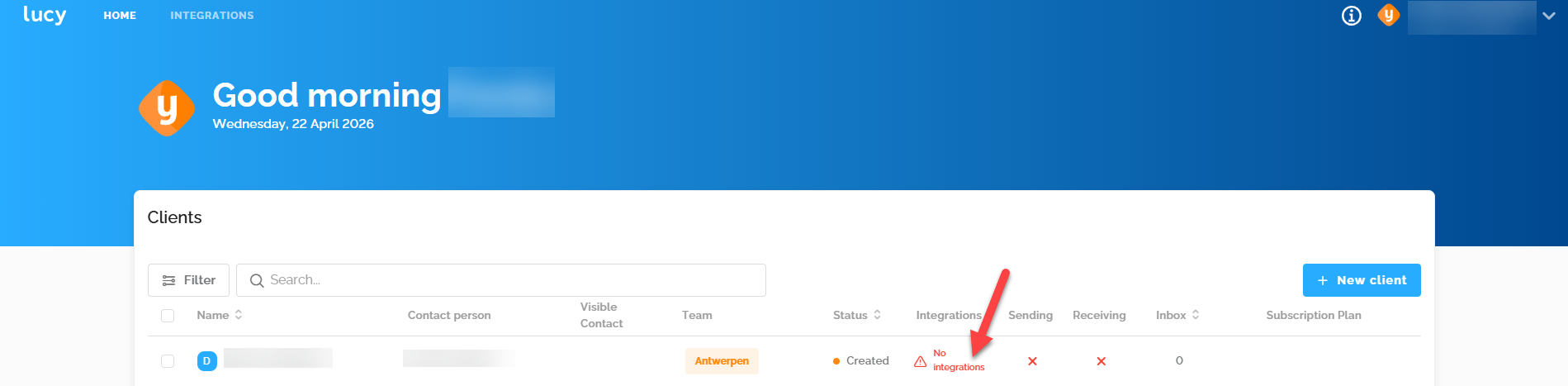
If you click here, or you go to the dossier and manually navigate to the 'Integrations' tab, you can set the integration at the dossier level.
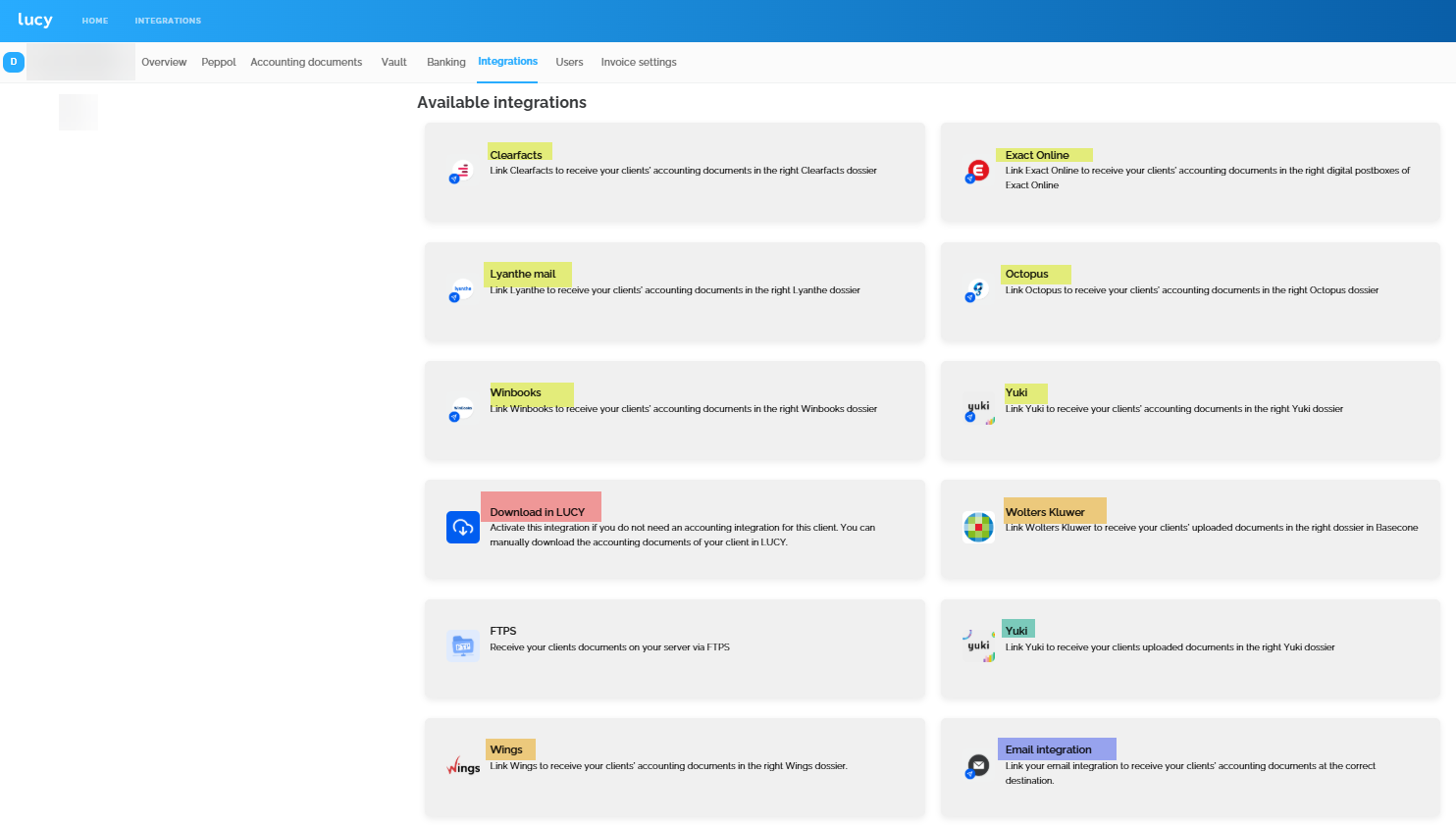
Here you will see a list of possible integrations.
The integrations that must be set at the portal level will only be visible here when they are effectively configured there.
You might notice that Yuki appears twice here. This is because both the email integration and the direct API link were configured on the portal.
You see five markings on the images below:
- Green --> API integration, which is set up at the portal level
- Yellow --> email integration, recognizable by the blue dot on the logo

- Orange --> Also email integration but with individual configuration
- Blue --> Free mail integration if your package is not in our options
- Red --> Option you can select to indicate that you do not need an integration.
After selecting an integration, you can see that your dossier is correctly set up.

At the dossier level, only one integration with an accounting package is possible.
Use of integrations
When documents enter Lucy, or when they are created via the sales module, they will be available to forward to the accountant. This can be done manually or automatically.
Manual
Both the entrepreneur and the accountant can forward a document to the accountant (accounting package) as soon as it is recognized. This can also be done in bulk by using the selection boxes at the front.
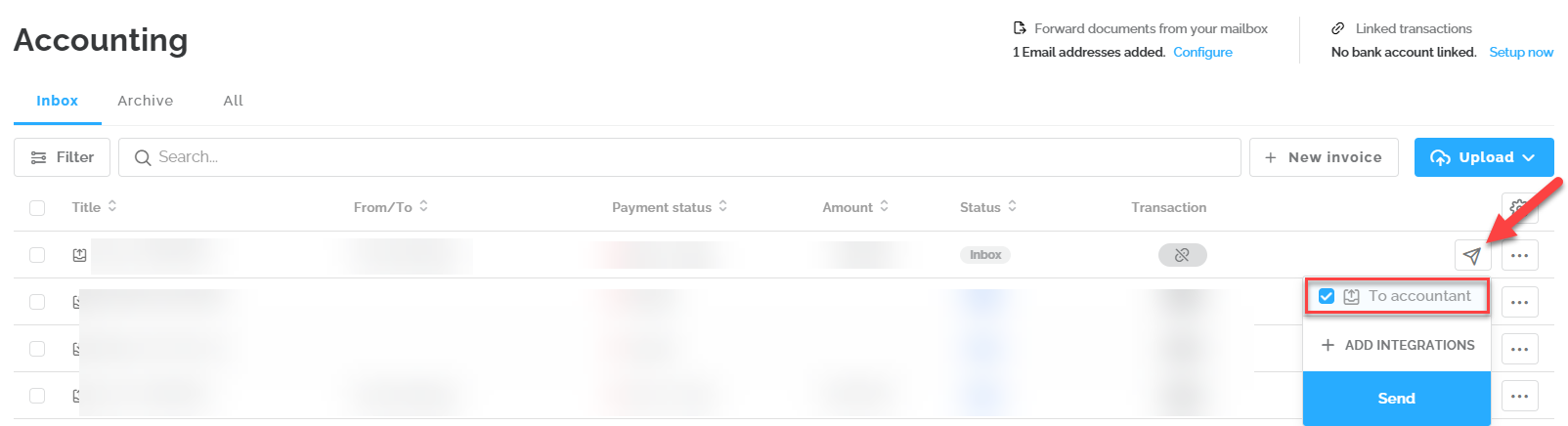
'+ Add destination' refers to the multisender functionality and this is completely separate from the accountant integration.A document that was not recognized cannot be forwarded to the accounting package and you must first manually assign a document type. This is deliberate because some integrations require a split between document types when forwarding.
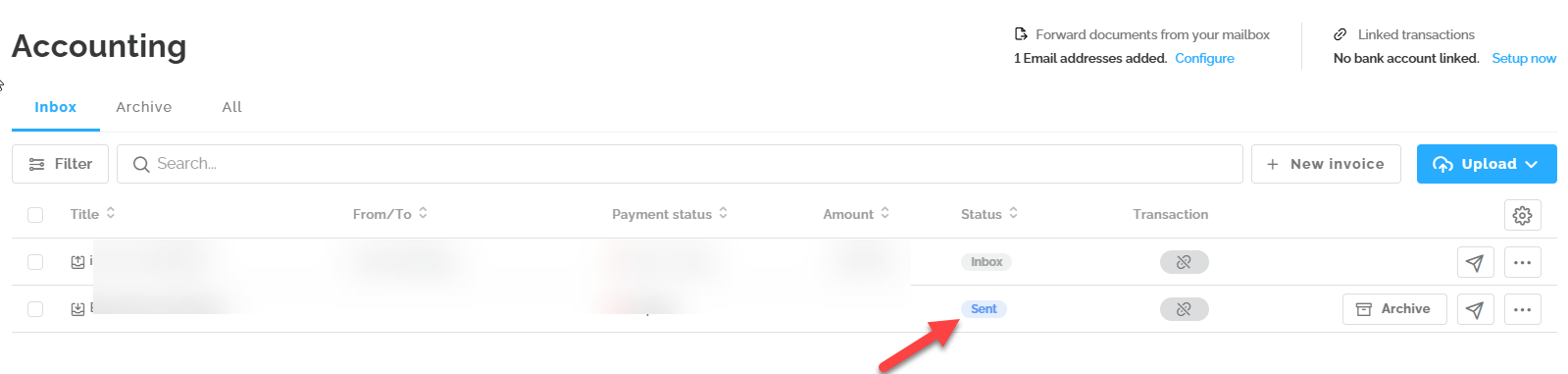
As soon as a document is successfully sent to the accountant, it receives the status 'Sent' and the option to archive a document also becomes available. Once the document is sent, you cannot send it to the accountant again, and it can no longer be deleted to prevent a difference between documents present in Lucy and the accounting package.
Automatic
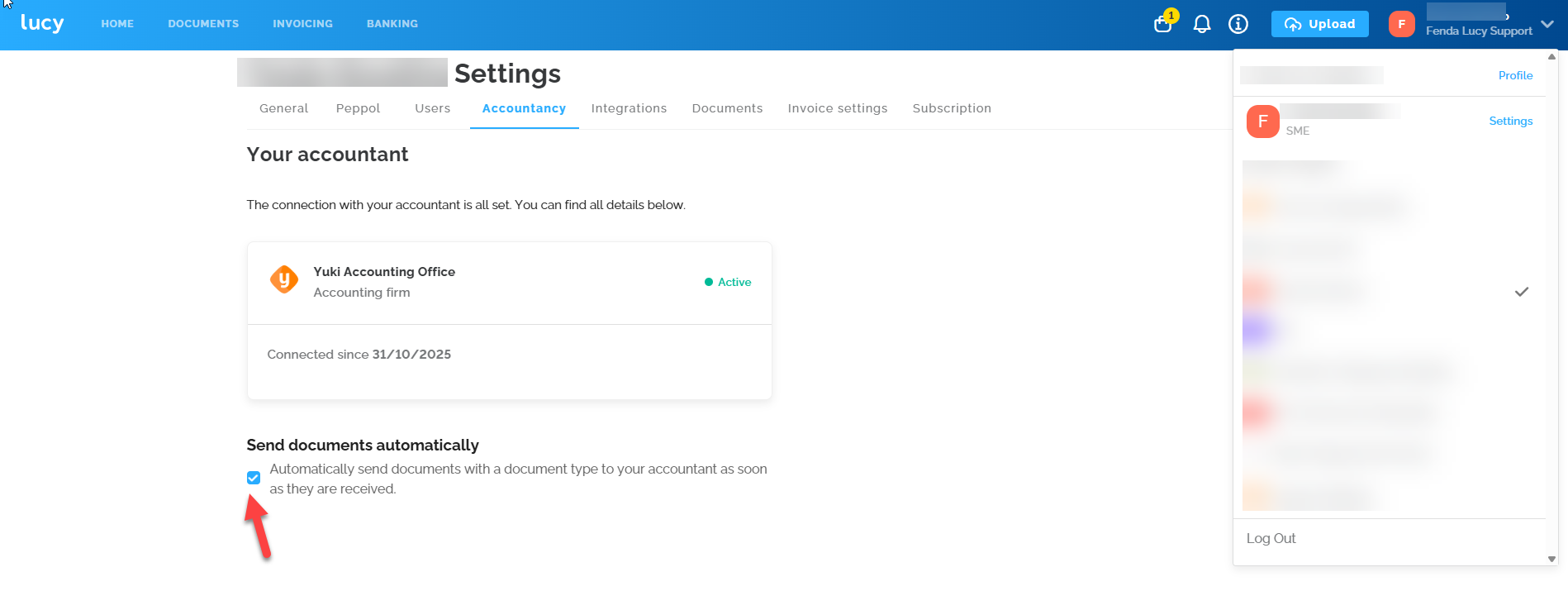
The client themselves can manage the setting to have recognized documents automatically sent to the accountant. This setting is off by default but can be turned on by the user.
Document statuses
In Lucy, a document can have several statuses: Inbox, Sent, Failed, or Rejected.
What do these statuses mean?
- Inbox: not sent yet.
- Sent: sent.
- Failed: the integration failed, you can try again.
- Rejected: the invoice was refused or rejected by the accounting software.
A distinction that often causes confusion: documents with the Inbox status will be automatically picked up if your file/dossier is set up to do so.
Important to know: If a document has the status "Failed", Lucy will not make any new attempt to send it to the accounting software. This is a built-in safety feature. You must resend those documents yourself. If the status remains Failed after that, the issue usually isn't with the connection, but with the file itself or on the accounting software's end.
What you can check yourself
- Resend the document. Lucy will not do this for you.
- Check the status of the connection at the file/dossier level.
- Then check the status of the connection at the portal level.
- If the status remains Failed, download the original file from Lucy and manually upload it into your software. If you get the same error there, you know the problem lies within the source file.
Specifically for Exact Online
For Exact Online, Failed means that the Exact Online server could not receive the invoice or rejected it. Known causes:
- The invoice was submitted previously and Exact Online's duplicate check rejects it.
- There is an issue with the integration. First check at the file/dossier level, then at the portal level.
- One of the attachments contains a character rejected by the integration. An extra dot in a file name is not allowed.
If the file contains a functional error in the XML, it cannot be sent to Exact Online and the status will remain Failed, no matter how many times you try again.