Introduction
Many accounting packages support the option to retrieve documents from a local server via an FTP integration. Lucy also has a solution for this.
When implementing this method, we recommend involving an IT specialist to ensure everything runs smoothly.There are two scenarios:
Scenario 1: You work with a software package that runs on your local server.
Scenario 2: You work with a cloud-based package.
Both systems follow the same first steps, but for cloud-based packages, additional steps are required.
Normally, the configuration of the FTP integration will be set up with the help of a Sales or Customer Success contact person. On this page, you can find the complete process again. If you wish to set up this type of integration, it is best to contact them.Step 1: Lucy Configuration
Portal
Lucy manages an external SFTP cloud server onto which we will upload the forwarded documents ourselves. During onboarding, we handle the settings on your Lucy portal.
- Host: ftp.app.getlucy.ai
- Port: 21
- Username: [Username]
- Password: [Password]
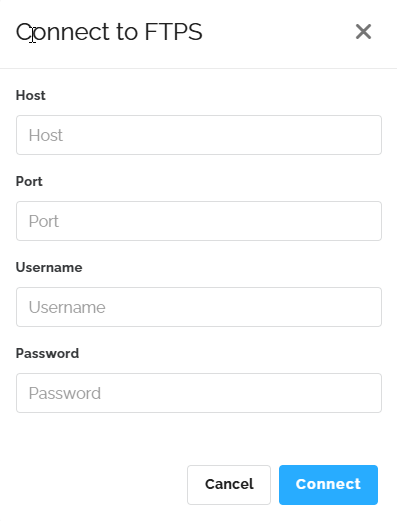
The username and password are for accessing our external SFTP cloud server and you will also need them in later steps. We provide this data in a secure manner.
After this step, you can set a folder name per document type. This folder structure will be automatically created by Lucy on the SFTP server in the folder of each dossier.
Dossier
In the dossier itself, the setting is very simple. Here you must choose a name for the folder of this dossier. This is also the folder name as it will appear on your local server. If you do not choose a name, the VAT number will be selected. Therefore, agree structurally at the office whether you will use an internal code or the VAT number.
A folder name must not have a space at the end, nor any strange characters.
Changing the name of this folder afterwards is possible, but it causes clutter and often leads to confusion when interpreting the data on the local server at your office. If you still want to change it, it is recommended to break the connection at the dossier level and reconnect with the correct name.The 'Direct Adsolut integration' switch must ONLY be on if you are integrating with Adsolut. The link will NOT work if this setting is incorrect.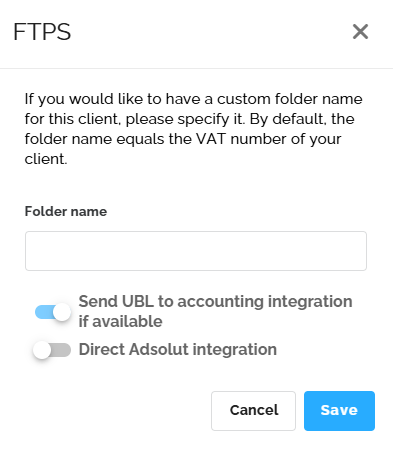
Step 2: Moving documents from SFTP cloud server to local server
If software is on a local server, this is the last step. If you work with a cloud application, you will have to provide a local server yourself that retrieves the documents and then uploads them back into the cloud application.
We provide a GET script in .txt format that you must complete with the necessary parameters and afterwards change to .ps1 format.
Parameters to fill in yourself:
- hostname
- username
- port
- password
The remotepath must always be "/", you can of course adjust the localpath as desired.
You can now choose on your local server to run this script daily, or at intervals of your choice. The Windows Task Scheduler is a suitable tool for this.
Step 3: Moving documents from your own local server to your own cloud software
This step is only relevant if you have a cloud application.
We provide a GET script AND PUSH script in .txt format that you must complete with the necessary parameters, and afterwards change to .ps1 format.
Parameters to fill in yourself:
- hostname
- username
- port
- password
The remotepath must always be "/", you can of course adjust the localpath as desired.
You can now choose on your local server to run these scripts daily, or at intervals of your choice. The Windows Task Scheduler is a suitable tool for this.
The GET script will run first to retrieve Lucy's documents from our SFTP server. Afterwards, the PUSH script will run to send the documents from your local server to your cloud server.
FAQ
- The documents arrive in my accounting package, but I get an error message there that the document has an incorrect format.
Lucy will pass on documents that it has received. If there is something wrong with these documents, this could be the cause. Download the original file from Lucy and upload it manually into your package to see if you get an error message there as well. If this is the case, you know the problem lies with the source file.
Another common cause is that the 'Direct Adsolut integration' is enabled for a 'non-Adsolut package'. You can find and view this setting in the integration settings at the domain level.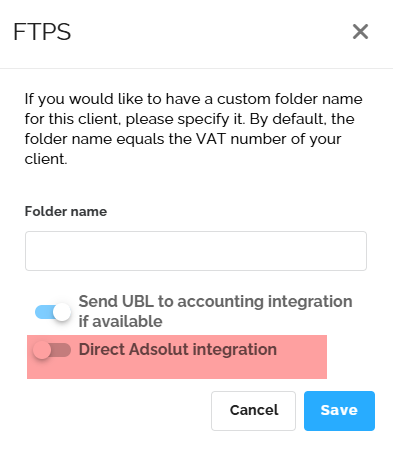
- Lucy says the invoice has been sent, but we cannot find it.
A common reason for this situation is that the 'Folder name' that can be set at the dossier level has been changed. The old folder will continue to exist on our SFTP server, and this is a form of clutter. It is possible that your GET script still relies on the old folder, while Lucy delivers the documents to the new folder. Review your script and set-up and check if you can find the missing documents in a folder with an old folder name.
Another common reason is that the folder name does not meet the conditions described on this page. Specifically, a space at the end can be very easily overlooked.
A folder name must not have a space at the end, nor any strange characters.