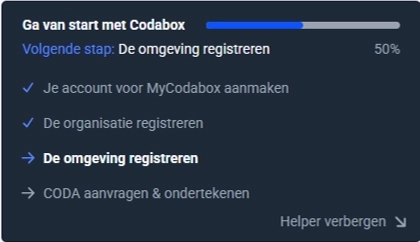
- What does this functionality mean precisely for you as an entrepreneur?
- How to establish the connection?
- Changes in your Lucy environment (accountant)
- FAQ
What does this functionality mean precisely for you as an entrepreneur?
Within the Business Pro subscription, you can, as an entrepreneur, use the connection with Codabox without additional costs. This allows you to easily view bank transactions directly in the software and link them to invoices. This ensures a clear overview of outstanding invoices and payments and provides you as an entrepreneur with insight without needing your accountant's intervention.
Additionally, this functionality ensures automatic matching, minimizing manual work.
The connection does not replace the existing Codabox account linked to your accounting package. Transactions are sent to Lucy via this existing Codabox account.
How to establish the connection?
Please note: Some images are currently only available in Dutch. We are working to provide French and English versions as soon as possible. Thank you for your patience.
You establish the connection in Lucy via Settings > Integrations. Codabox is listed among the available integrations.
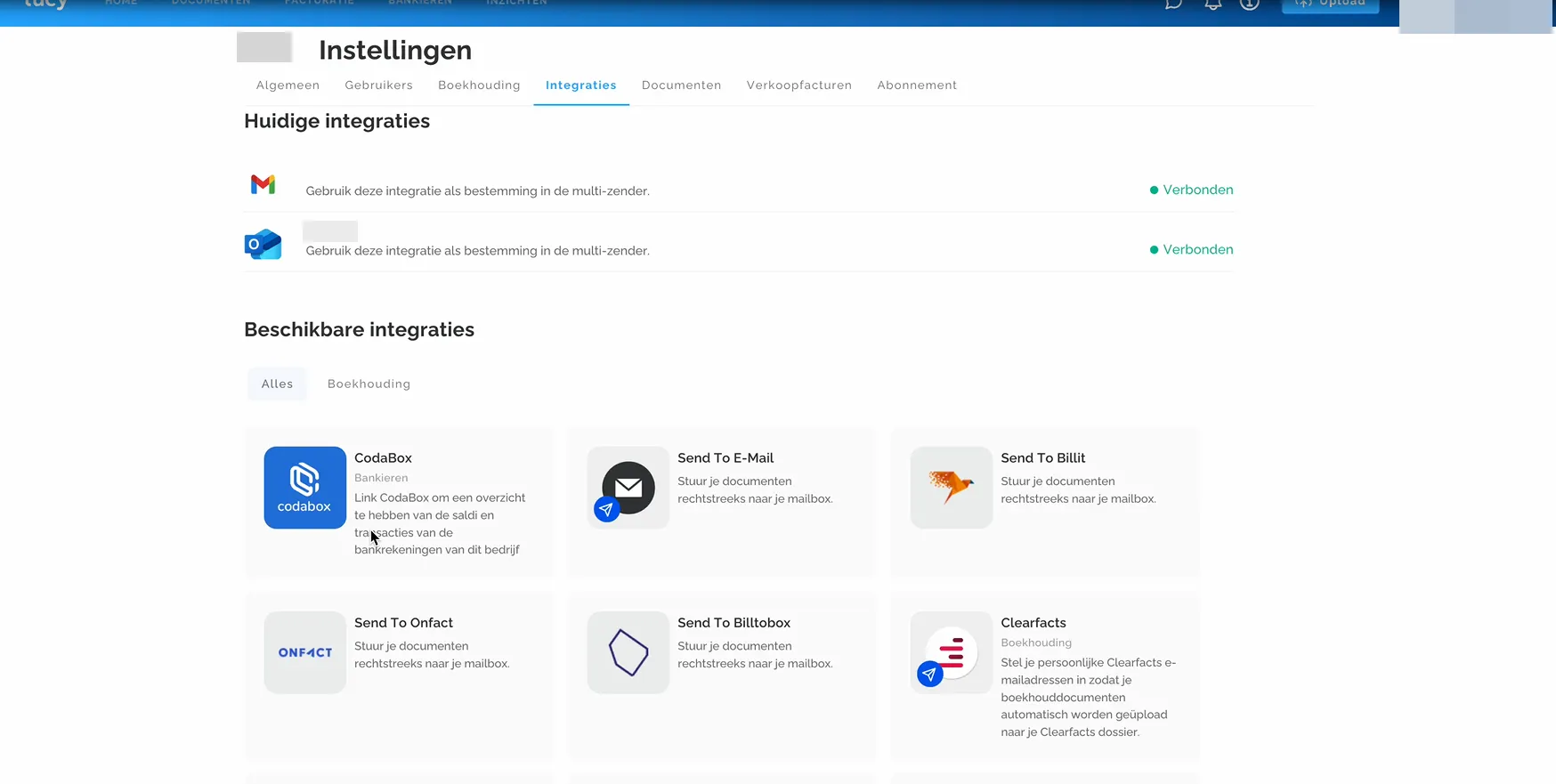
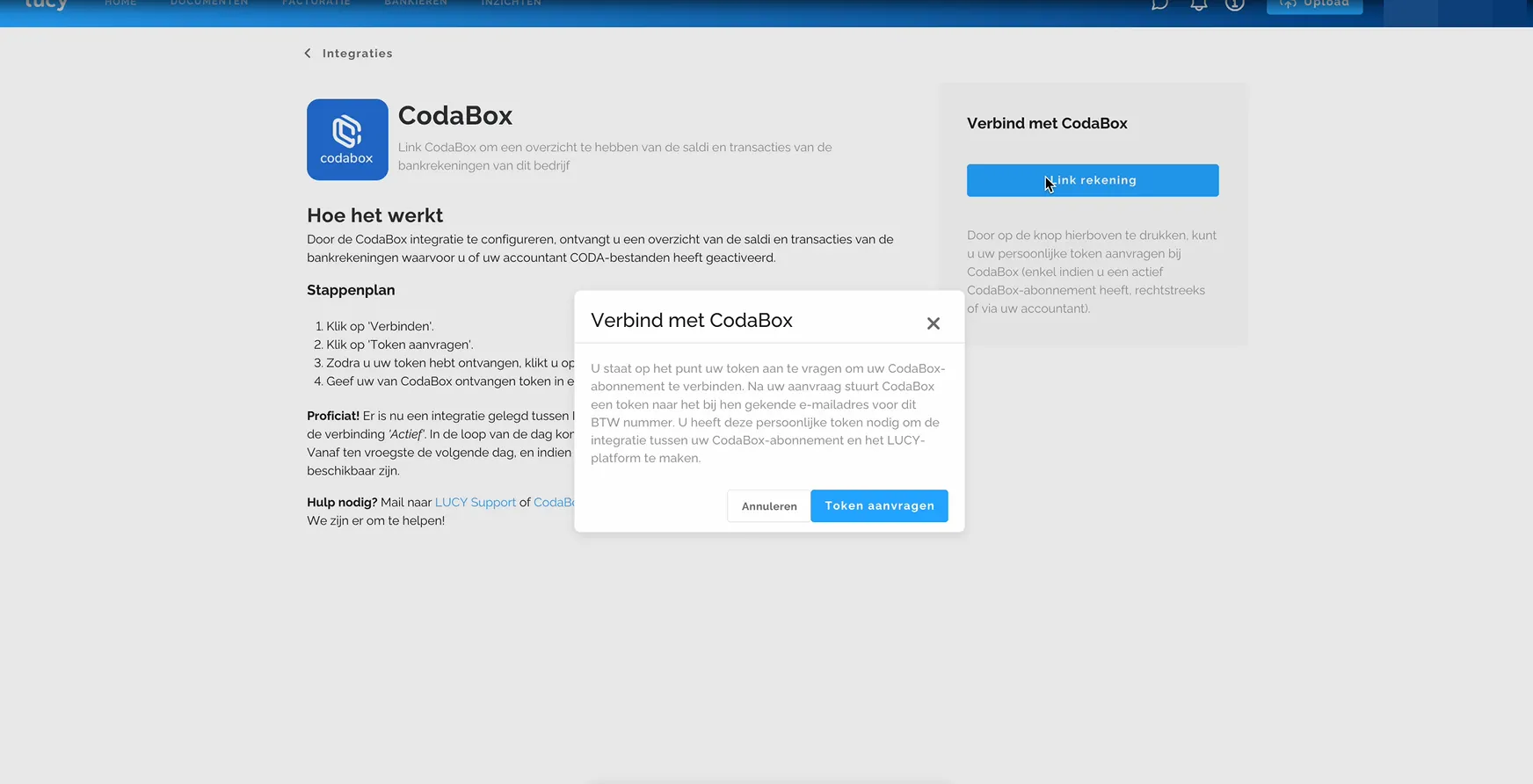
If an existing Codabox account for the VAT number is present, you can request a token in Lucy.
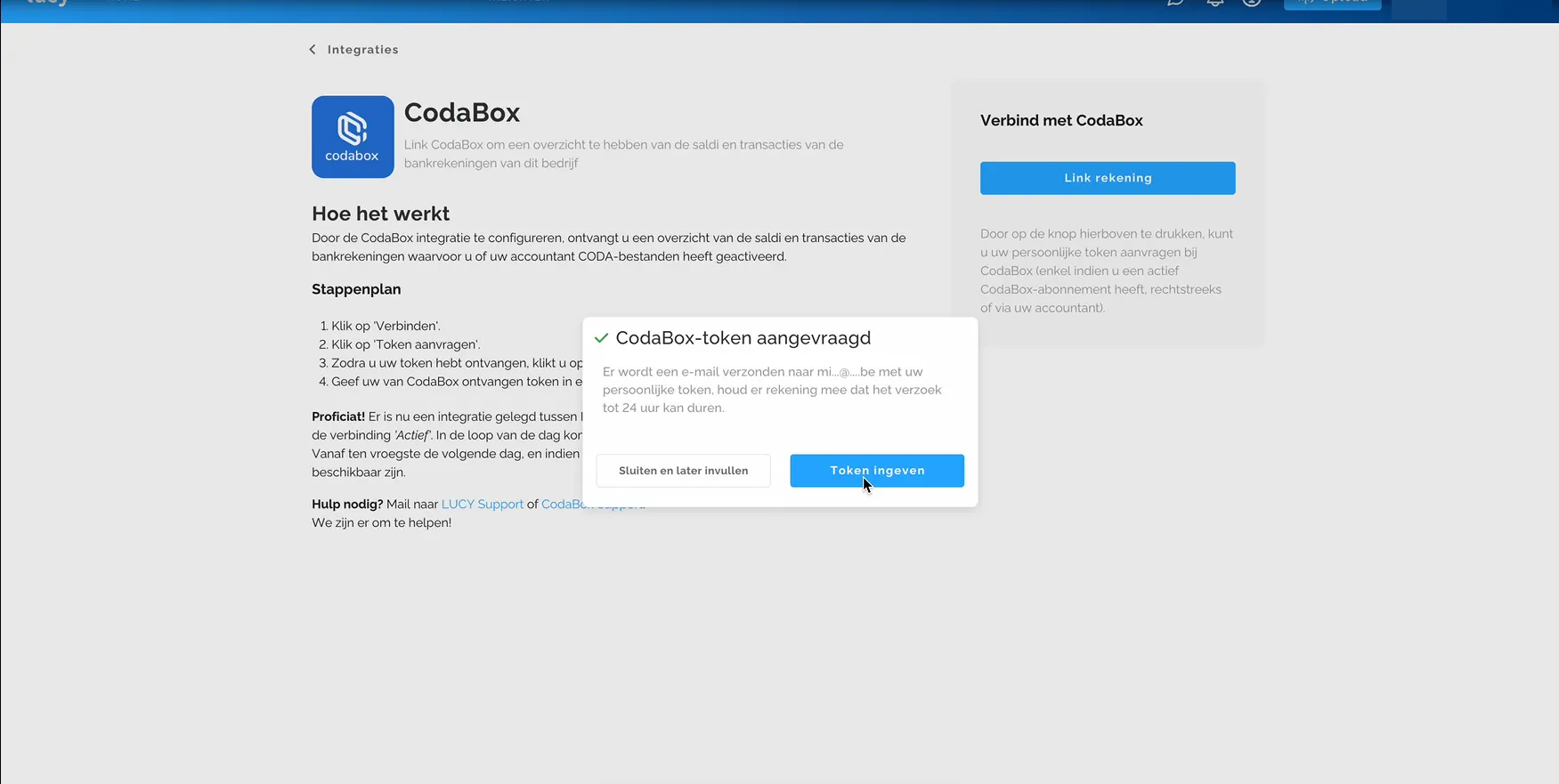
The screen changes, indicating when you requested the token, and you should receive it via email within 24 hours after the request. Important: the email address is truncated, so it is recommended to check with your accountant what email address they entered with the VAT number.
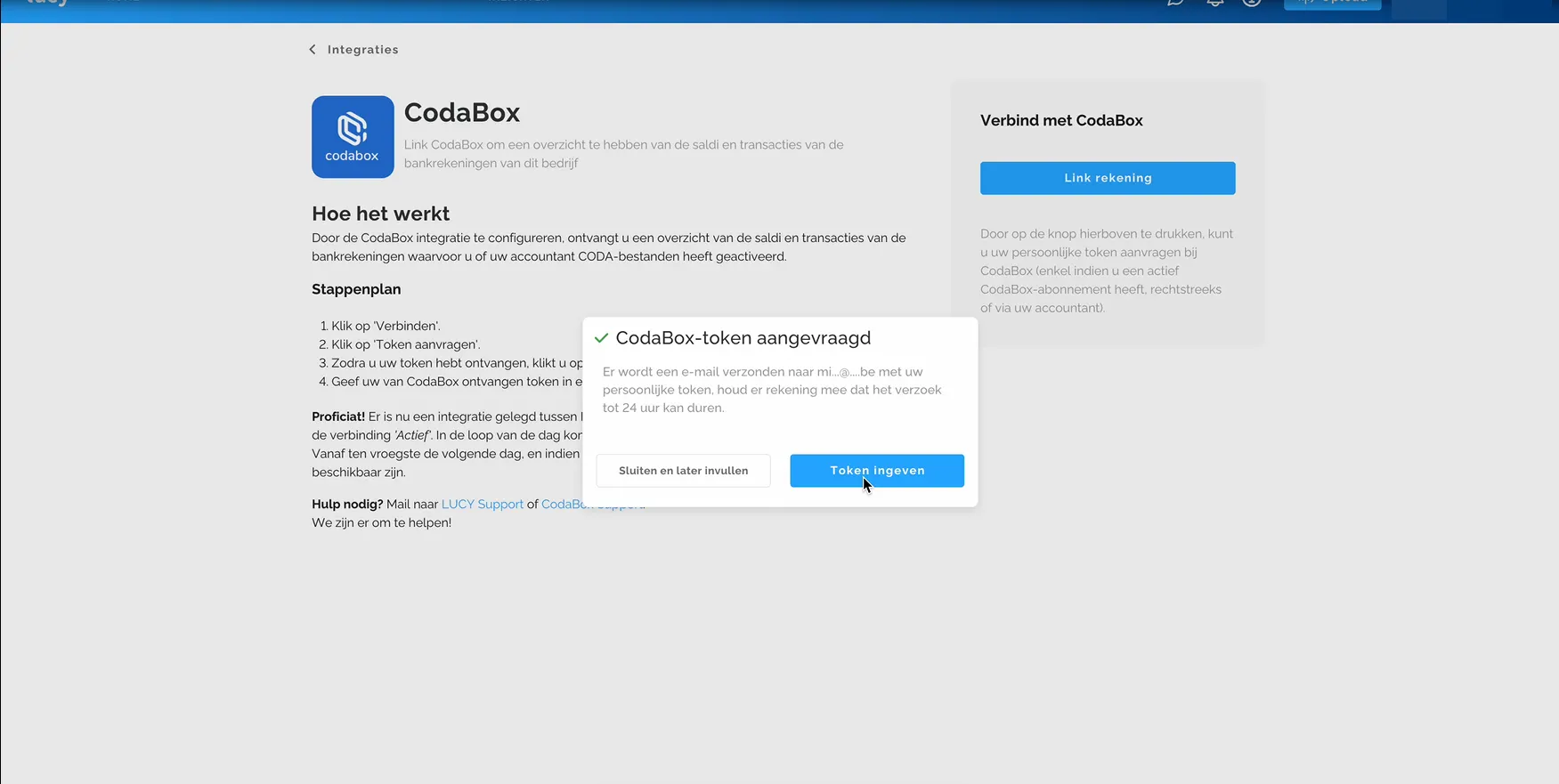
You enter this token in Lucy, click on 'Link account', and your first transactions arrive in Lucy within 48 hours.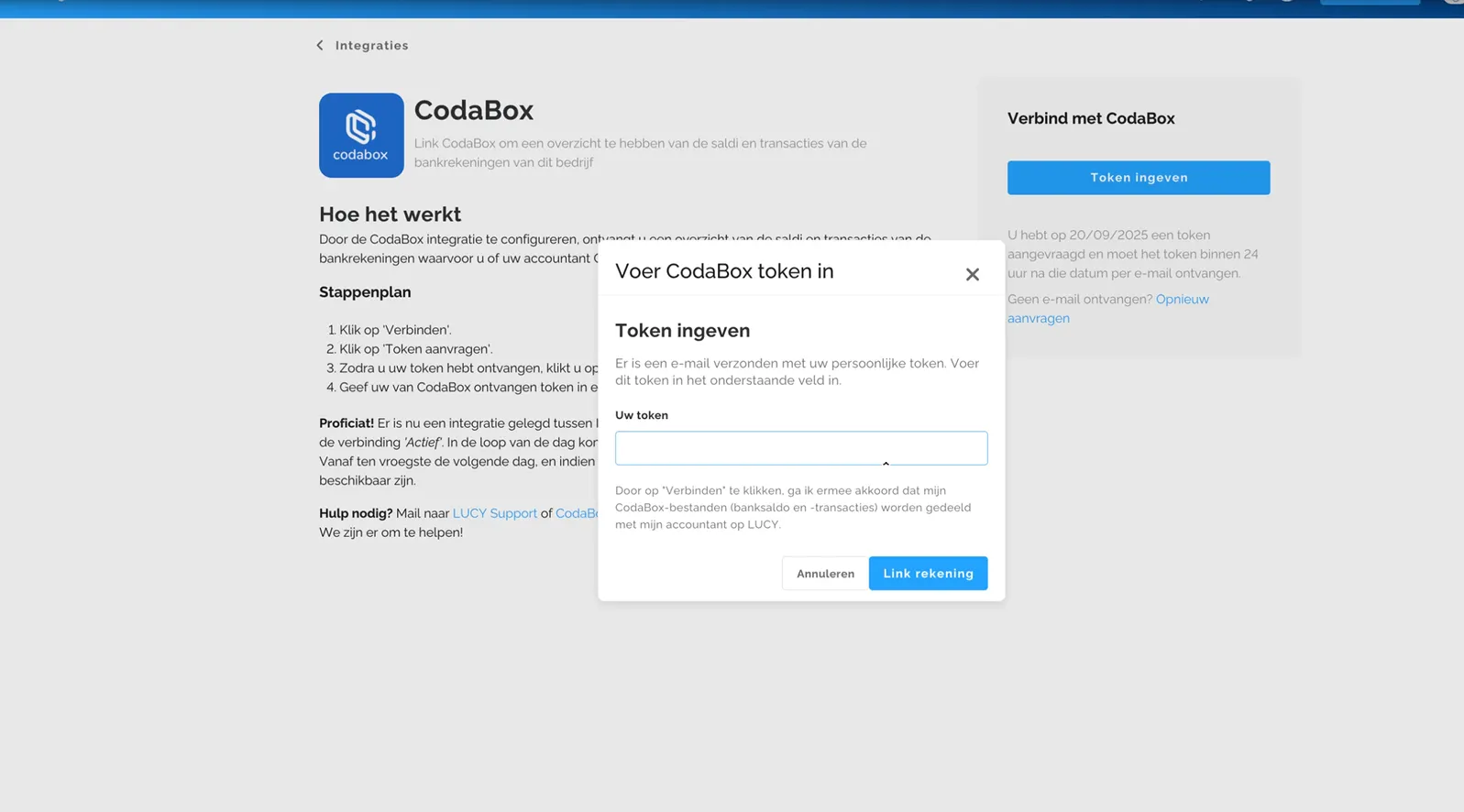
From then on, the status becomes Active.
Please note that transactions are not imported retroactively during the initial link. However, if you disconnect the CodaBox connection in Lucy and then reconnect it later, the transactions will be imported retroactively.
If there is no existing Codabox account linked to the VAT number, Lucy will display the following error message. This means that your accountant does not collaborate with Codabox, and the bank connection will only be possible after establishing a mandate with Codabox.
Changes in your Lucy environment (entrepreneur)
New tiles: Account balances and Missing docs
After establishing the connection with Codabox, two new tiles appear on the dashboard: 'Account balances' and 'Missing docs'. You cannot click on the lines in the Account balances, but you can click on the accounts at the bottom, which will direct you to the specific account without a filter, as under the tab Banking > Accounts. You can click on the legend so that the chart only shows the specific account. Note: The accounts at the bottom are not displayed optimally in the software.
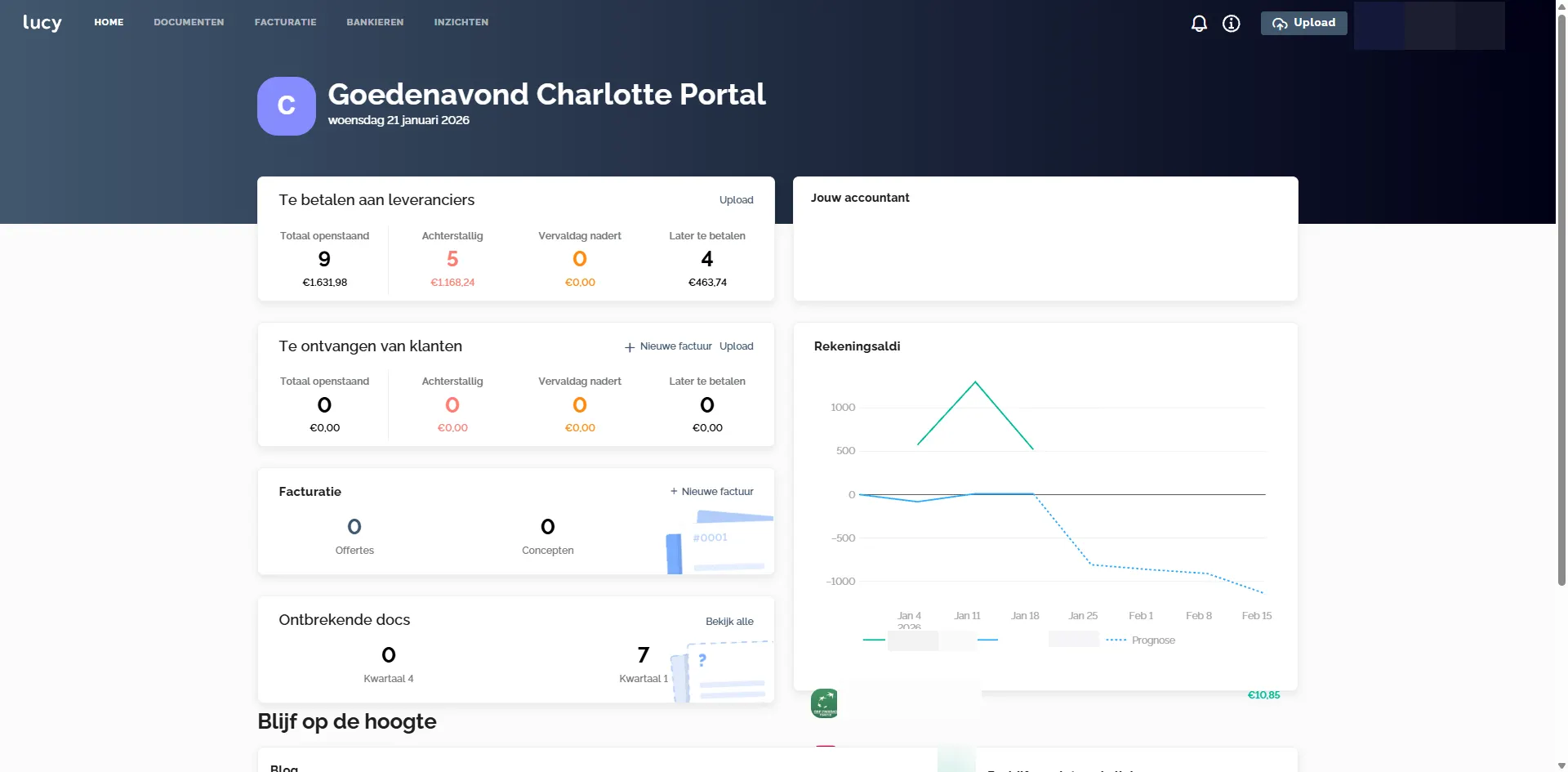
If you click 'View all' on the 'Missing docs', you will be redirected to Banking > Accounts on the primary account with the filter 'Transactions without link'.
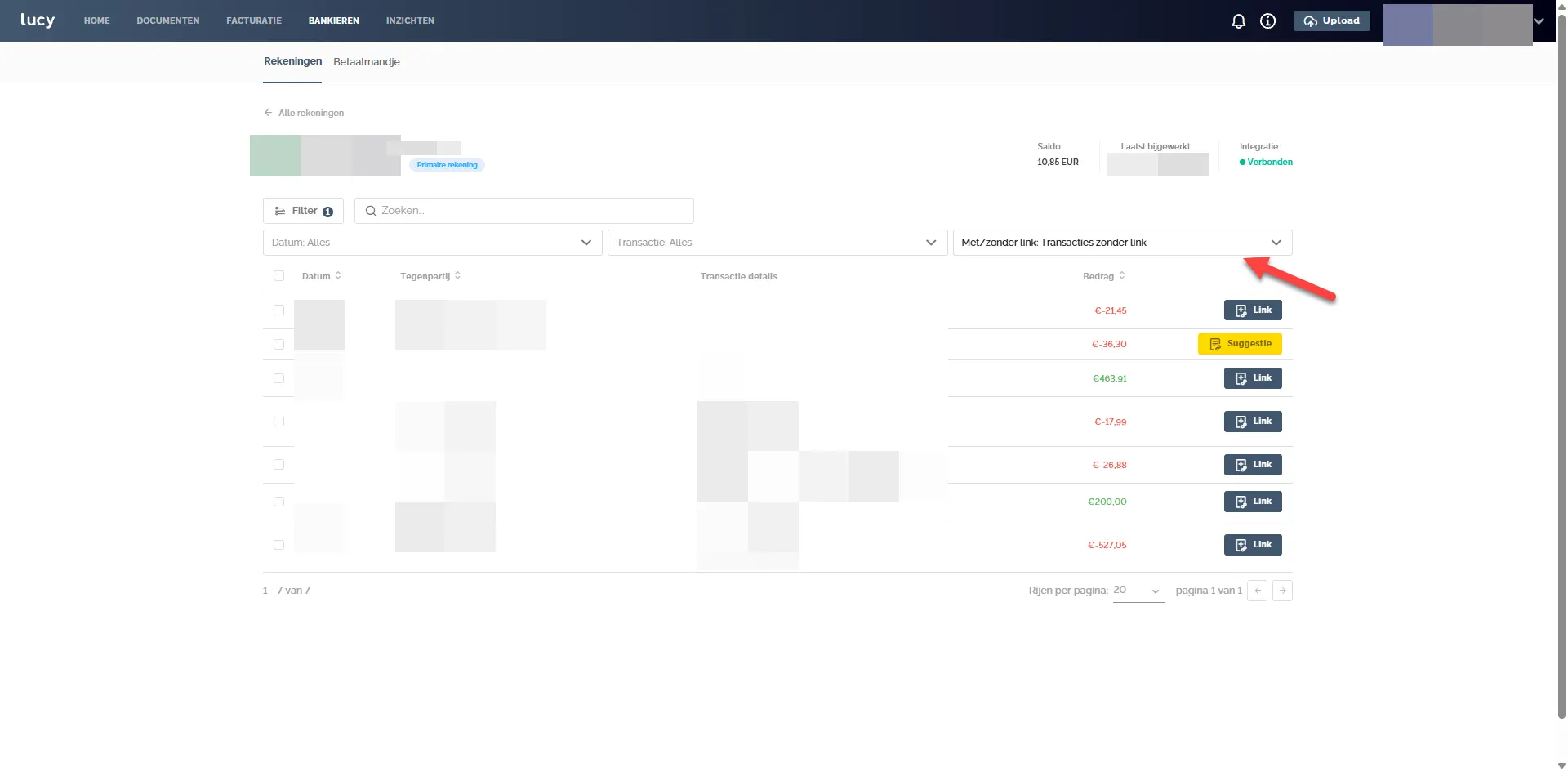
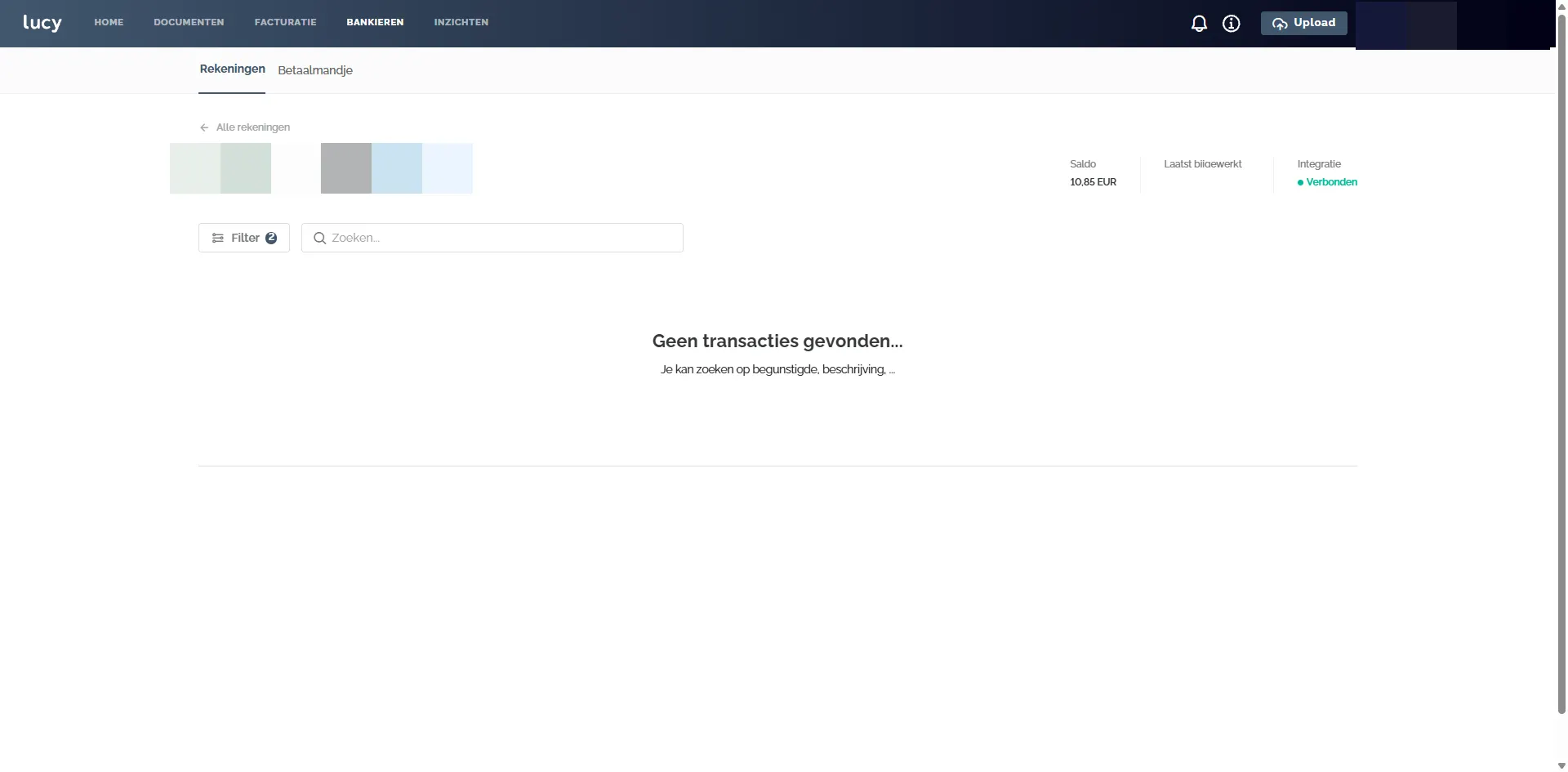
If you click on the 0 in the Missing docs, you are redirected to Banking > Accounts on the primary account with the filter 'the quarter and Transactions without link'. If no transactions are present according to these filters, you get the screen below.
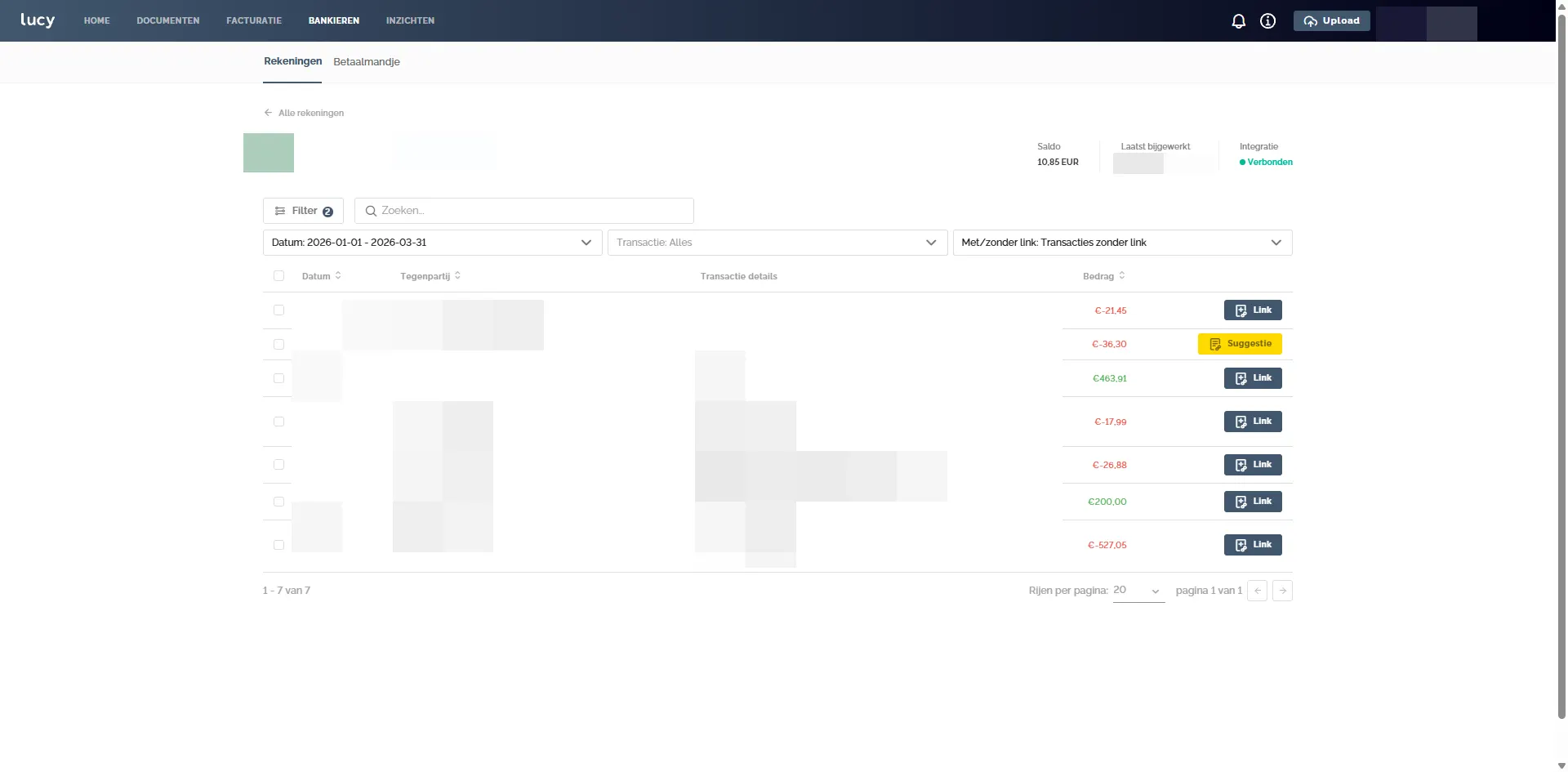
If you click on the 7 in the Missing docs, you are redirected to Banking > Accounts on the primary account with the filter 'the quarter and Transactions without link'.
Tab banking
Under this tab, you can find and use the connected accounts. From here, you can link the transactions to an invoice. When your Codabox integration status is 'Active', it may take up to 48 hours for your bank accounts to appear under 'Banking'.
All users within the dossier have access to the "banking" tab. Currently, it is not possible to
restrict or block access to this functionality for specific users.
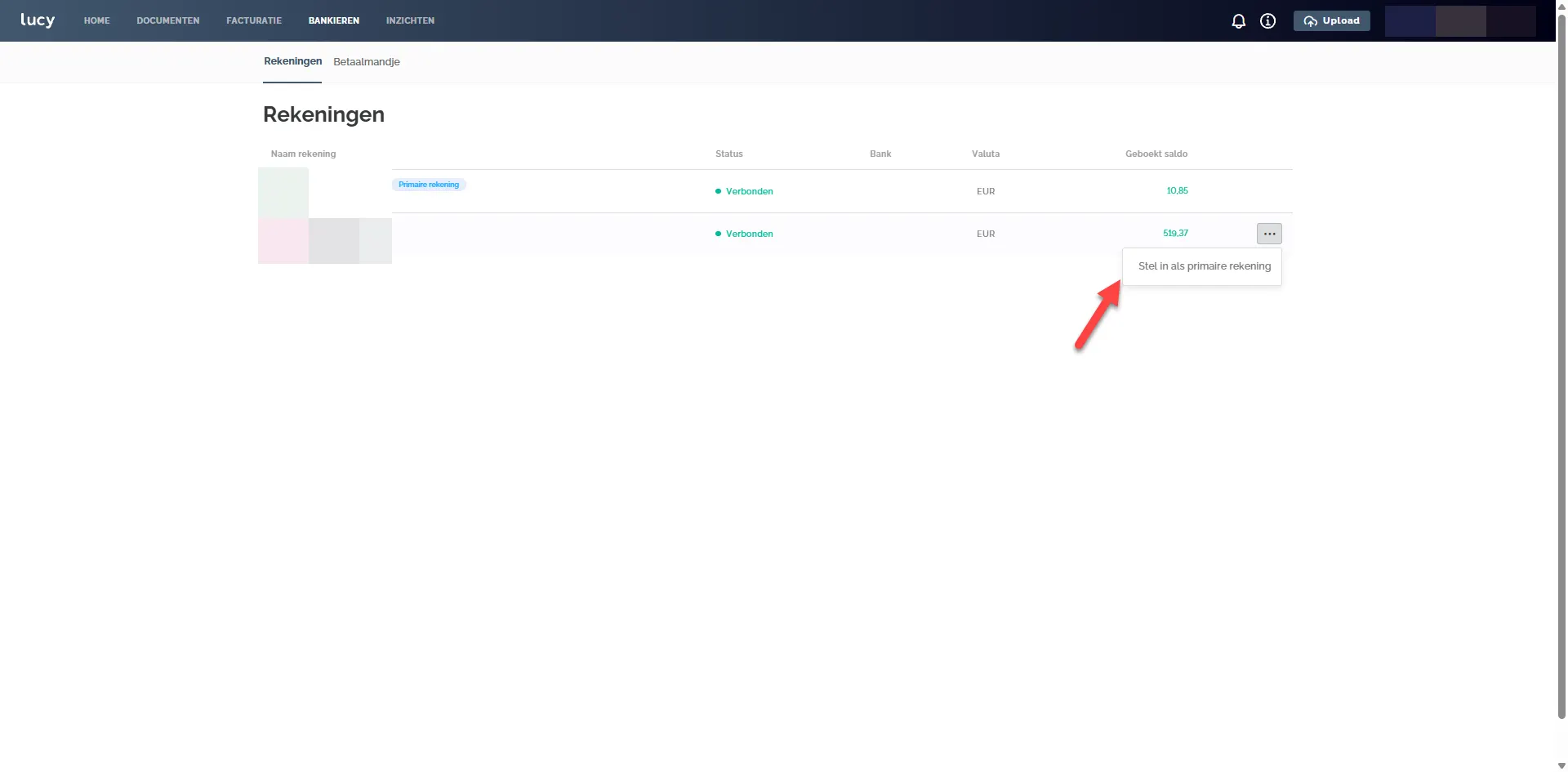
You can also always set the other account as Primary, so that it is displayed first when you click, for example, on the Missing docs tile on the dashboard.
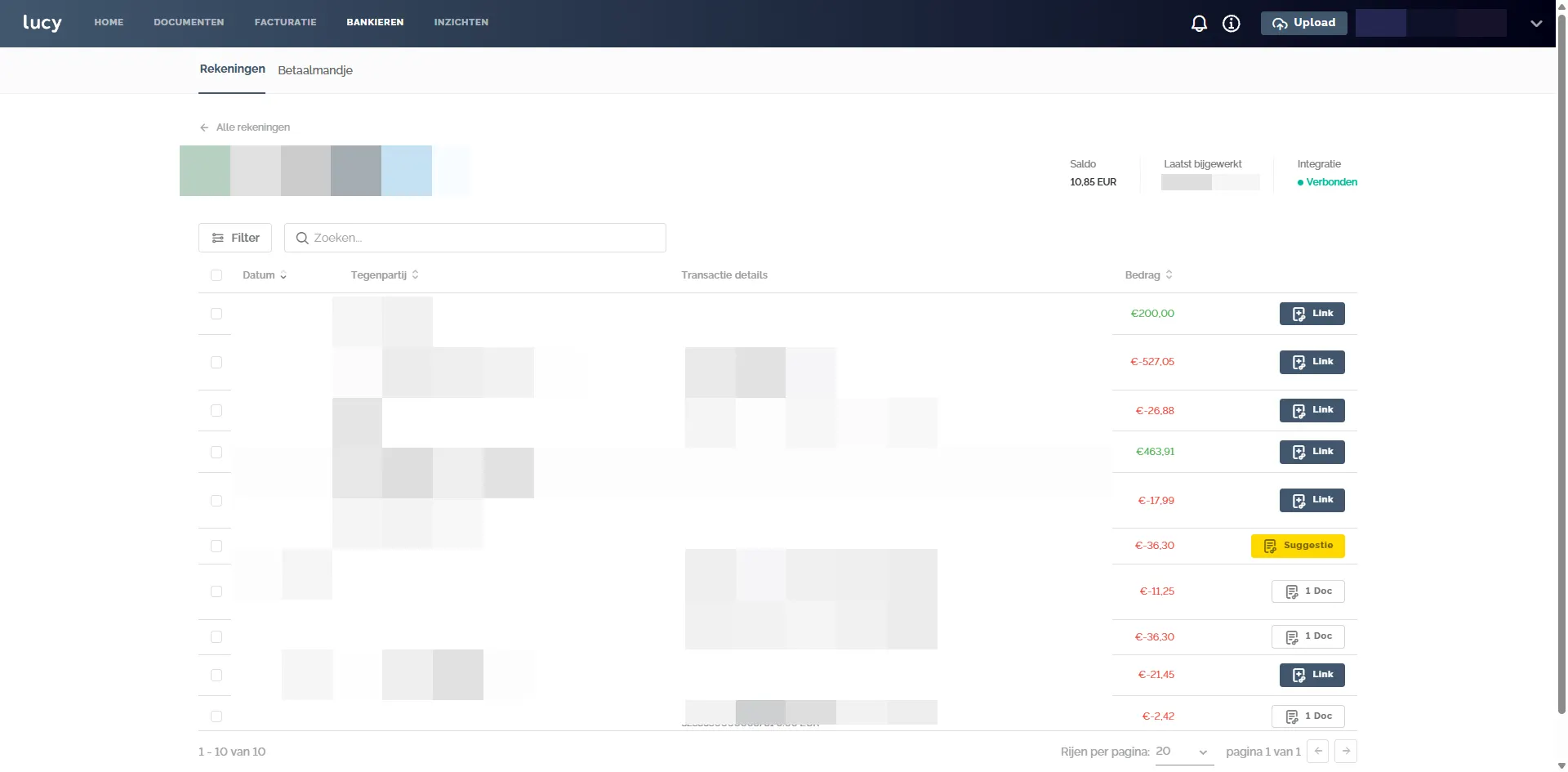
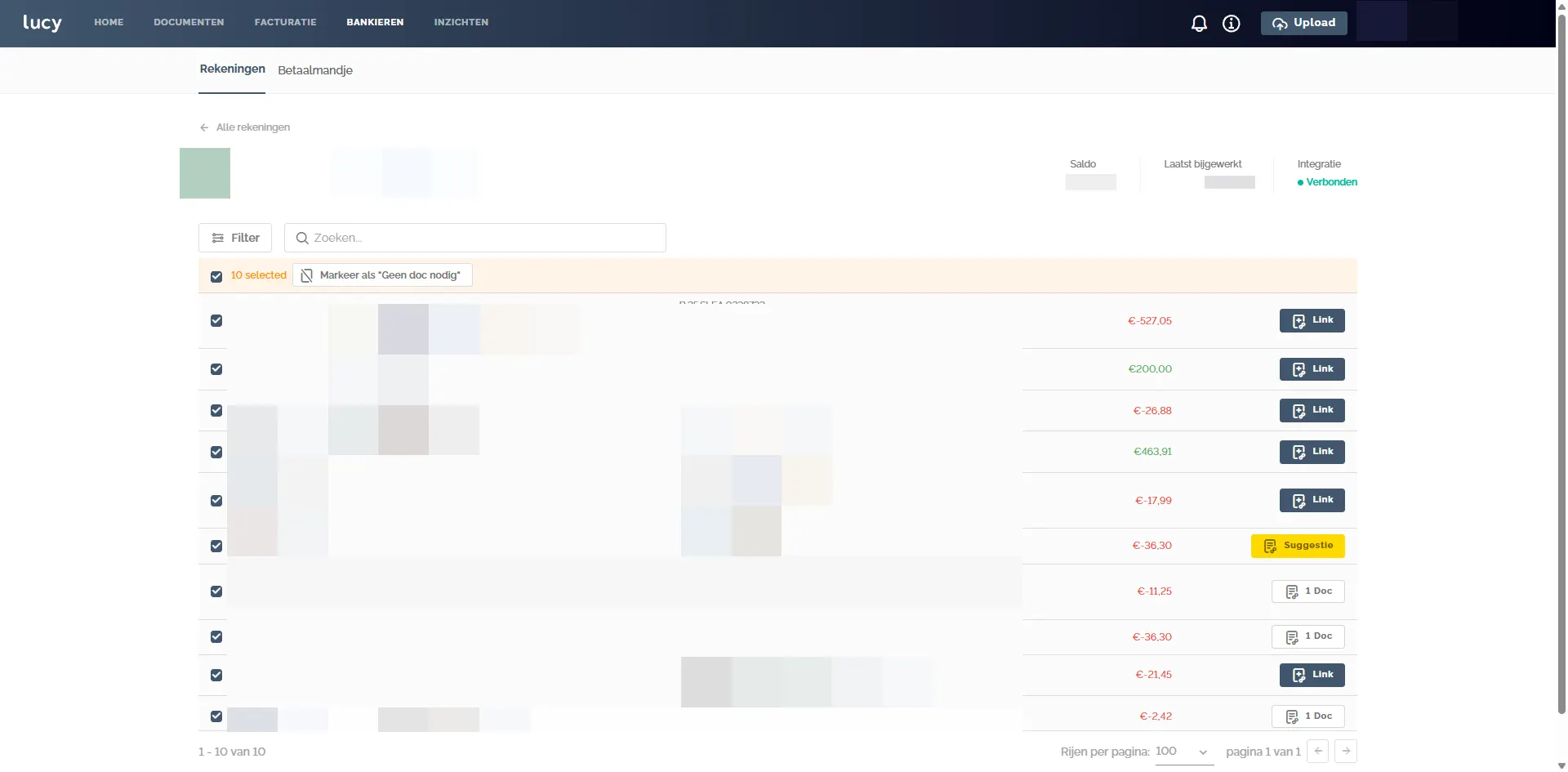
When you open an account, you see an overview of the transactions without a filter. You see here:
- Link: which transactions are not yet linked to a document
- Suggestion: Automatic suggestion to link a document
- 1 Doc: a document is linked to the transaction. Matching occurs 4 times a day when codes are received and continues. The document is also automatically marked as paid.
- No doc: no document is needed for this transaction, indicated by the entrepreneur
The automatic matching is done based on a weighting system where the IBAN number, the date, and the structured message are important.
By clicking on link, you start with this transaction and can see all documents in the Inbox and the Archive, paid or unpaid. From this screen, you can link transactions to documents, causing them to disappear from the Missing docs and marked as Paid.
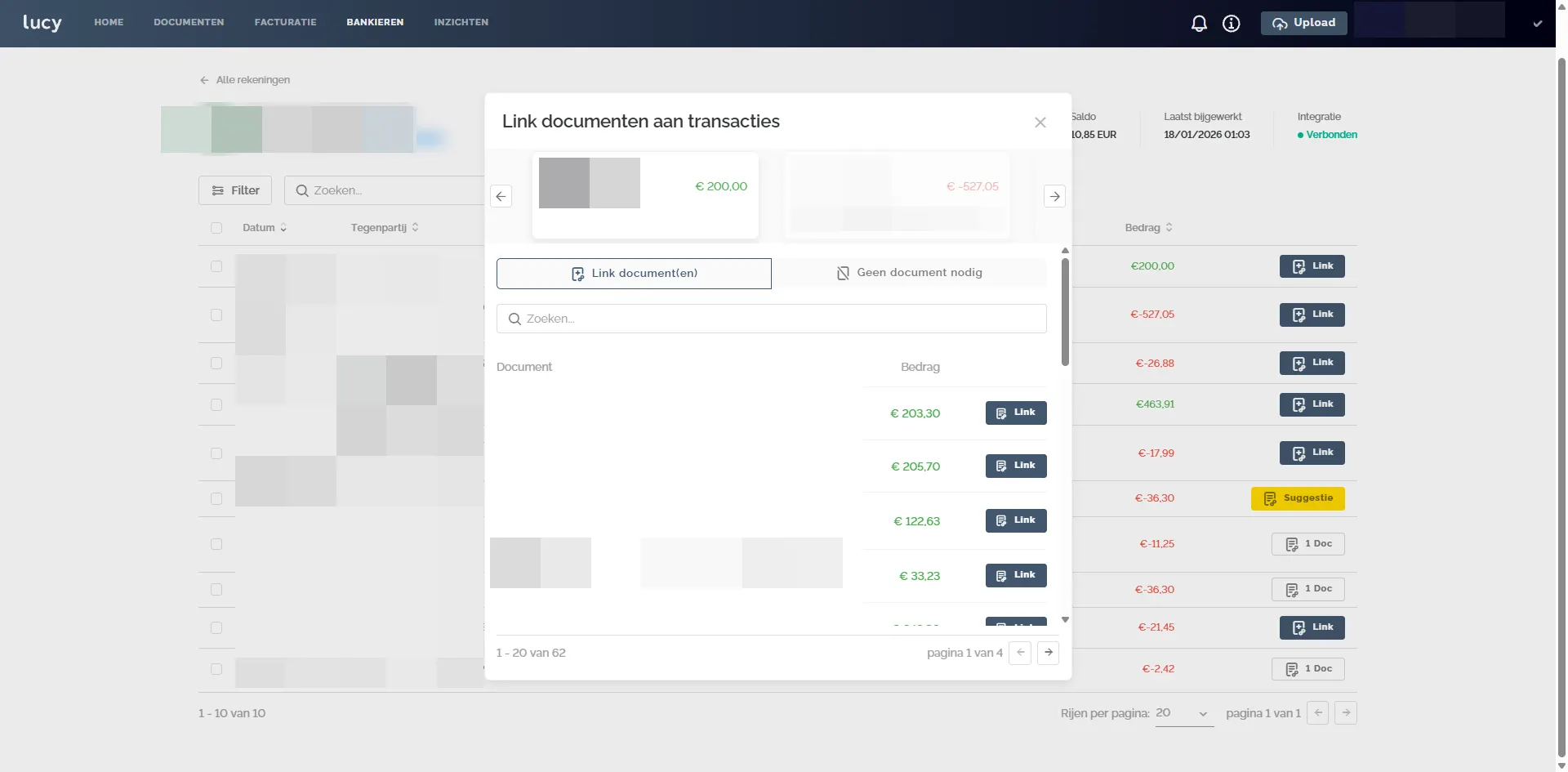
If a transaction is linked, this is also displayed in the overview. From there, you can also detach again.
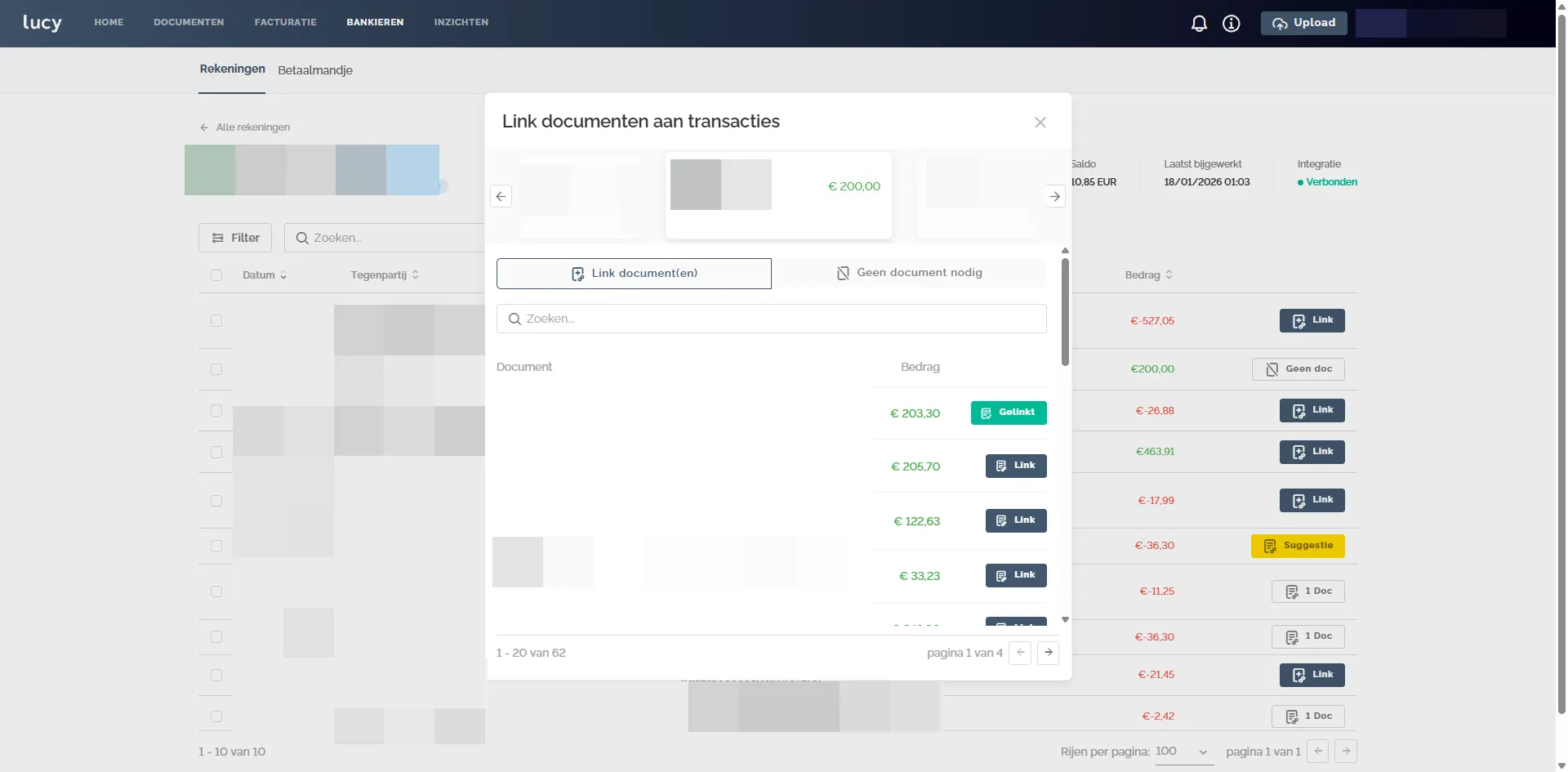
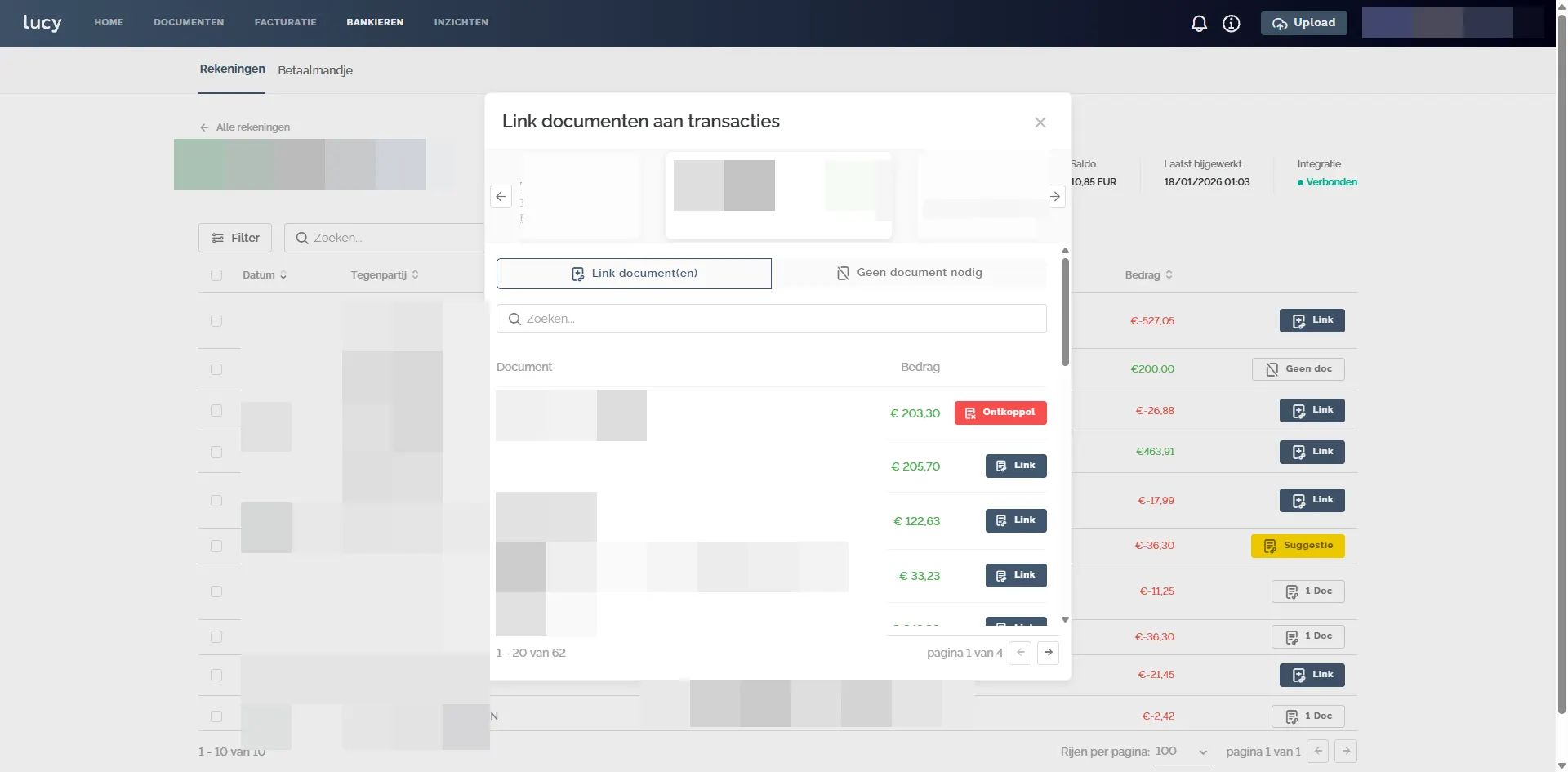
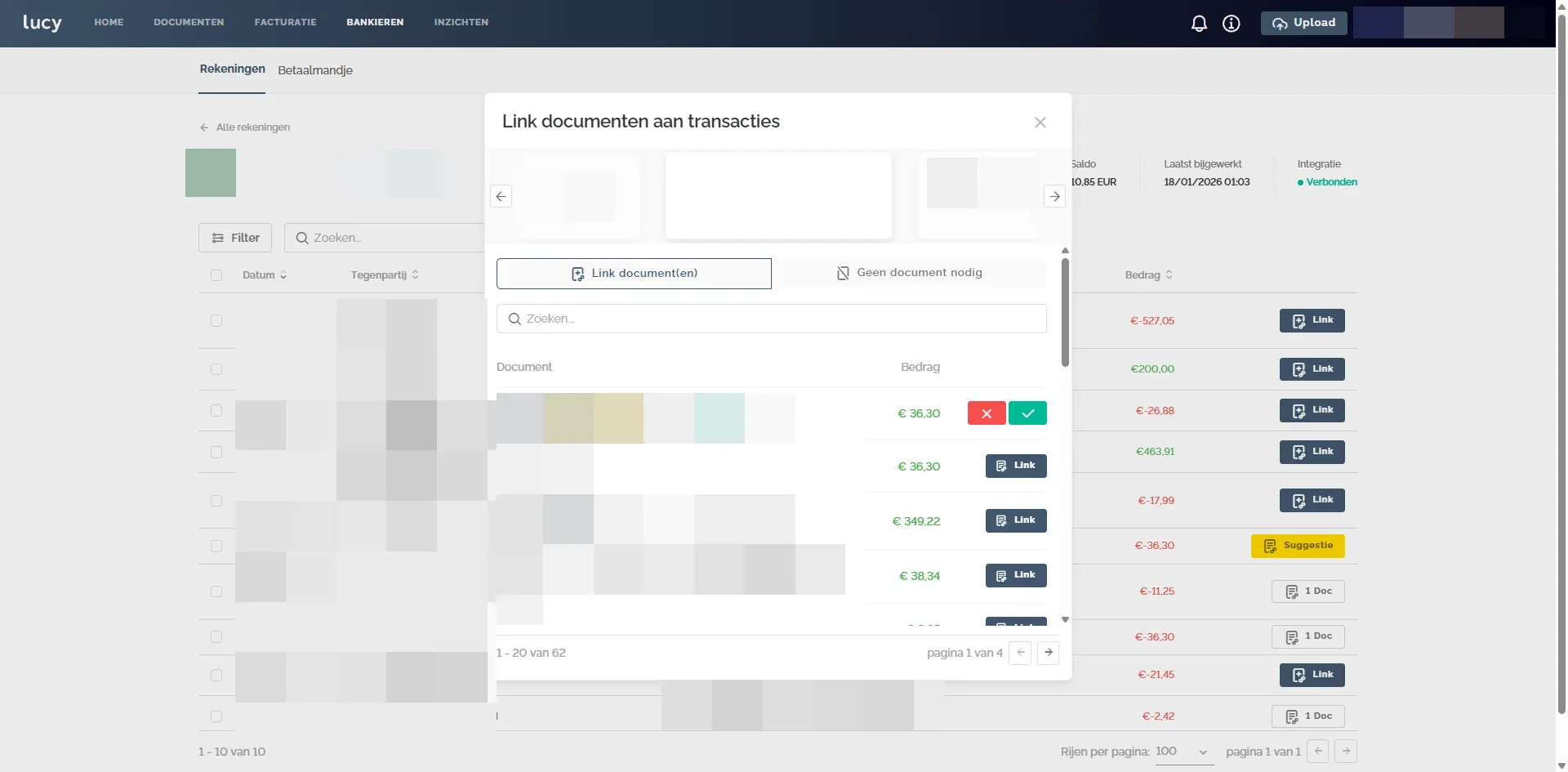
In the case of a suggestion, you have the option to accept or reject the suggestion.
From the overview, you can also mark transactions in bulk as No doc needed.
Inbox
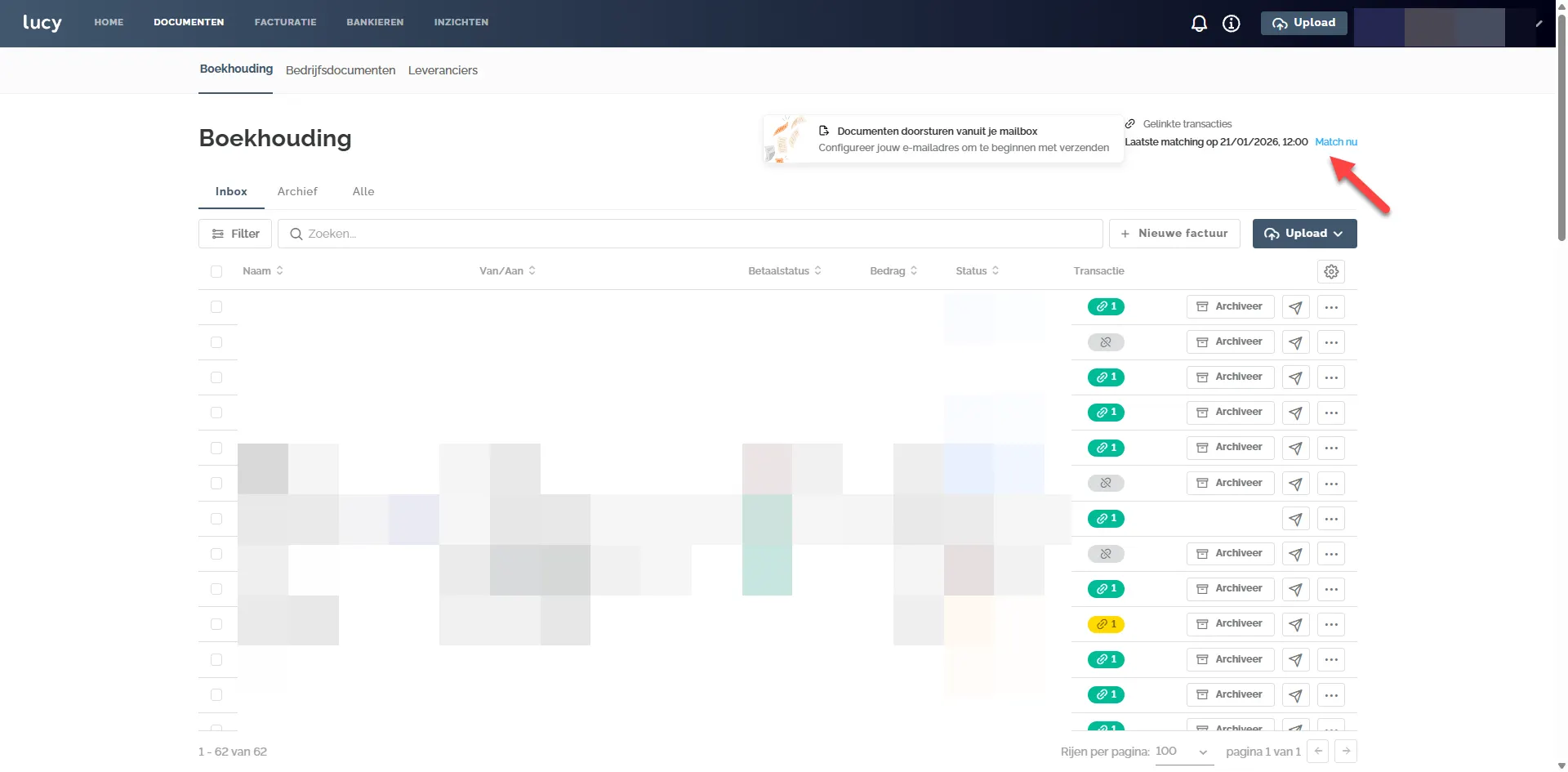
When the Codabox connection is activated, something new appears on the Inbox page. At the top right, you can now see when the last matching occurred, and you have the option to manually trigger the matching. By default, imported transactions are automatically matched with available documents 4 times a day every 6 hours based on the weighting system. 'Match now' manually executes a run.
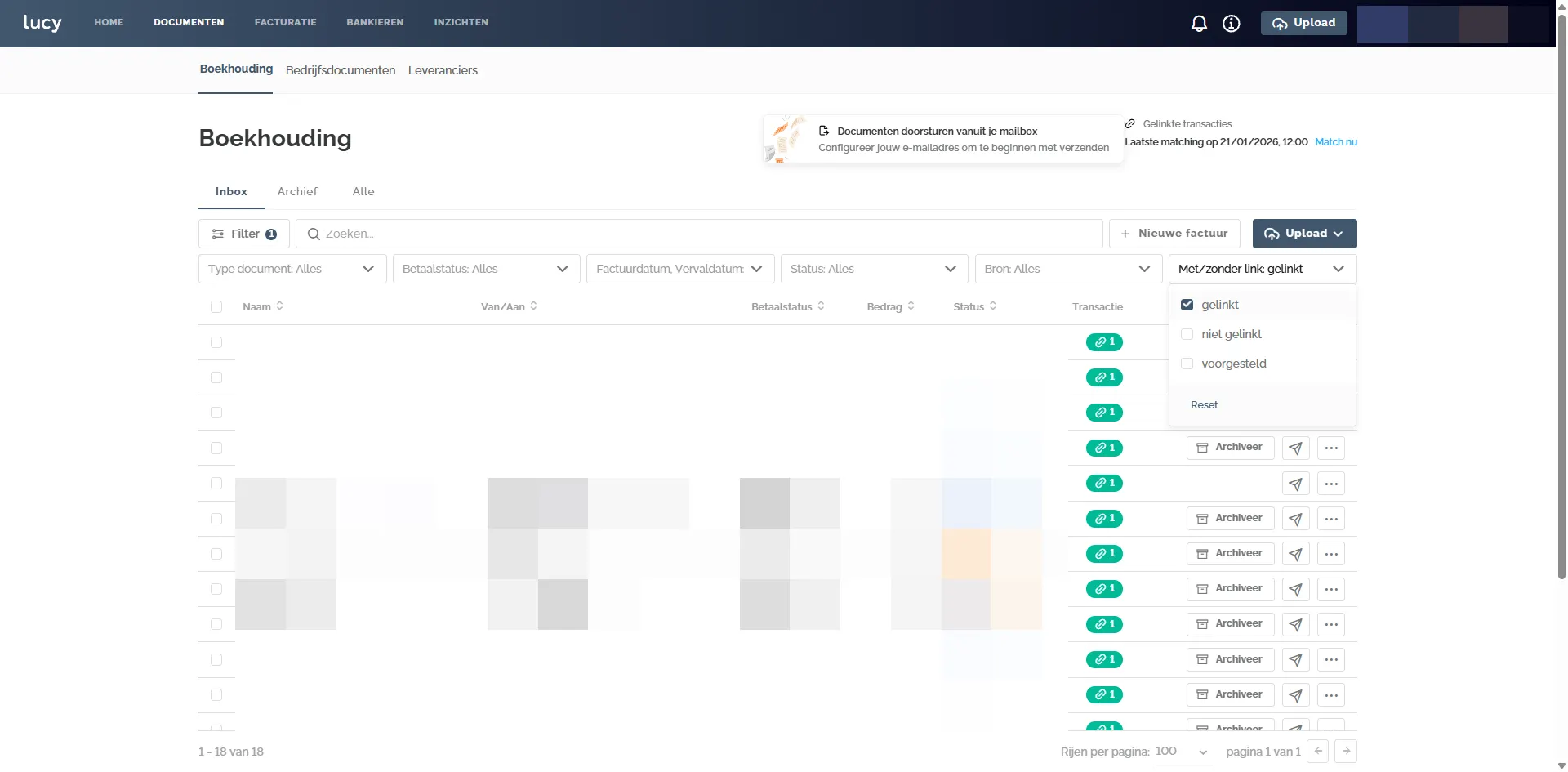
In the Inbox, you can immediately see which documents are already linked and which are not. You also have the option to filter by Linked, unlinked, or suggested transactions.
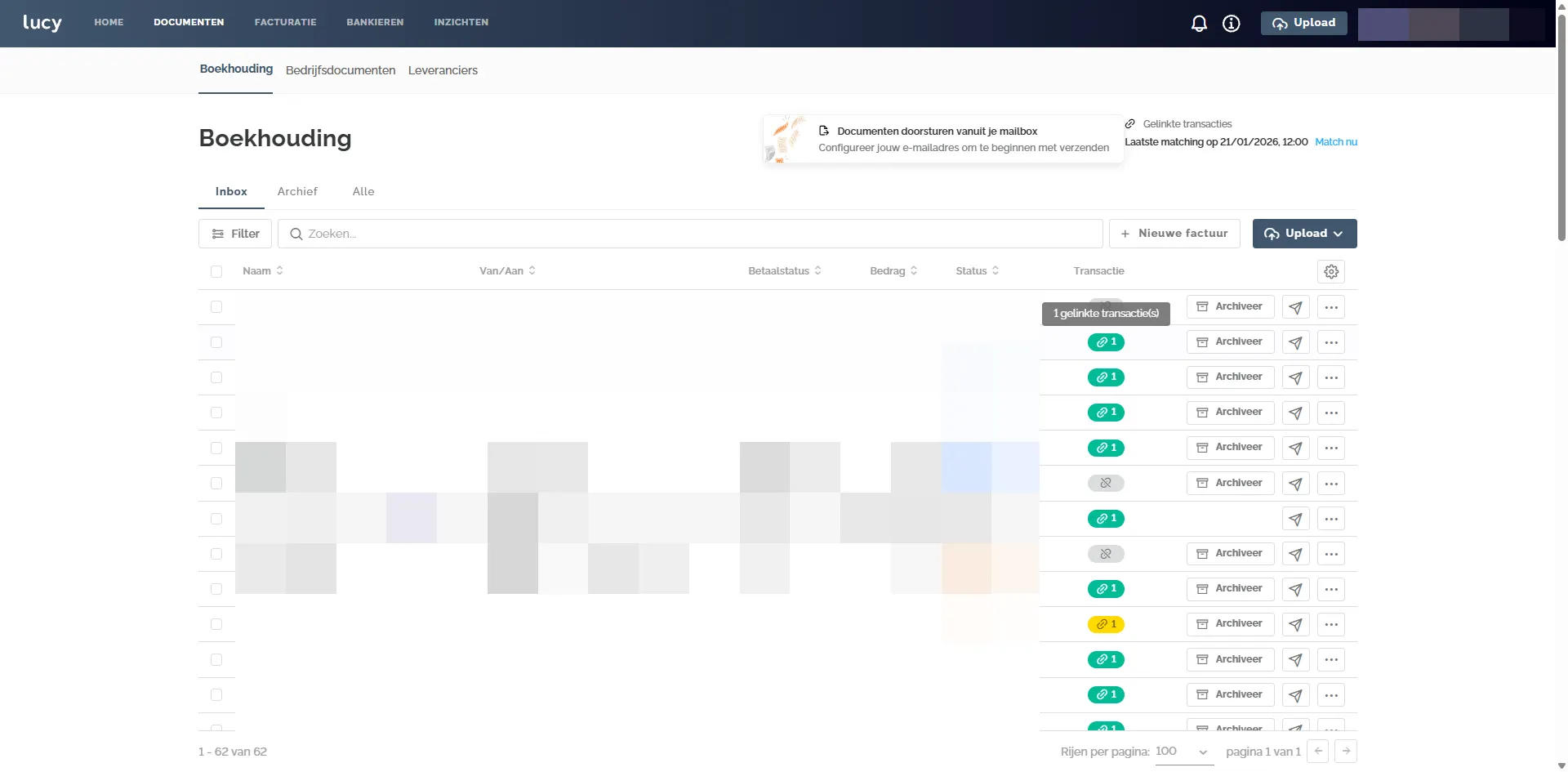
By clicking here, you can see the linked payment and consult it.
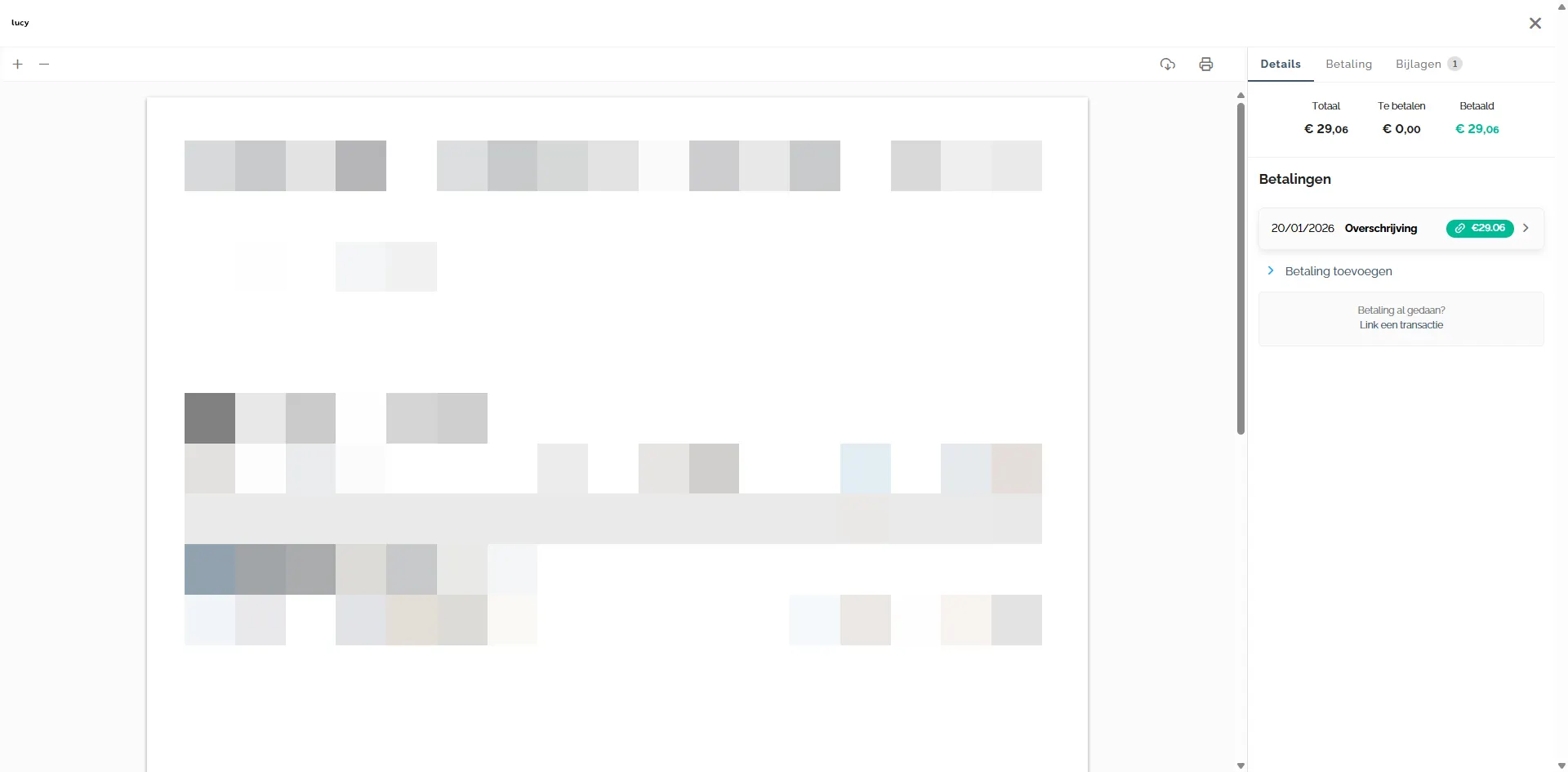
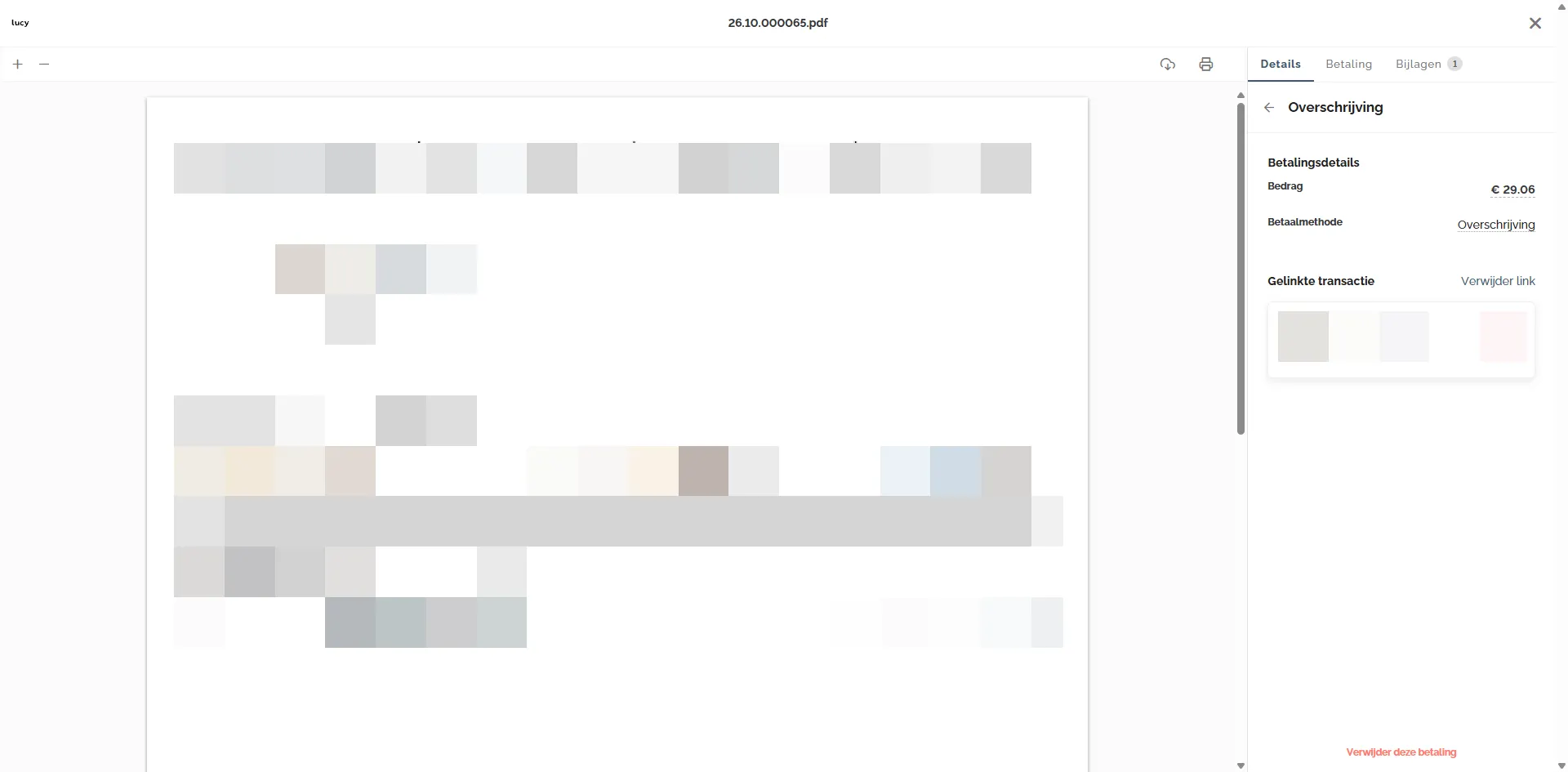
Besides consulting, you have 2 options here:
- Remove link: you delete the linked transaction, but the invoice remains marked as paid.
- Remove payment: you delete the entire payment, and the invoice is marked as unpaid again.
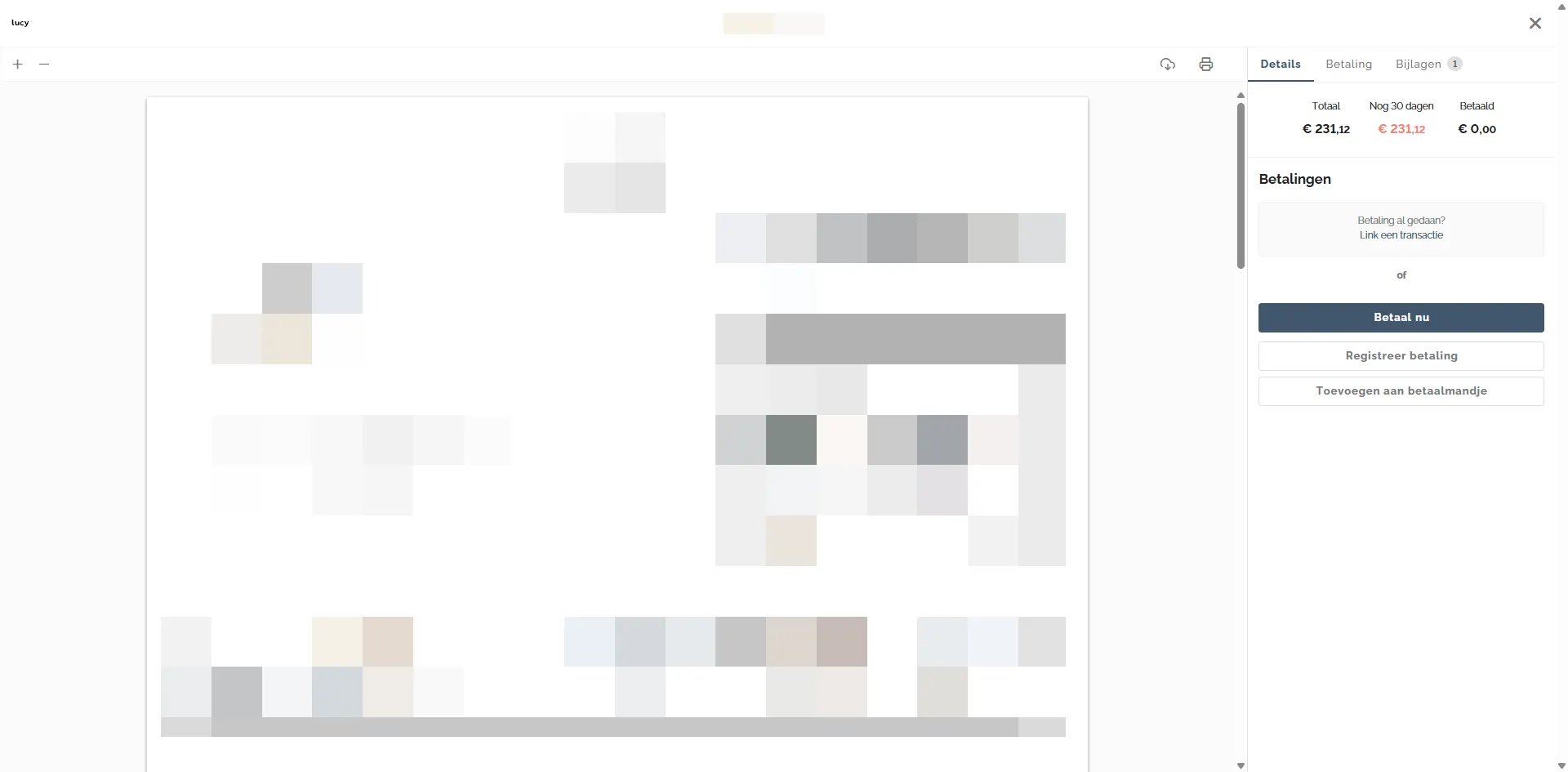
If no linked transaction is yet present, the payment options appear.
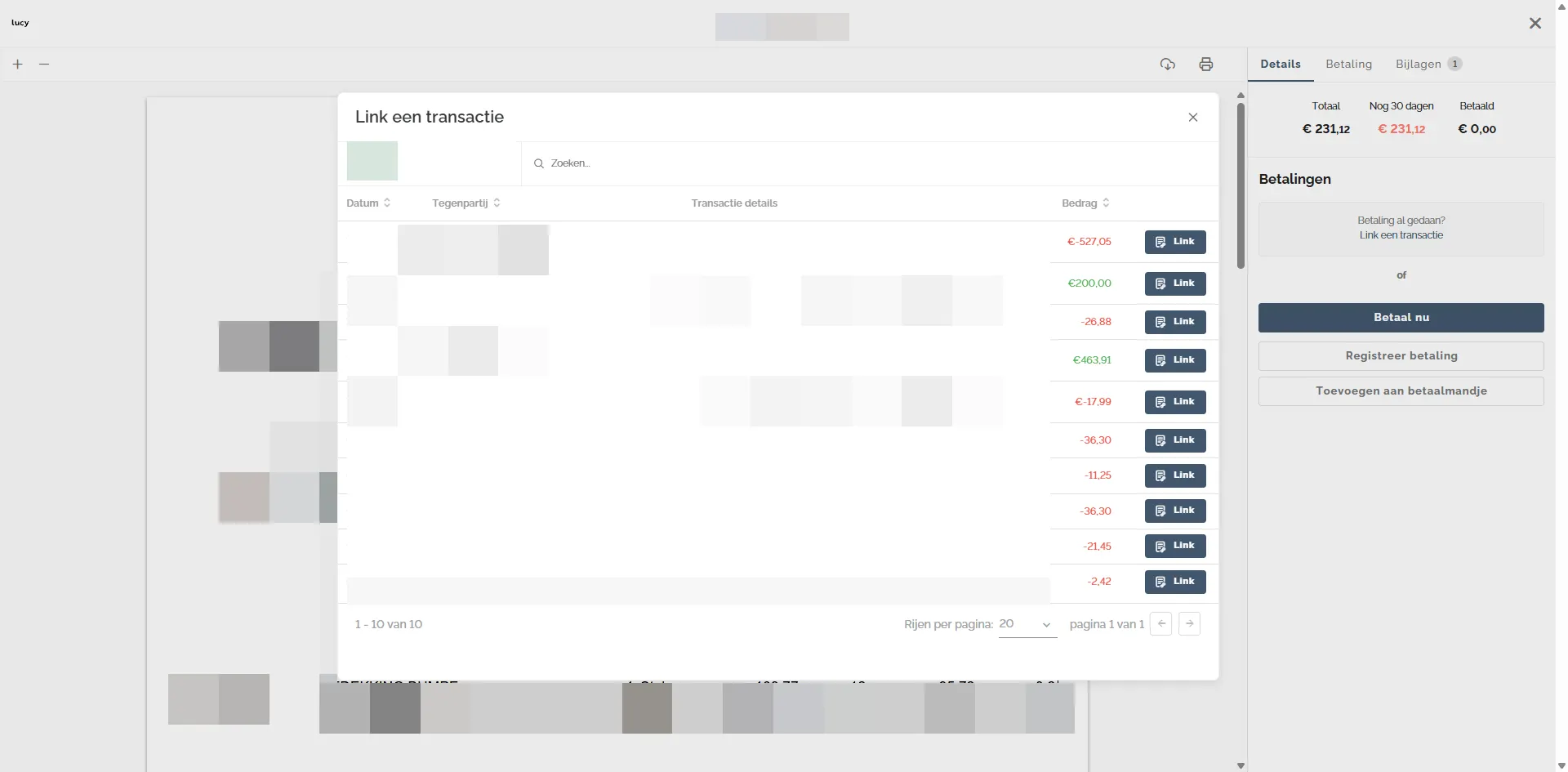
If you click on Link a transaction, the screen below appears. The logic follows the same as described under Tab > Banking.
Changes in your Lucy environment (accountant)
View at portal level for the entrepreneur whose bank is connected
View of which invoices have a linked transaction:
Green: means a linked transaction is present,
Yellow: means an automatic suggestion was made to link a transaction from the software
Gray: means no suggestion or linked transaction is available.
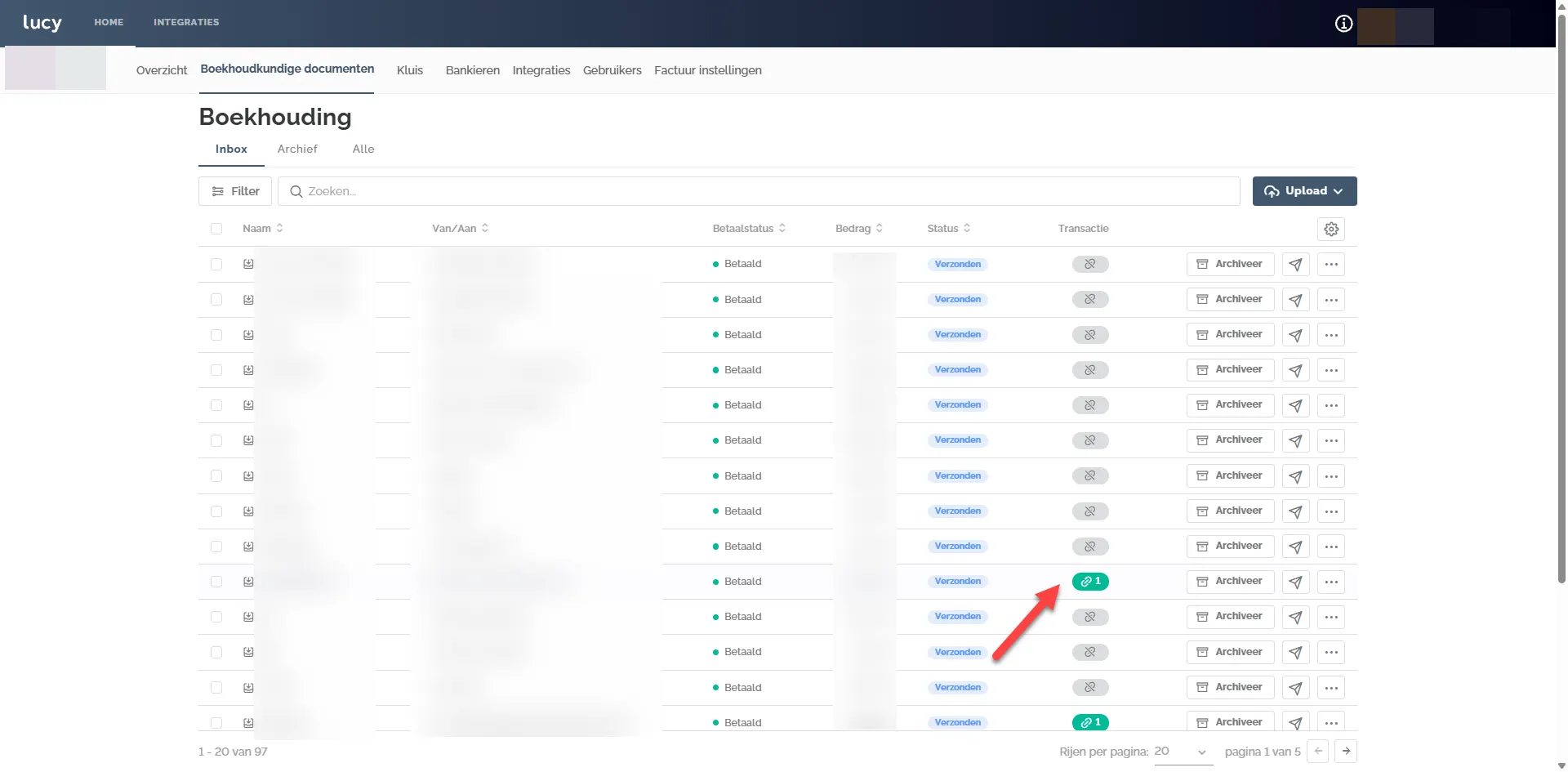
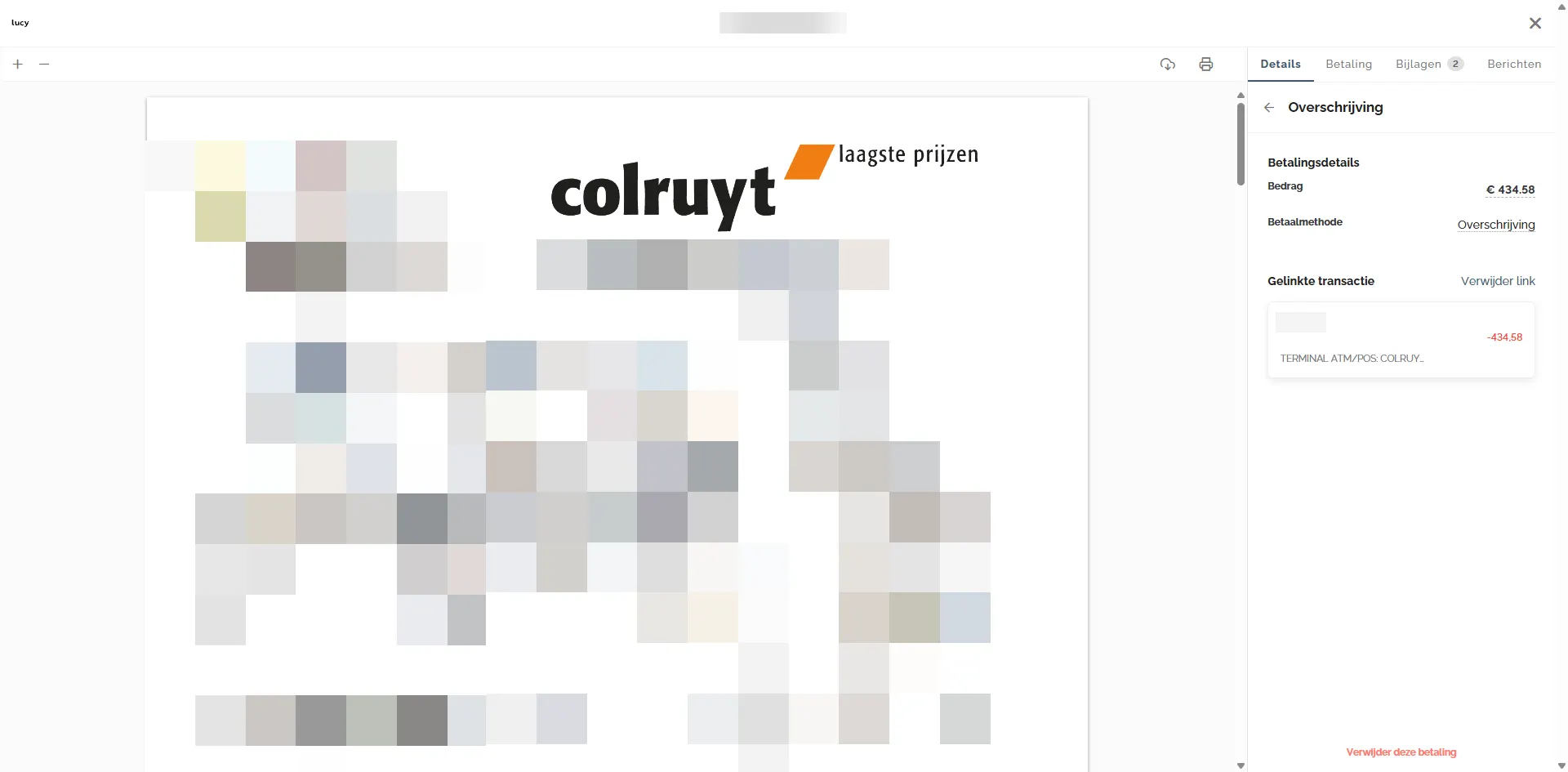
And the ability to click on the green button to review the underlying transaction. Here we also sometimes see that the alignment is not always 100% correct.
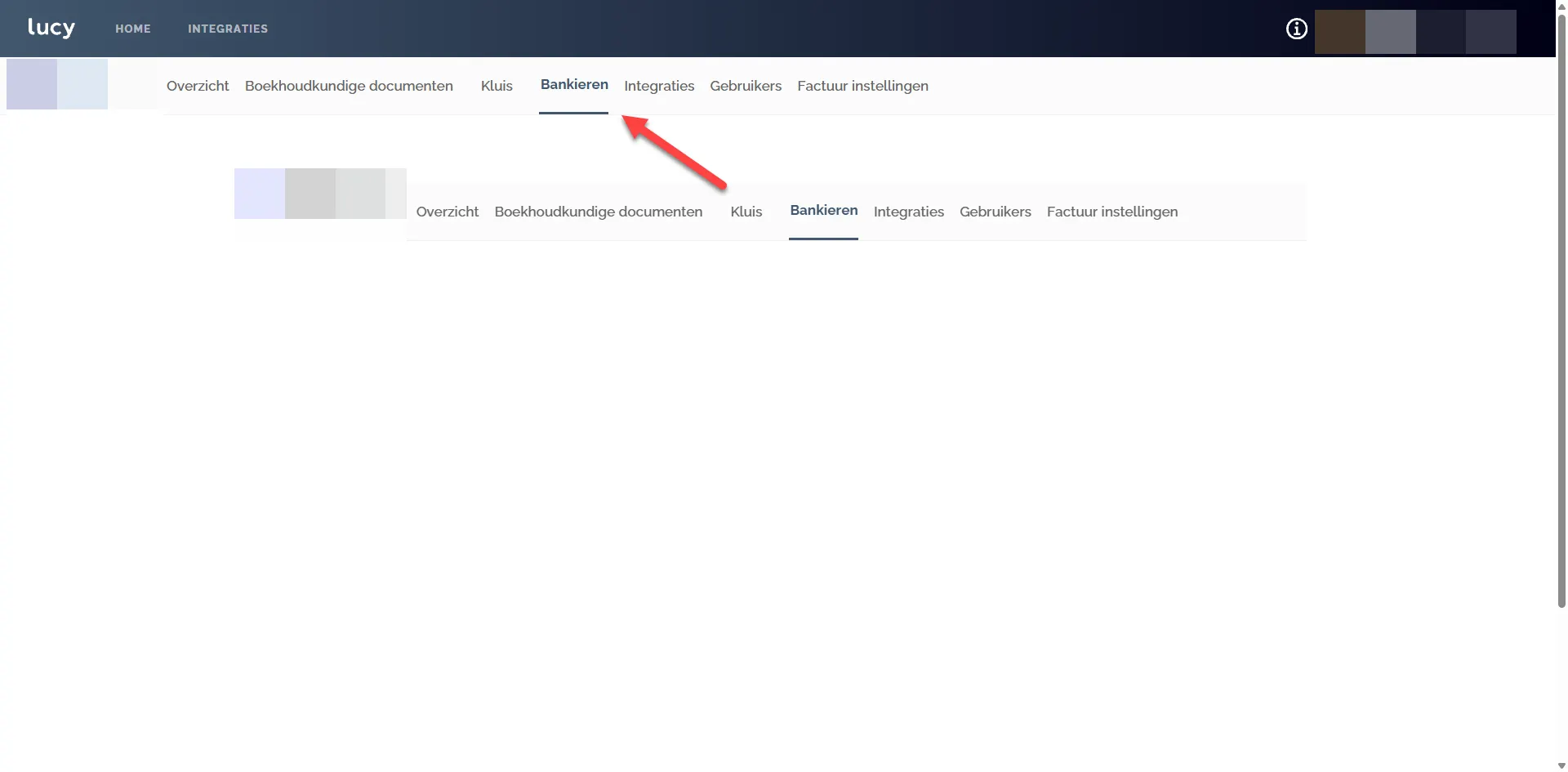
Tab Banking at portal level does not work 100% yet. Sometimes you see the image below, sometimes the bank account is displayed cleanly. As an accountant, you cannot click on the bank account to see the transactions.
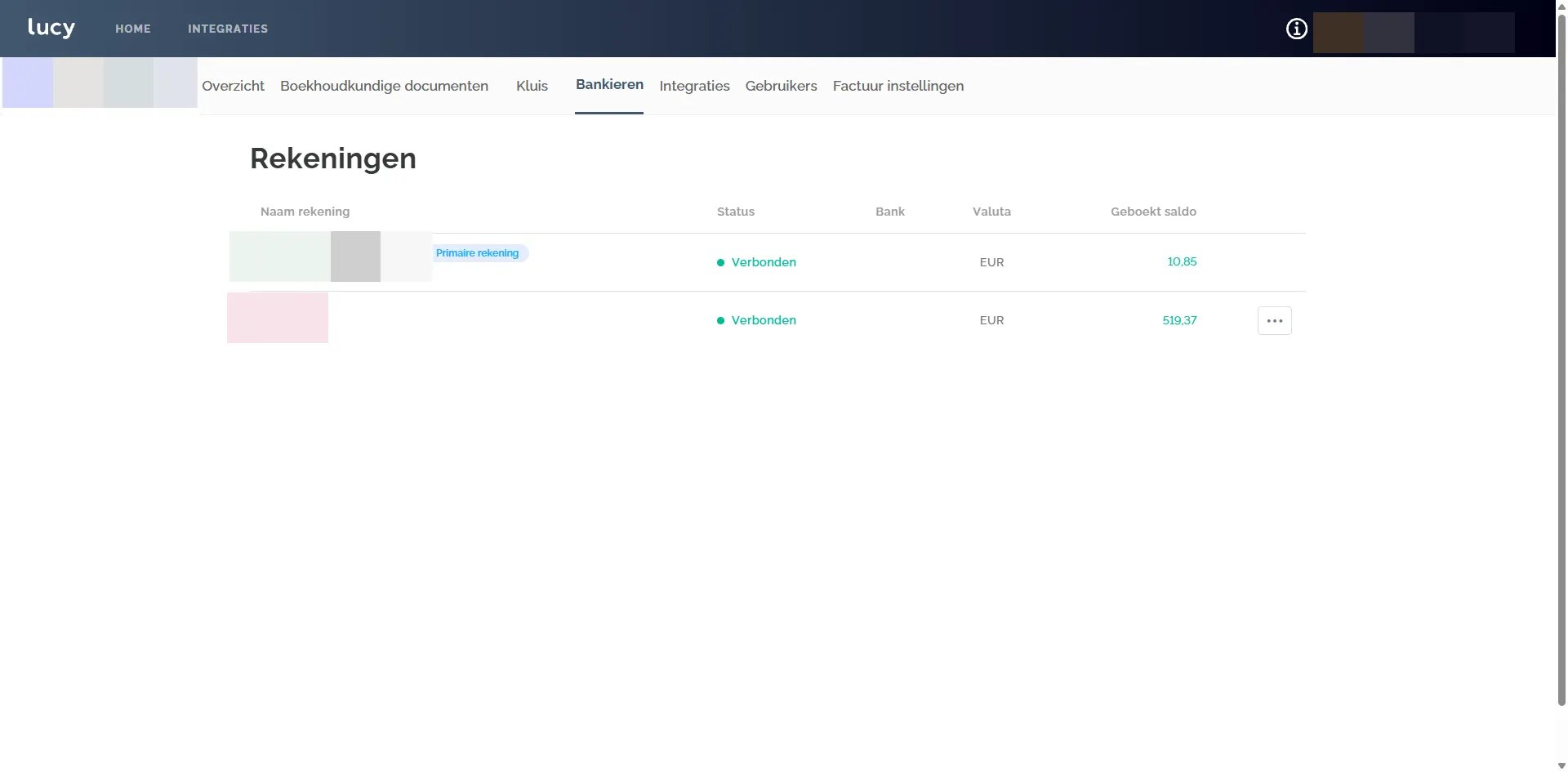
View at portal level for the entrepreneur whose bank is not connected
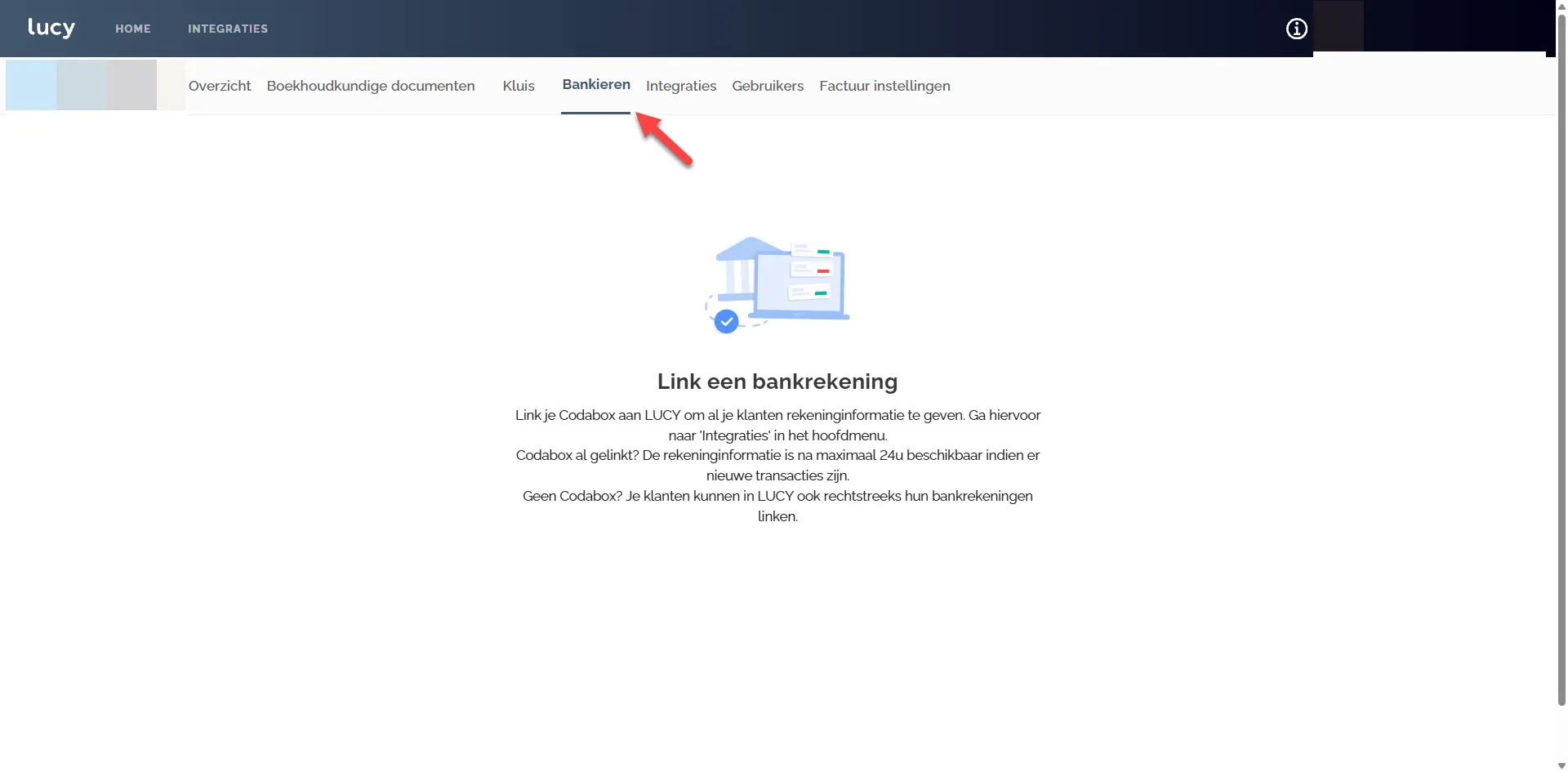
If no bank link has been established by the entrepreneur, you will see the screen below in the Banking tab.
FAQ
Can my accountant also establish the connection?
Your accountant cannot establish the connection because this is an entrepreneur's functionality. This connection has no impact on accounting; it's solely intended to provide entrepreneurs with a clear perspective on the completeness of their administration.µ
How do I know which email address is known by Codabox?
Often it's the accountant who provides this when finalizing the mandate with Codabox. It's best to check this with your accountant.
Can you set a rule for daily receipts so they never appear in missing invoices again?
This is not possible. However, you can designate in bulk that they don't need a document.
As an accountant, can you see in your overview which entrepreneurs have a bank connection?
No, this is not possible. You must click on the company itself and navigate to the Banking page for this.
Can you link a transaction that is not the full amount?
Yes, you can. The remaining amount can then be manually marked as paid.
How can I establish a bank connection without a mandate with Codabox?
Currently, Lucy does not offer a connection with other parties (Ponto, Isabel Connect, Codaclear, etc.), and it is not possible to upload downloaded Coda files. This is currently not planned.
Can I, as an entrepreneur, arrange a mandate with Codabox myself if my accountant does not work with them?
Yes, entrepreneurs can directly arrange a mandate with Codabox. However, the costs are relatively higher for entrepreneurs. For more information, you can contact Codabox.
Can I restrict access to the linked accounts for other users?
No, this is not possible at this moment. We are exploring ways to address this in the software.
What should I select under "Software Distributor" in step 3 (Registering the environment) of my CodaBox registration?
The option you choose depends on how you want to receive your bank data:
- Are you already using accounting software linked to CodaBox? Select your accounting software as the distributor. The CODA files will then be automatically sent to both your accounting software and Lucy. Lucy does not charge any extra fees for this.
- Do you only want to establish the link via Lucy? You can then choose Lucy or the option no distributor.