VISMA .NET said:
Through the dashboard, you can view an overview of all the customers you have created and have the option to add new customers.
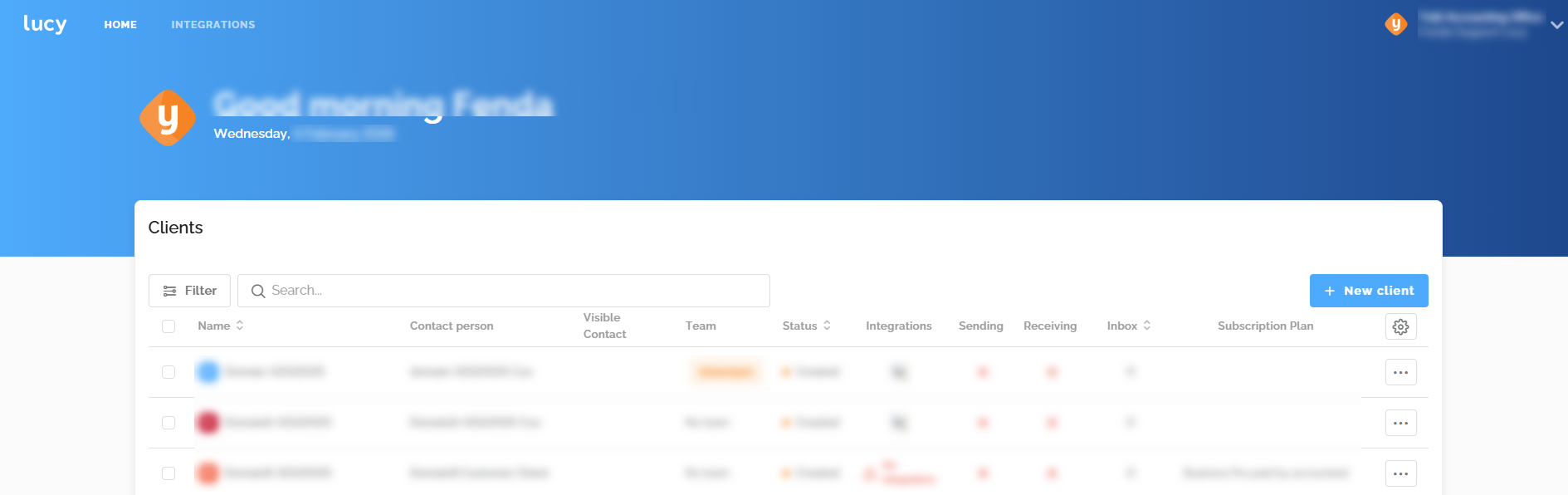
For each customer, you can see the following information:
- The contact person from the accounting firm
- The assigned team
- Status: Created, Invited, or Active
- The active integrations
- Whether sending or receiving via Peppol is enabled
- The number of documents in the Inbox (that have not yet been sent to the accounting software)
- The selected subscription plan
- The end date of the trial period
You can click on each client to view the following tabs, which will be explained further below:
Overview
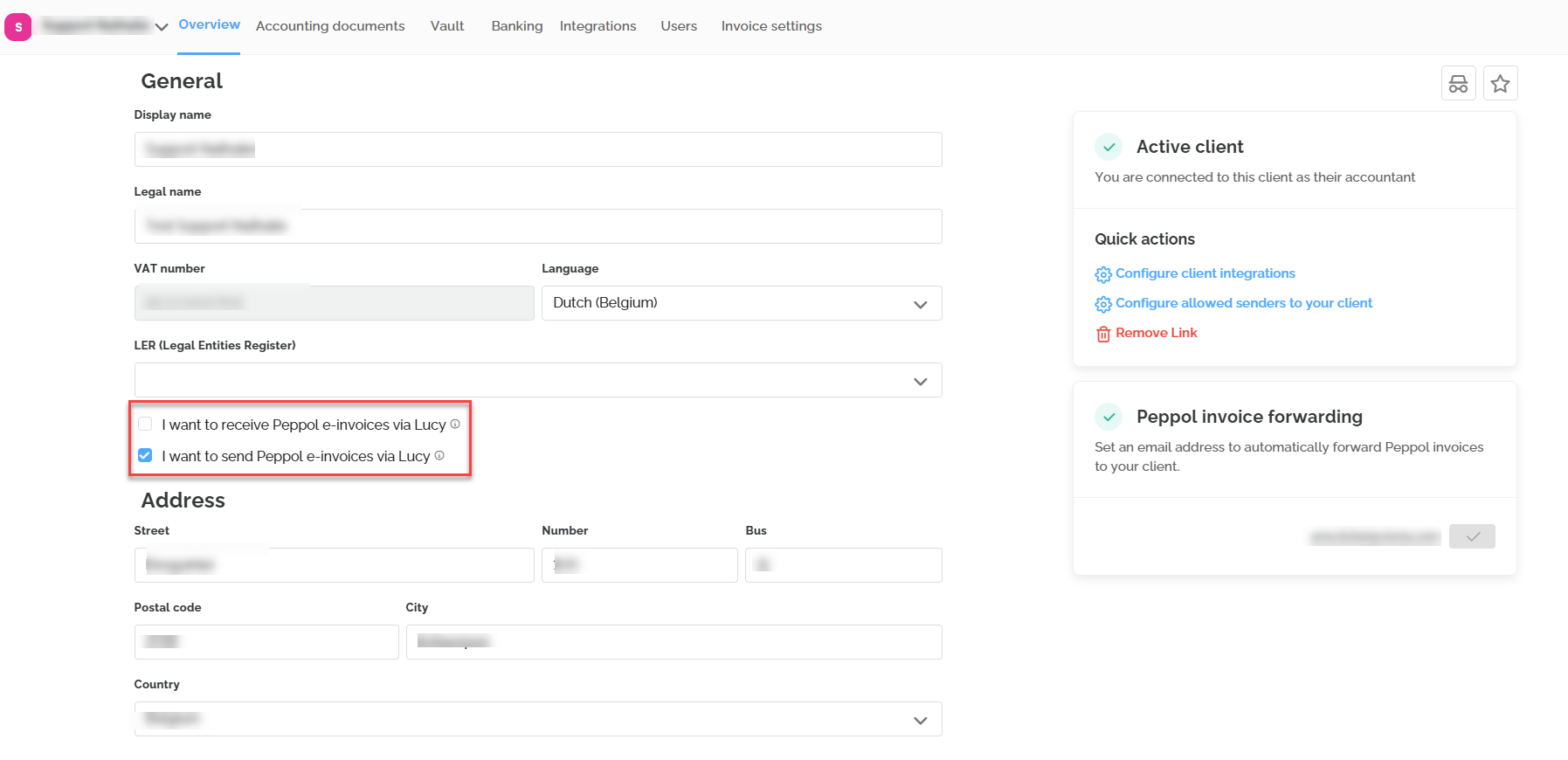
Under the Overview tab, you can activate sending and/or receiving via Peppol for each customer.
If the customer is already registered elsewhere to receive Peppol invoices, an orange warning message will appear indicating that the customer is already registered with another provider.
A company can be unsubscribed from the Peppol network at any time by disabling the registration.
In this overview, you can mark a customer as a favorite by clicking the star icon in the top right corner, which will place the customer at the top of the list.
Additionally, it is possible to hide a customer from employees who do not have the administrator role by using the button below.

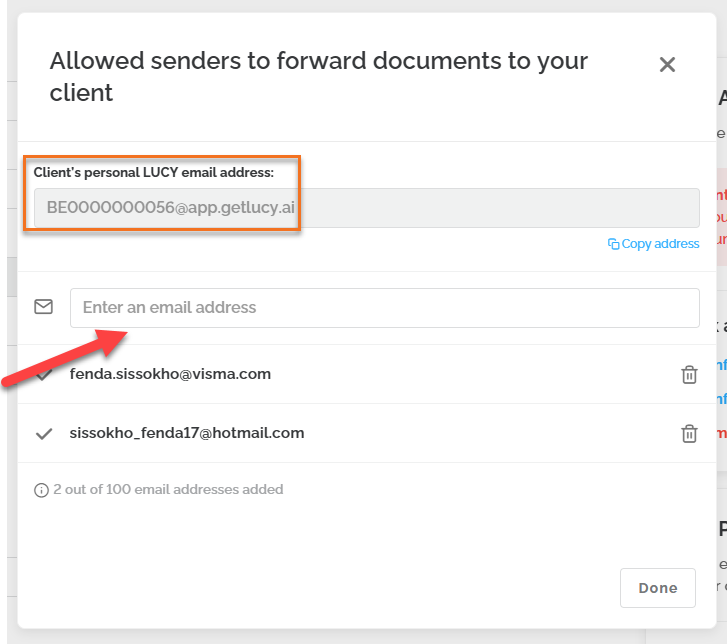
Additionally, you can find the client's Lucy email address using the 'Configure allowed senders for your client' button and add email addresses of authorized senders to the list, ensuring their emails arrive in the Lucy inbox.
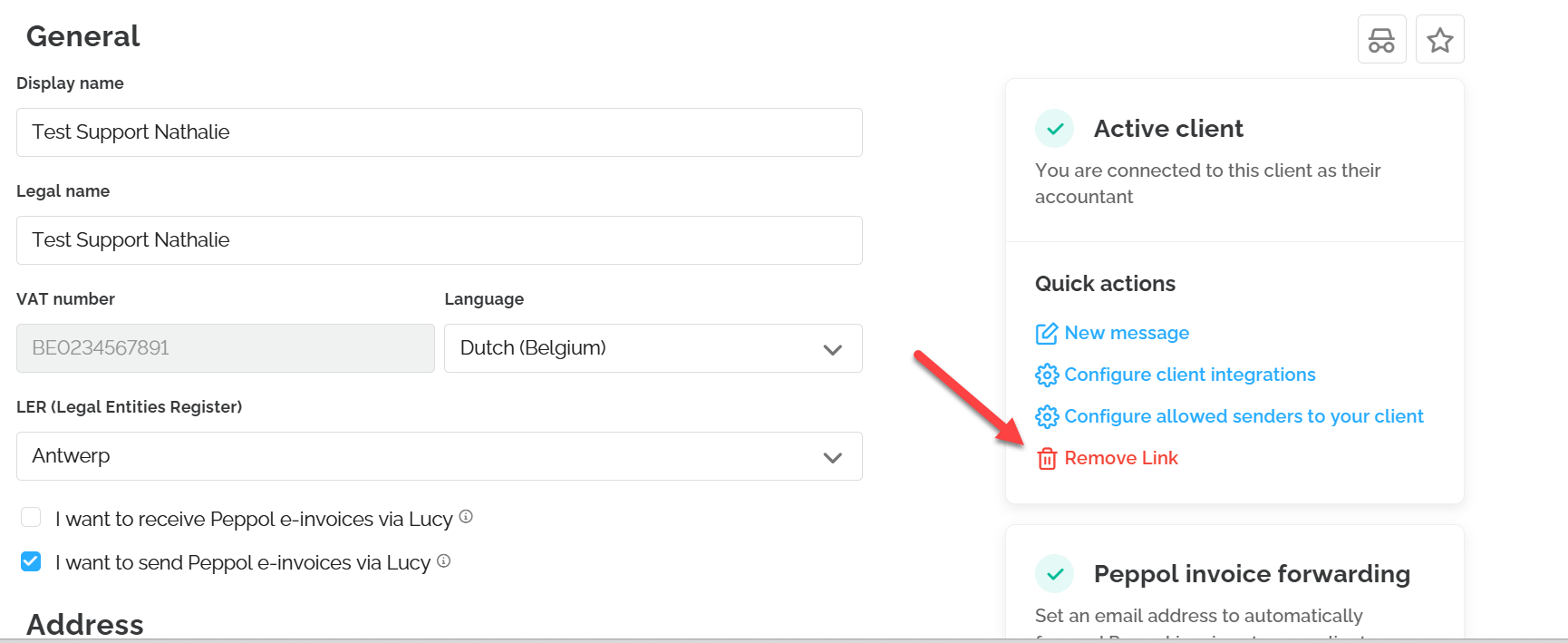
To display the correct contact person from your office in the client file, you can fill in the 'Client-Facing Contact Person' field using the 'Edit client-facing contact' option. Please note: this field can only be modified by a staff member with administrator rights (Admin).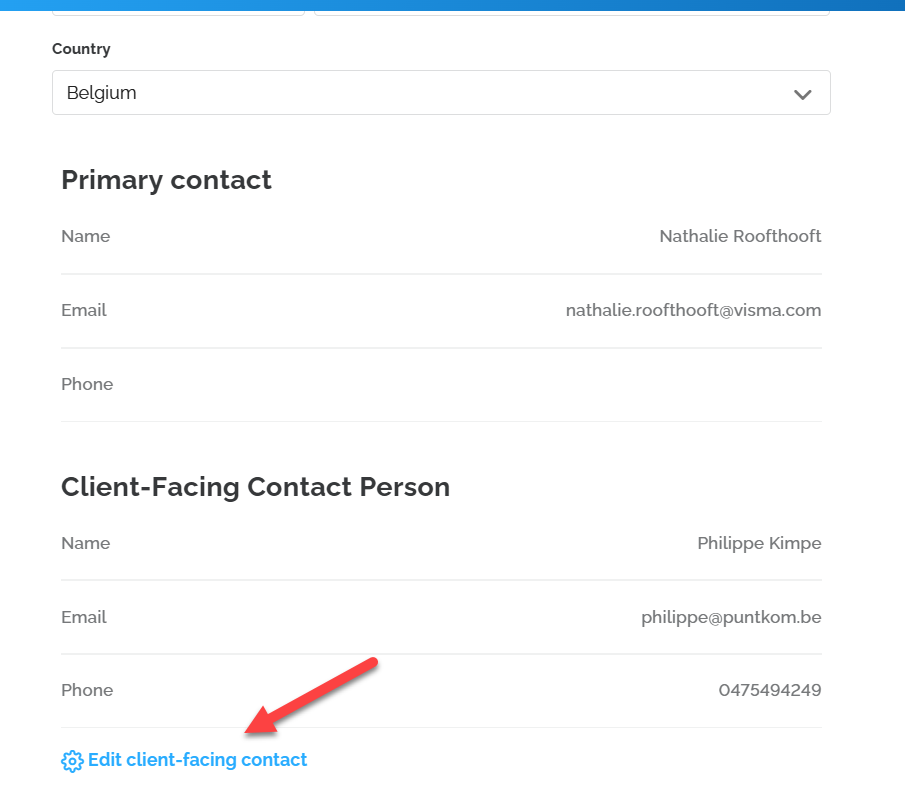
Accounting Documents
Through Accounting Documents, you can view the Inbox as the customer sees it, and as an accountant, you also have the ability to send documents to the linked accounting software and other destinations.
Under the Status column, you can see whether a document has already been sent. Documents with the status Inbox have not yet been sent and can be forwarded using the arrow on the right. The status will then change to Sent.
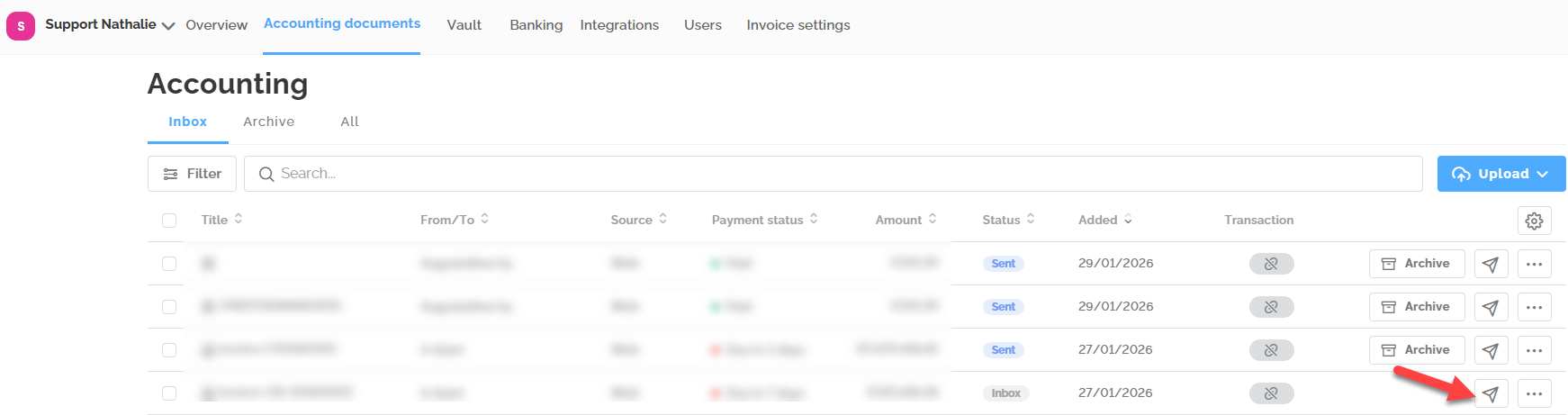
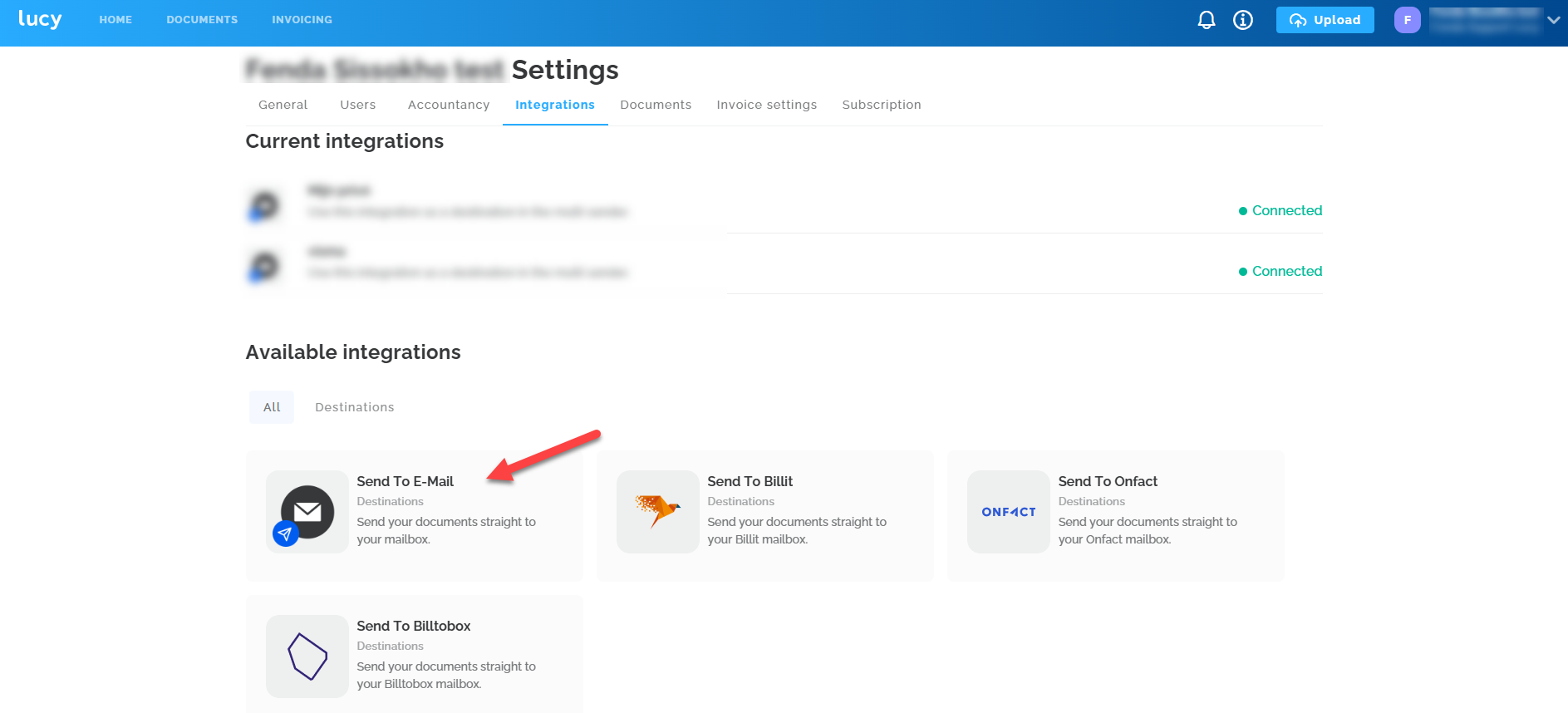
If documents have not arrived in the accounting software and show a Failed status, you can select them and resend them using the To accountant button. Documents marked as Sent but not yet arrived in the accounting software cannot currently be resent. In this case, you can contact Support for assistance. Alternatively, the client can set the email address of the accounting software as the destination so that these documents can be resent through the Multisender. Only the client can set this up via Settings > Integrations.
Vault
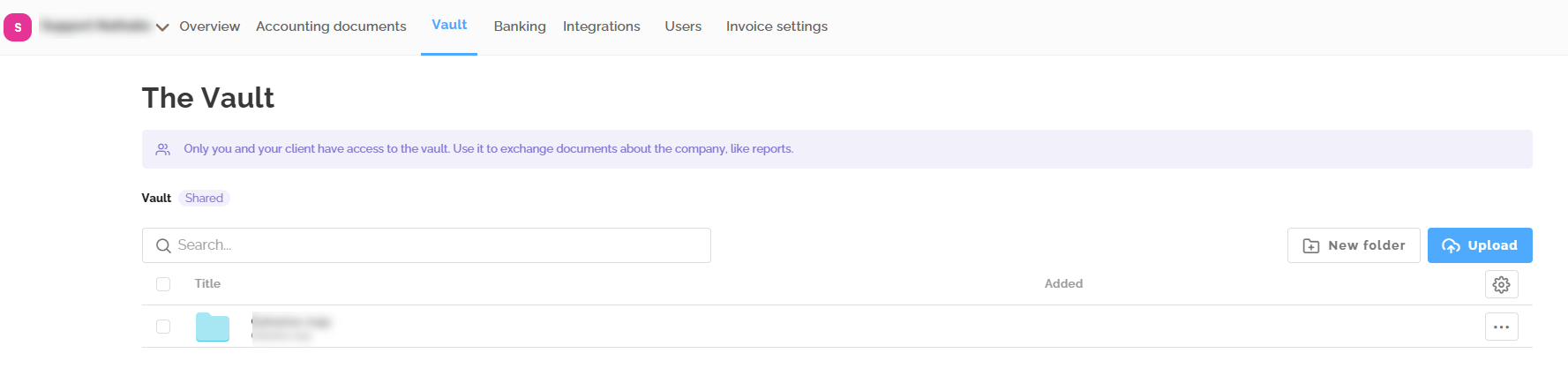
Under the Vault tab, there is a shared vault that can be used to store documents such as personal tax files and reports.
Banking
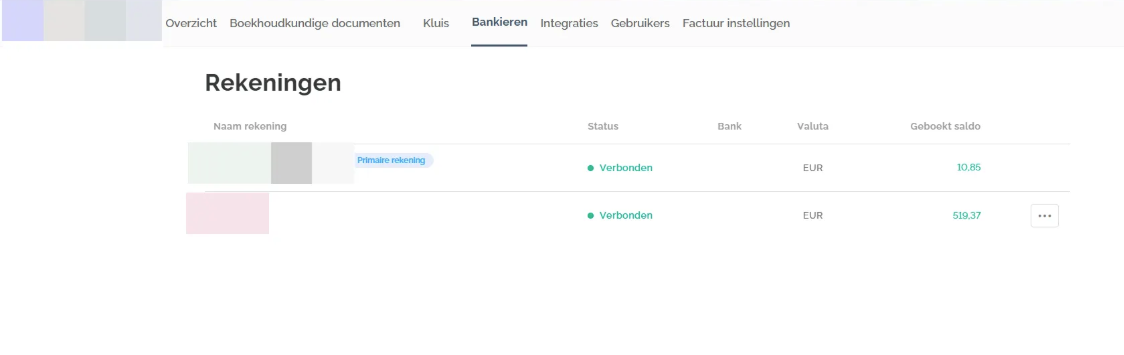
With Lucy Business Pro, clients can establish the bank connection with Codabox in their file. Through the Banking tab, you can see the linked accounts if the client has made the connection with Codabox.
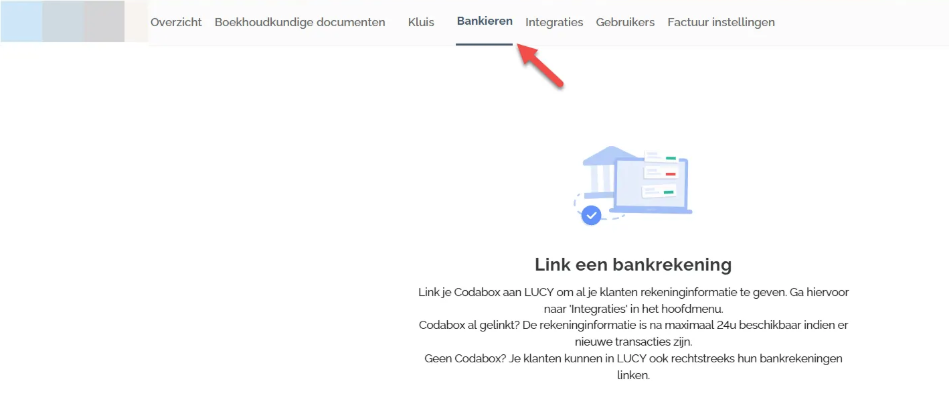
If the client has not established a bank connection, you will see the screen below in the Banking tab.
Integrations
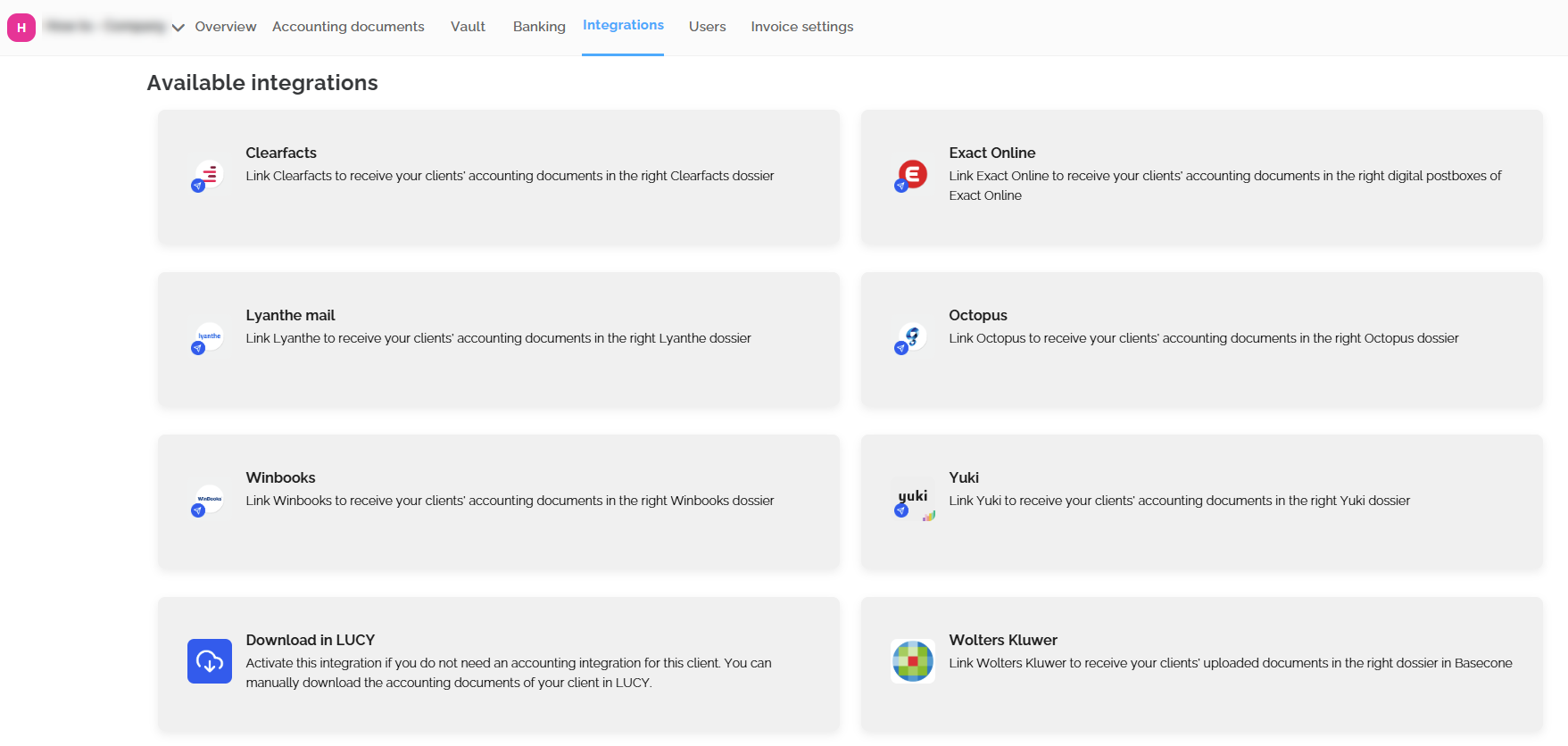
Under the Integrations tab, you can view an overview of the available integrations to which documents can be sent. Each customer can only be linked to one accounting software at a time.
Users
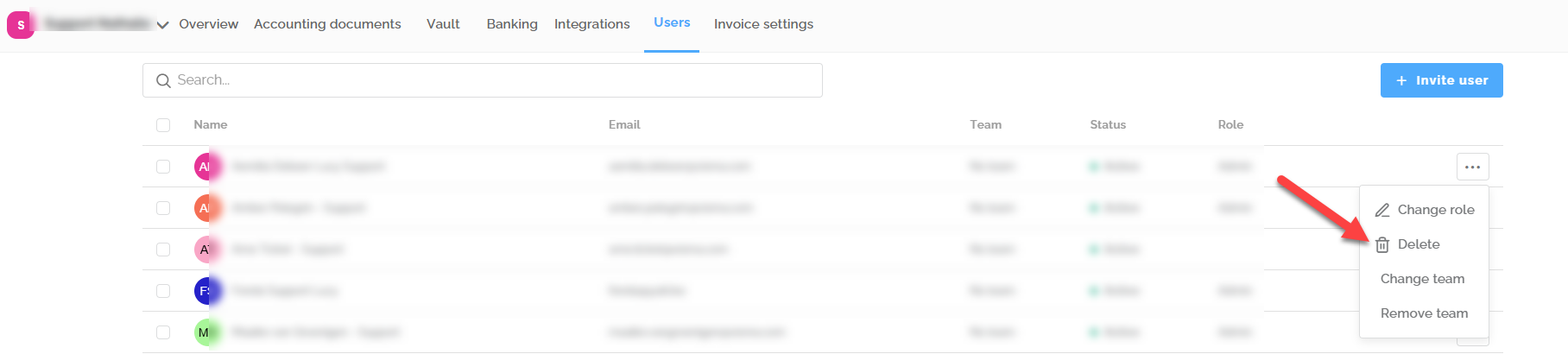
As an accountant, you can add, modify or remove users from a file through the Users tab. You can find more information about this actions here.
Invoice Settings
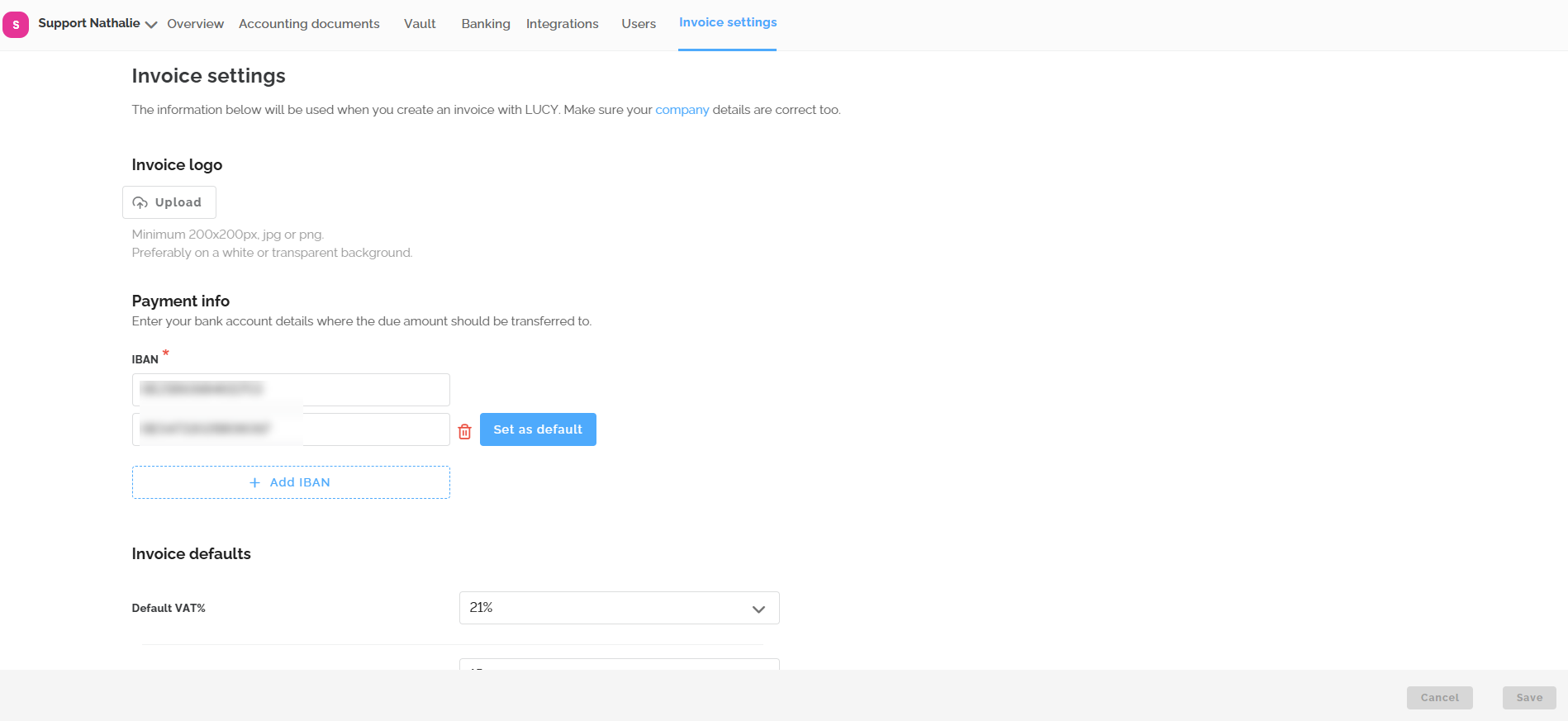
Under the Invoice settings tab, you can enter all the necessary information required to create an invoice for the customer in Lucy.