If you want certain invoices to be created (and sent) automatically on a regular basis, you can work with recurring invoices. This is available from Lucy Business onwards.
Table of content
Setting up recurring invoices
Step 1: manual vs automatic sending
Go to your file's general settings and select the 'Invoice Settings' tab. At the bottom, under 'Recurring invoices', you can choose the sending method:
- Auto-send: Lucy prepares the invoices as drafts and sends them on the set date(s).
- Manual: Lucy prepares the invoices as drafts. The invoice still needs to be sent manually.
When are the drafts prepared? Both with auto-send and manual sending, the drafts are prepared as soon as the last invoice (resulting from this recurring schedule) has been sent.

Step 2: creating a recurring invoice
You'll find recurring invoices in the invoicing module, under the 'Recurring invoices' tab. (!) This overview shows the schedule of the recurring invoices. The invoices created as a result of this schedule appear under 'Invoicing' > 'Invoices'.

Click '+ New recurring invoice' to open the following screen:
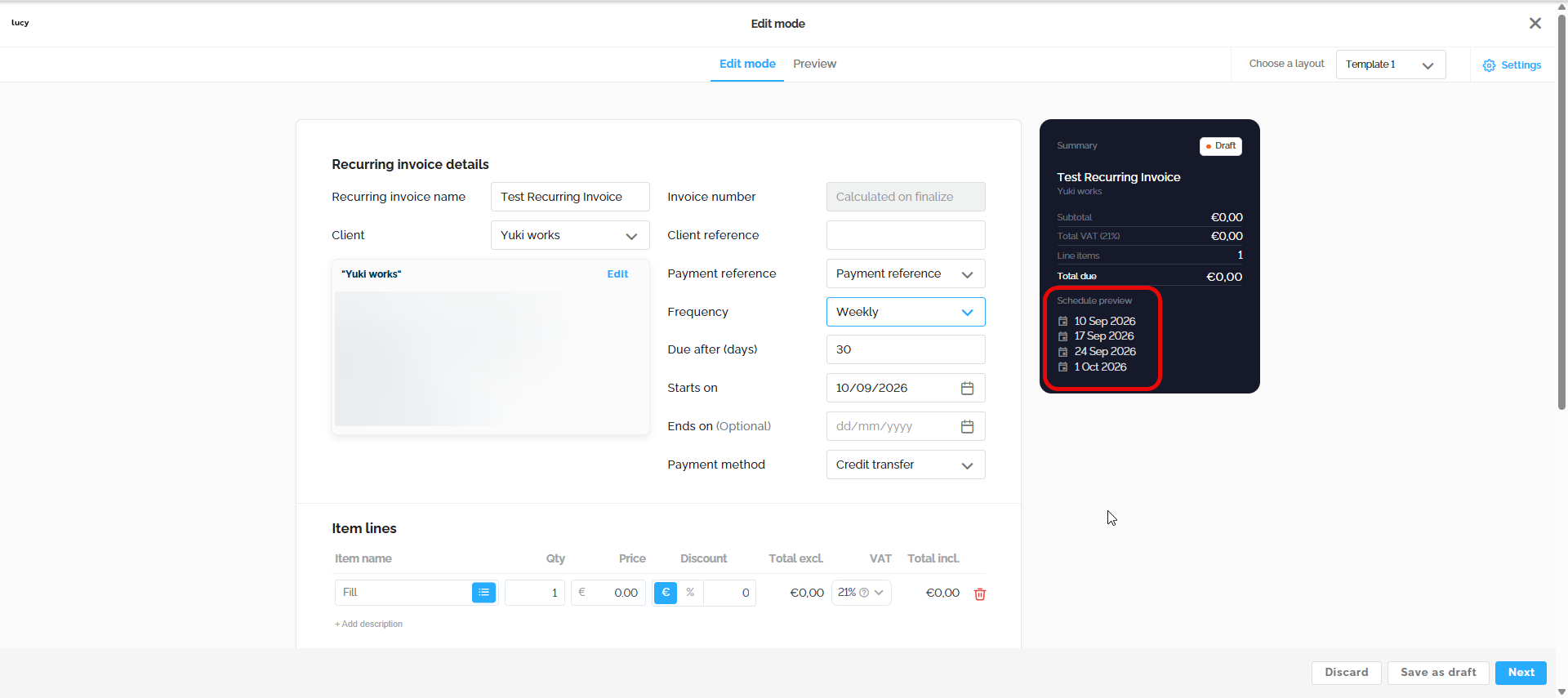
- Fill in the basic information:
- Name of the recurring invoice
- Customer
- Customer reference (Optional)
- Payment reference (Automatically filled in by Lucy based on your invoice settings)
- Payment method (Automatically filled in by Lucy based on your invoice settings)
- Frequency:
You can choose from 5 different frequencies: weekly, monthly, quarterly, half-yearly, yearly. It is not possible to create your own frequency or select individual dates.
You'll see that the black schedule overview shows the future dates of the recurring invoices (red frame in the screenshot). When you select a new frequency, the dates are recalculated each time. Lucy uses the date in the 'starts on' field as the starting point. - Due after (days)
Set the number of days after which the invoice is due. - Starts on:
Enter the date on which you want the next invoice to be sent. The frequency uses this field as its starting point. - Ends on:
This is an optional field. Enter the date on which you want Lucy to stop automatically creating (and sending) invoices.
Follow-up of recurring invoices
You'll always find the schedules for recurring invoices under 'Invoicing' > 'Recurring invoices' once they've been created. The invoices generated from these schedules appear as drafts in the invoicing module itself.
In the invoicing overview, you can easily see whether an invoice is a recurring invoice or a regular sales invoice created manually. You'll find this in the 'type' column: Sales invoice vs. Recurring Sales invoice.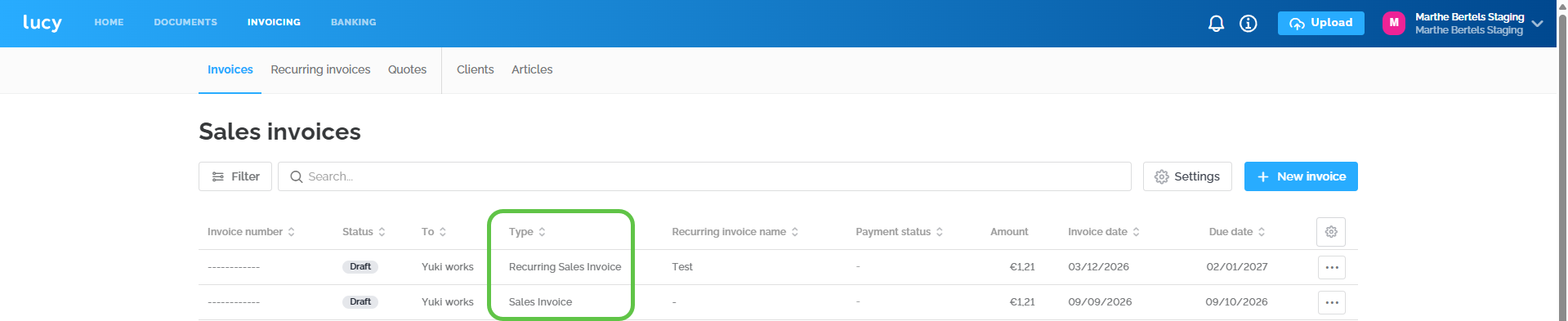
Status
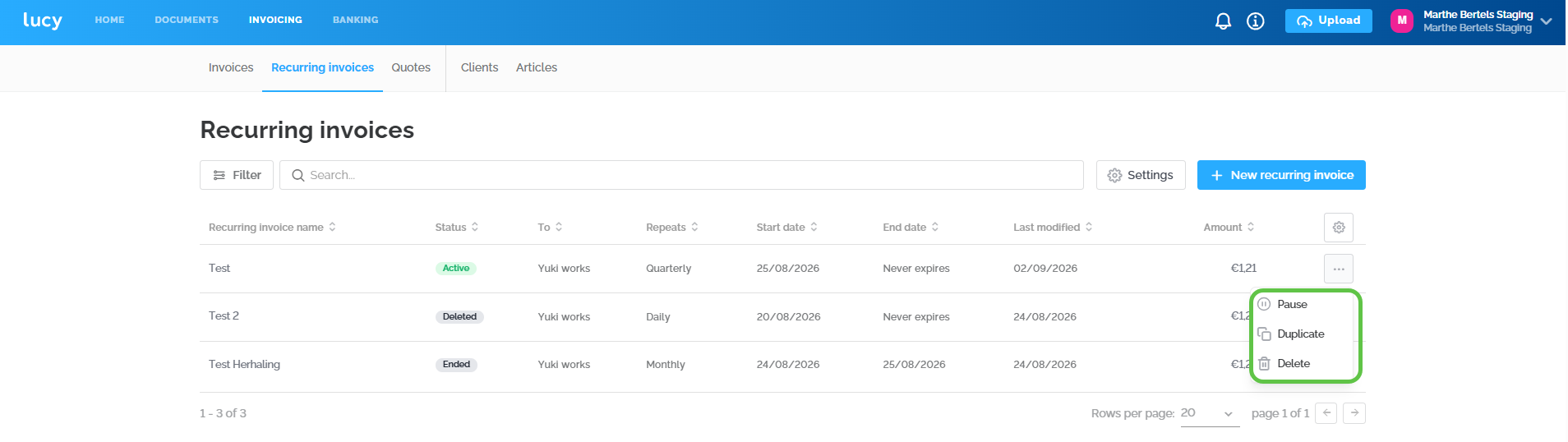
You can change the status of a recurring invoice via the three dots on the right.
- Active
- Paused
- You can pause (and resume) a recurring invoice yourself at any time.
- Ended:
- Recurring invoice schedules that reach their end date automatically get the status 'Ended'. The end date is not a required field.
- Deleted
- If you click 'delete', the recurring invoice remains visible, but its status changes to 'deleted'. No further invoices will be created (or sent). Lucy will never delete a recurring invoice schedule on its own - this is always a manual action.
- You can no longer reactivate a deleted recurring invoice. However, you can duplicate it and create it again.

Changes to recurring invoices
The first invoice of each recurring schedule is prepared as a draft immediately after the recurring invoice is created and started. If you then make a change to the schedule, this will not be reflected in the draft invoice that has already been prepared - but it will apply to the invoices that follow.
FAQ recurring invoices
- What happens if you create a contract for a recurring invoice with today's date as the start date?
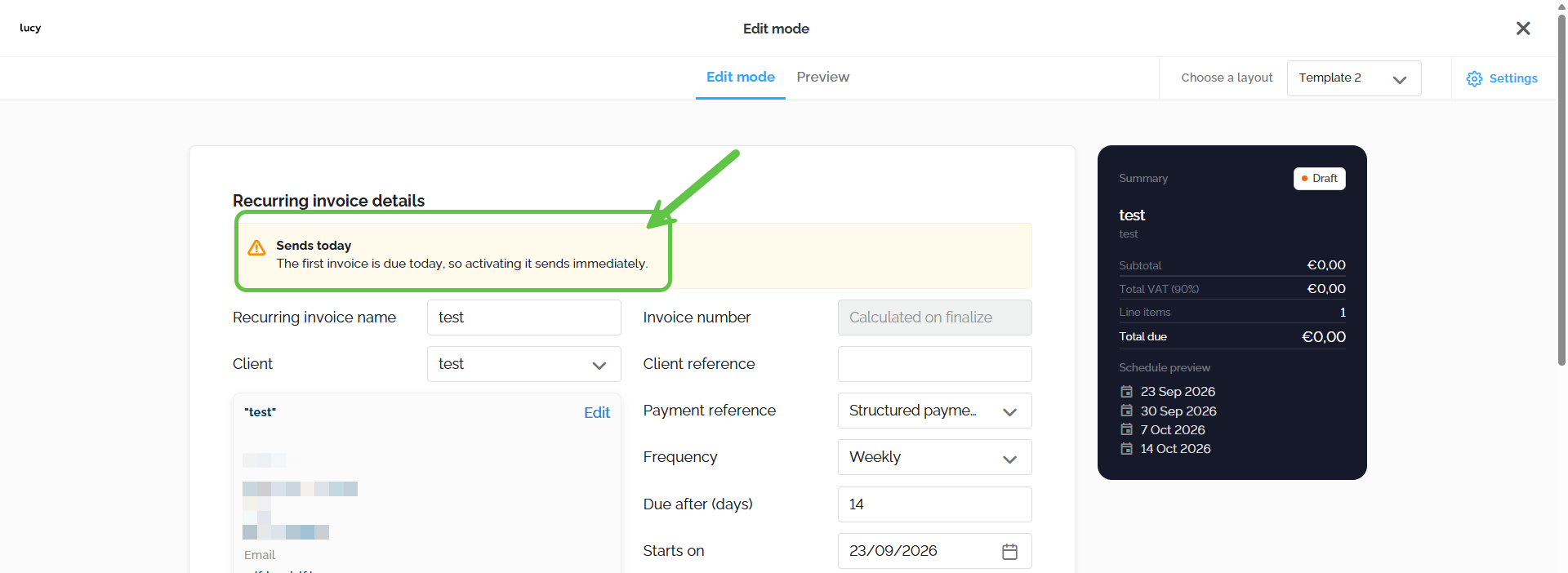
This depends on which sending method you selected for recurring invoices in your invoicing settings- Automatic sending: The invoice will be sent automatically right after you create the contract for this recurring invoice. A banner will appear indicating this as well.
- Manual sending: No notification will appear. The first invoice will be prepared as a draft. You still need to send it manually.
- Automatic sending: The invoice will be sent automatically right after you create the contract for this recurring invoice. A banner will appear indicating this as well.
- What happens if you downgrade to a bundle that doesn't include the recurring invoices feature?
The 'recurring invoices' overview will no longer be visible. You will therefore no longer have access to the recurring invoice schedules you created under the higher subscription. - A recurring invoice is prepared in the invoicing module based on a schedule you've created, but you'd like to make further changes to it. Is that possible?
Yes, you can still make changes to a draft invoice. This has no effect on the future recurring invoices that Lucy will generate. However, be careful if you change the invoice date to a date further in the future. (See 'Backdating and recurring invoices' below.) - Backdating and recurring invoices
Backdating is not possible in Lucy. Invoice dates must follow each other correctly, in line with the invoice numbering. When you send out an invoice with a date later than the date of the next recurring invoice, the recurring invoice can no longer be sent (automatically). It will remain as a draft until a valid date is chosen and must then be sent manually. - I use automatic sending. Can I still send the prepared invoice manually (earlier then the set date)?
Yes, this has no effect on the schedule of the recurring invoice you've created.