On this page, you will find how to create a customer in Lucy, as well as the most important settings to configure for your customer to ensure a smooth start with the platform.
Every user who has access to the Lucy portal can add customers by clicking the + New Cllient button.

- Create client
- Customer Status
- Activate the Peppol connection
- Change Contact Person
- Integration with Accounting Software
- Allowed Senders
- Invoice Settings
Create client
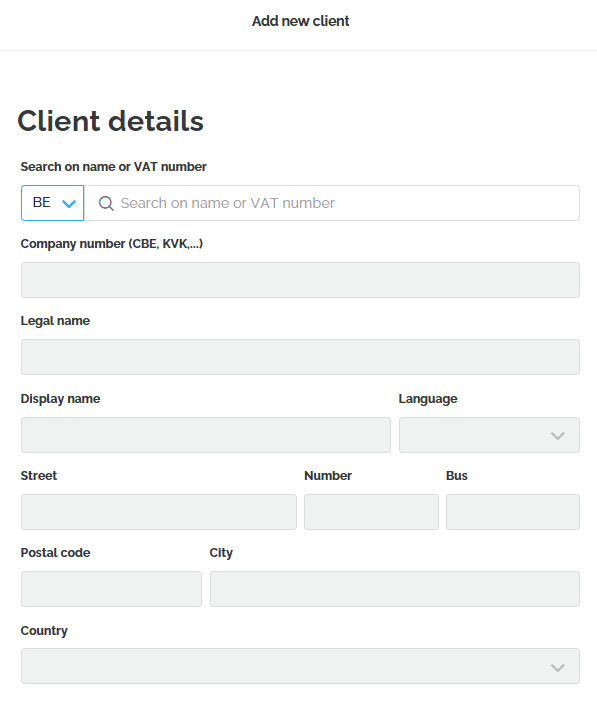
The next screen opens where you can add all the customer's details. You can search by name or VAT number. This is linked to the KBO. When selecting a customer, Lucy will fill in all other fields with information retrieved from the KBO.
Customer not found?

Can't find a customer using the search function? No problem. You can manually enter the missing information in the required fields to add the customer. After registration, you can invite the customer for dossier access and set up the Peppol connection immediately.
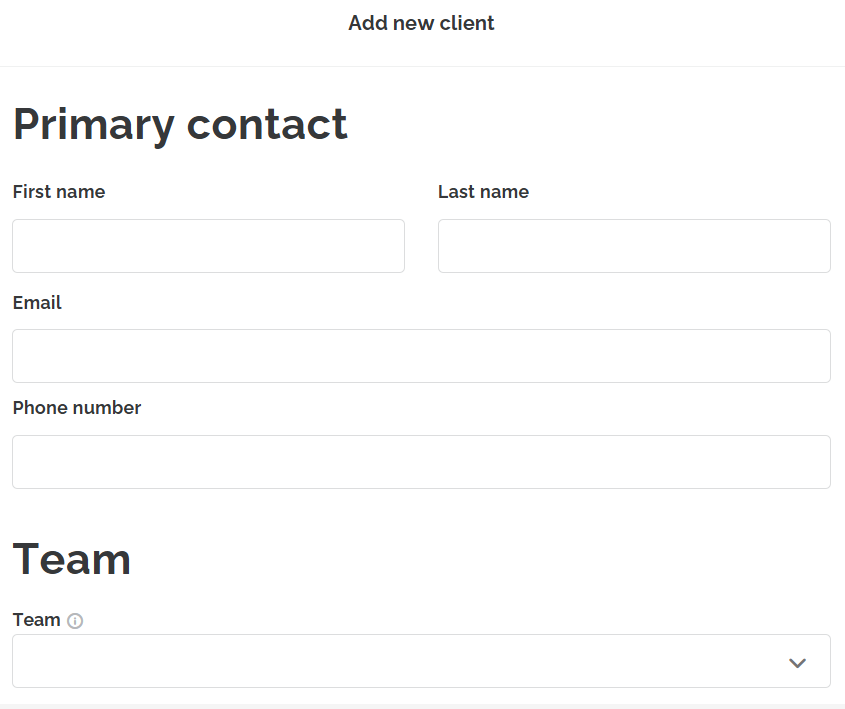
By clicking Next at the bottom right, you will proceed to the next screen, where you have the opportunity to fill in the customer's details. The customer does not have immediate access yet but is linked to the file.
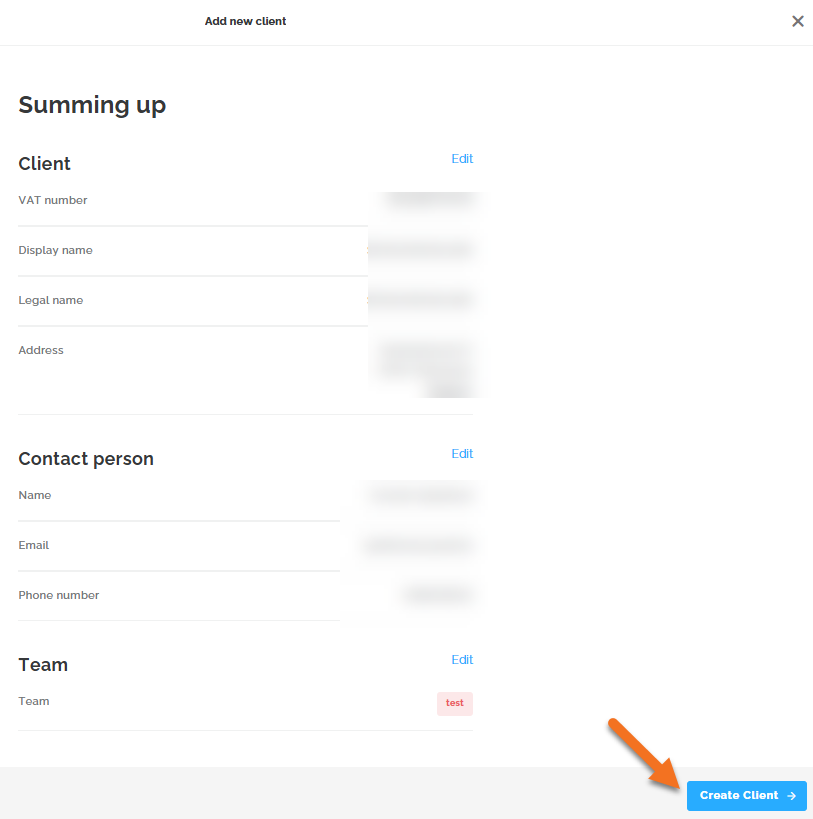
The next step shows a summary where you have the option to create the customer.
Customer Status
Each customer is assigned a status in your list, depending on the actions taken.
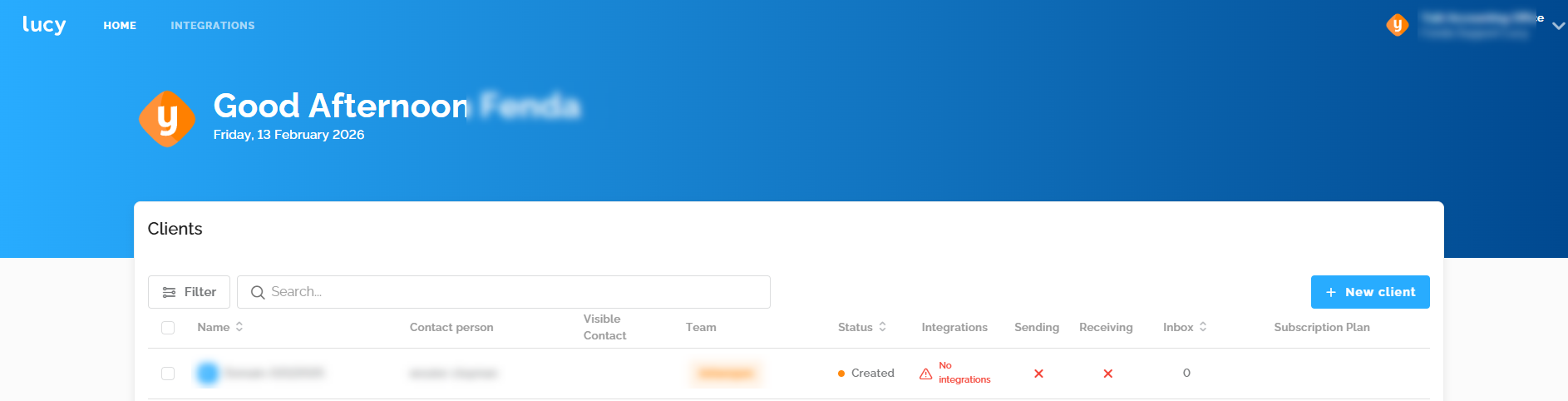
Created
Once a customer is created, they receive the status 'Created' in the overview.
Invited
You must invite the customer to grant access to his/her dossier.
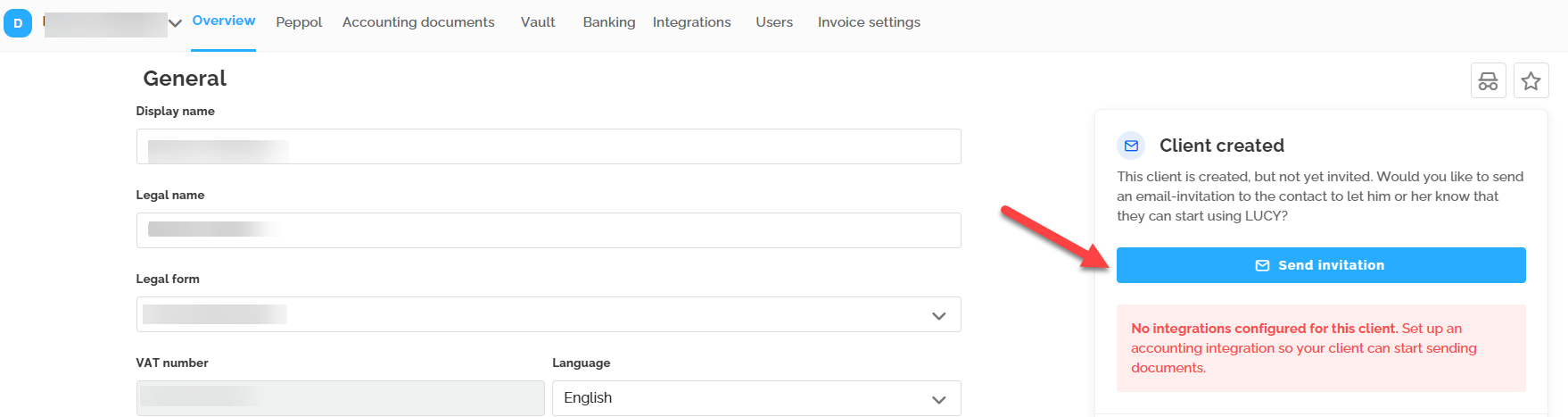
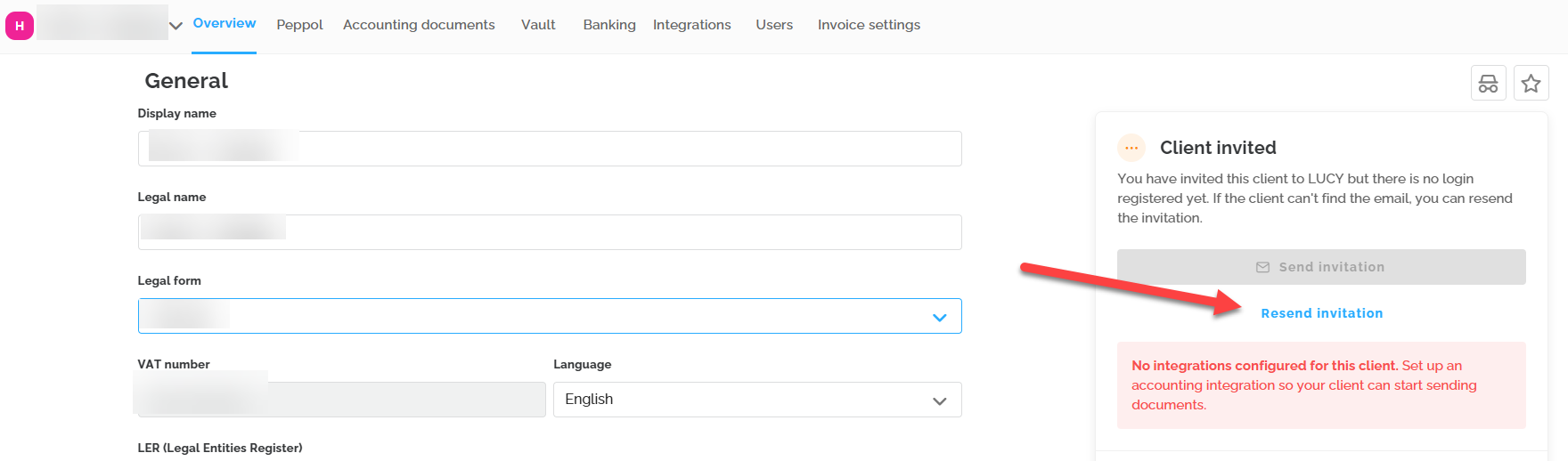
When a customer receives an invitation email, they are assigned the status Invited. The link in this email is valid for 21 days. After this period, you can send a new invitation to the customer by clicking the Resend button.
Active
When the customer activates the file via the link in the invitation email, the file receives the status Active. At the moment the customer activates their file, the 30-day trial period begins. During the trial period, the customer is automatically placed on the Lucy Business Pro and can use all functionalities.
Activate the Peppol connection
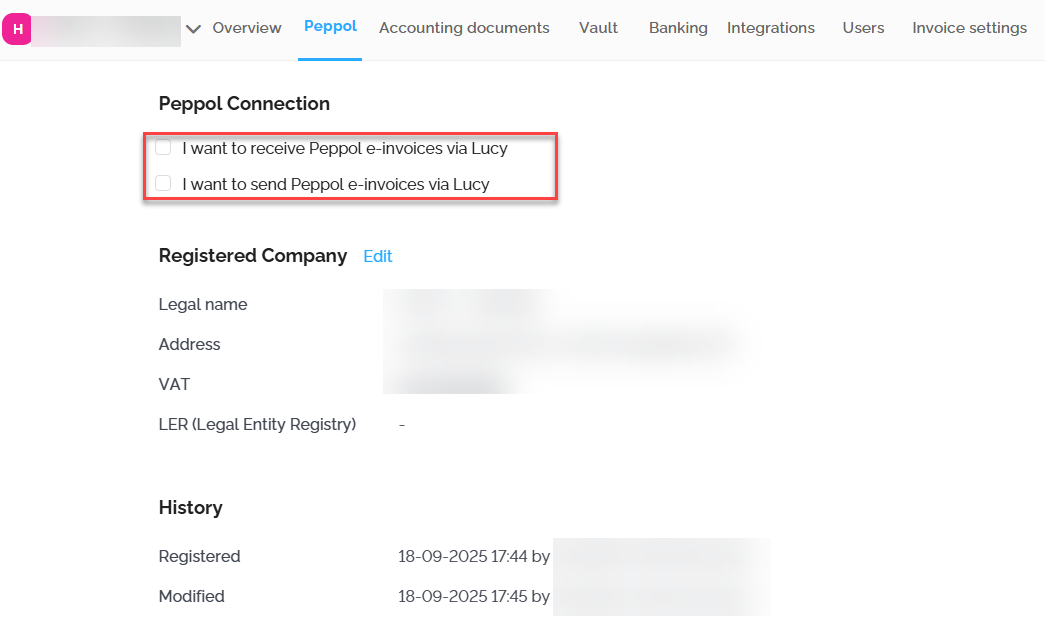
Under the Peppol tab, you can register the customer on Peppol directly. Here, you can configure whether the client wants to receive Peppol invoices, send them, or both. By checking the boxes, you register the company with the Peppol network.
The information on this tab is managed in real-time by Storecove (our Access Point). The status you see is the actual status on the Peppol network.
If the company registration number is already registered for receiving e-invoices via another access point on the Peppol network, you will receive the following error message.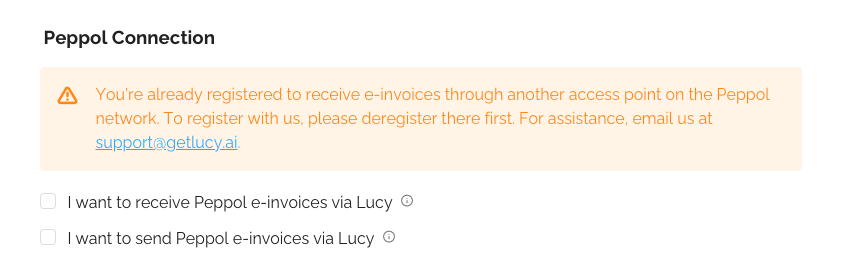
You can unsubscribe the company from the Peppol network at any time via Lucy by unchecking the boxes.Change Contact Person
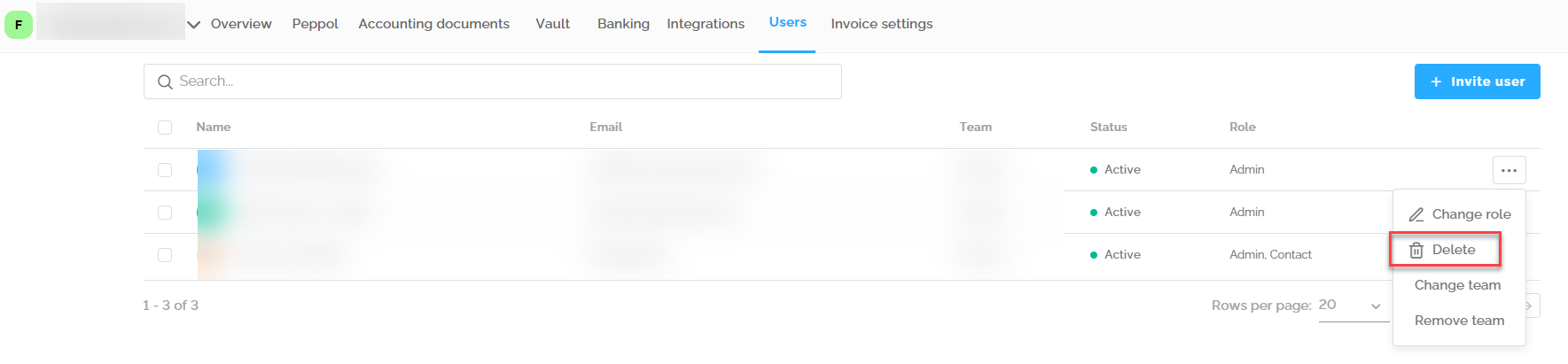
To modify the contact information of the person you just created, go to the Users tab. By selecting the "Replace" option, you can edit the contact person's details. Important: this option doesn't work for a user with the status 'Actif'.

For an active dossier, it is possible to replace a user yourself or have us do it for you, depending on the type of subscription:
- Trial, Business, or Business Pro: You can add the correct user yourself via the Invite user button. Once added, you can delete the incorrect user.
- Inbox or Invoicing: For these types, please request the change by emailing the support team.
Integration with Accounting Software
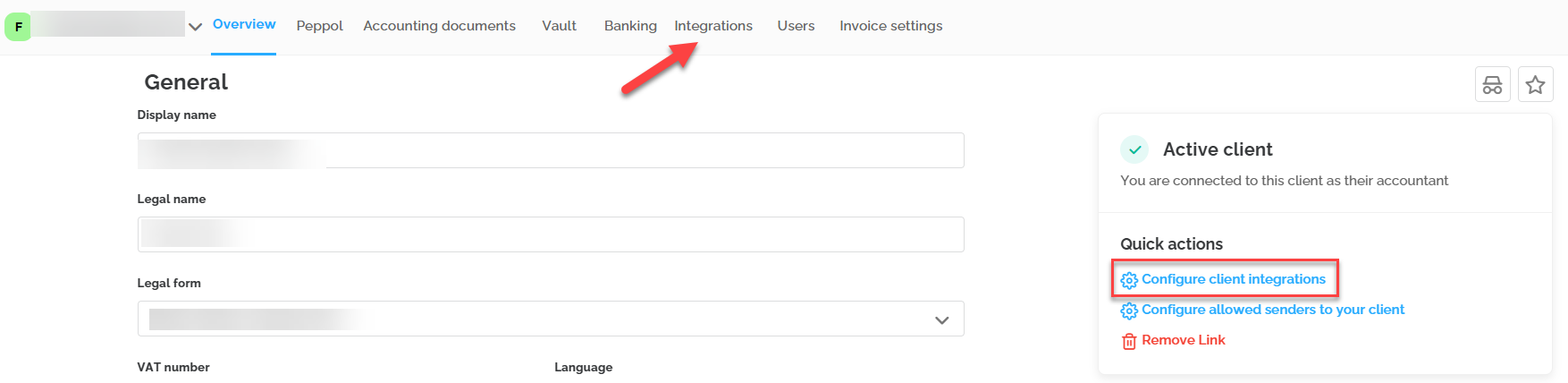
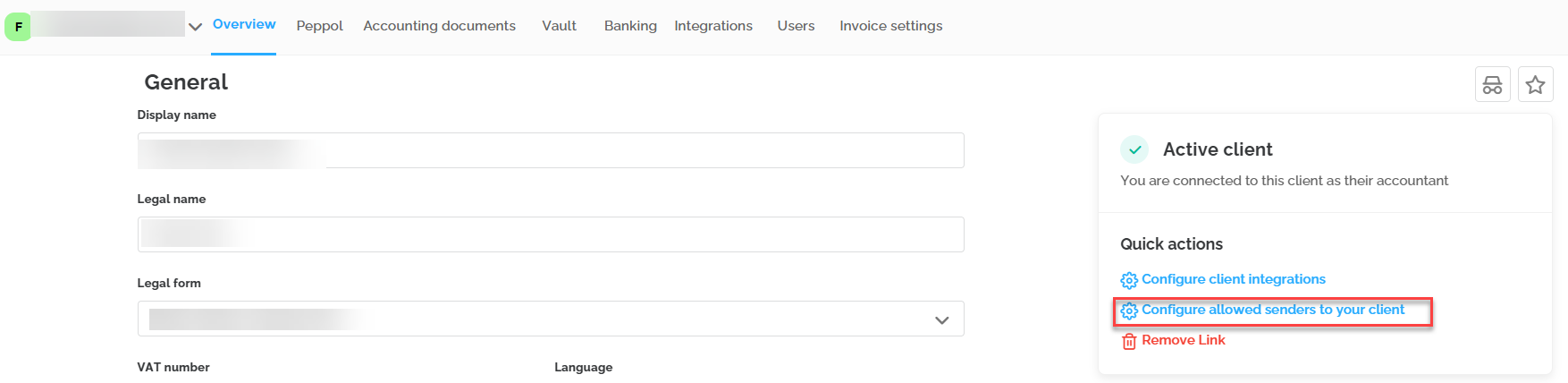
Via the Integrations tab or the Configure customer integrations button on the Overview tab, you will arrive at the screen below where you can set up the following:
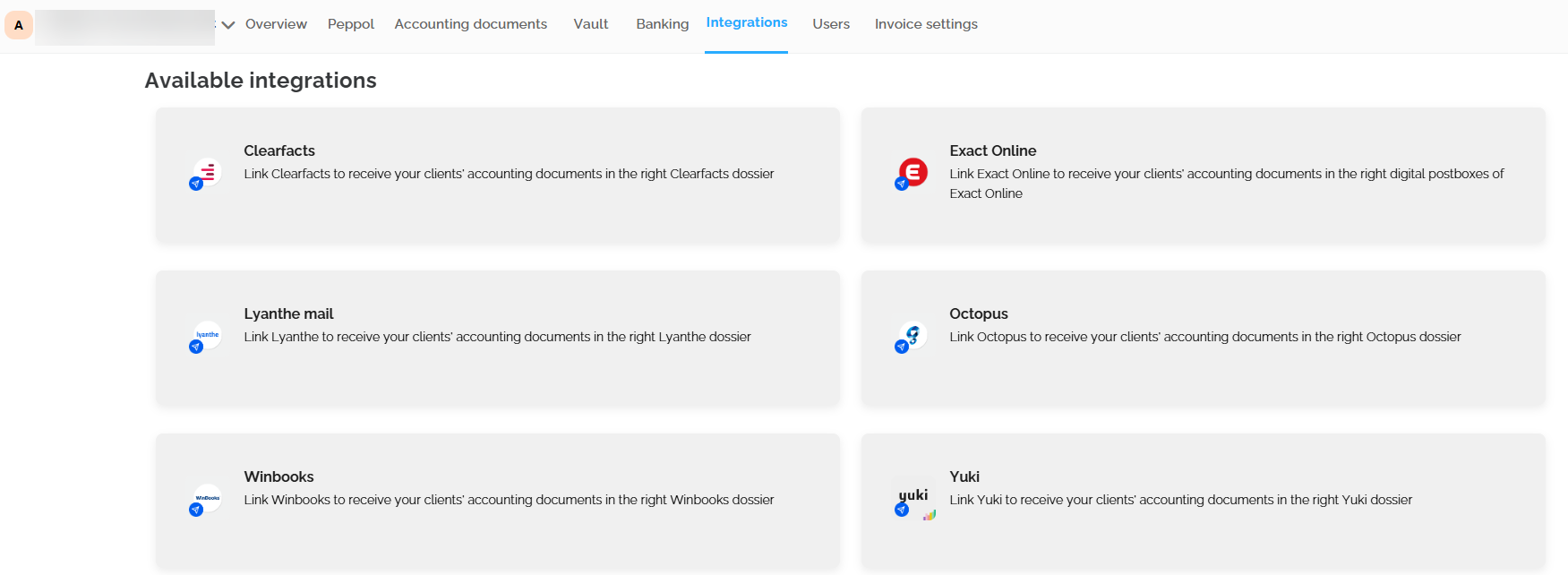
- Connect with accounting software through existing integrations so that documents can be sent to the accounting software. It is possible to connect with one accounting package.
- Here you can set the email address of the accounting package for which there is no existing integration to send documents in UBL if available.
These are the existing Lucy integrations:
- Admisol
- Clearfacts
- Exact Online
- Exact Online NL
- Lyanthe
- Octopus
- Scan Sys
- Winbooks
- Wings
- Wolters Kluwer
- Yuki
- Zenvoices
Allowed Senders
You can add to the list of allowed senders for your customer. Add allowed senders to the whitelist to ensure that only the addresses set here can send documents to your customer's Lucy inbox.
Invoice Settings
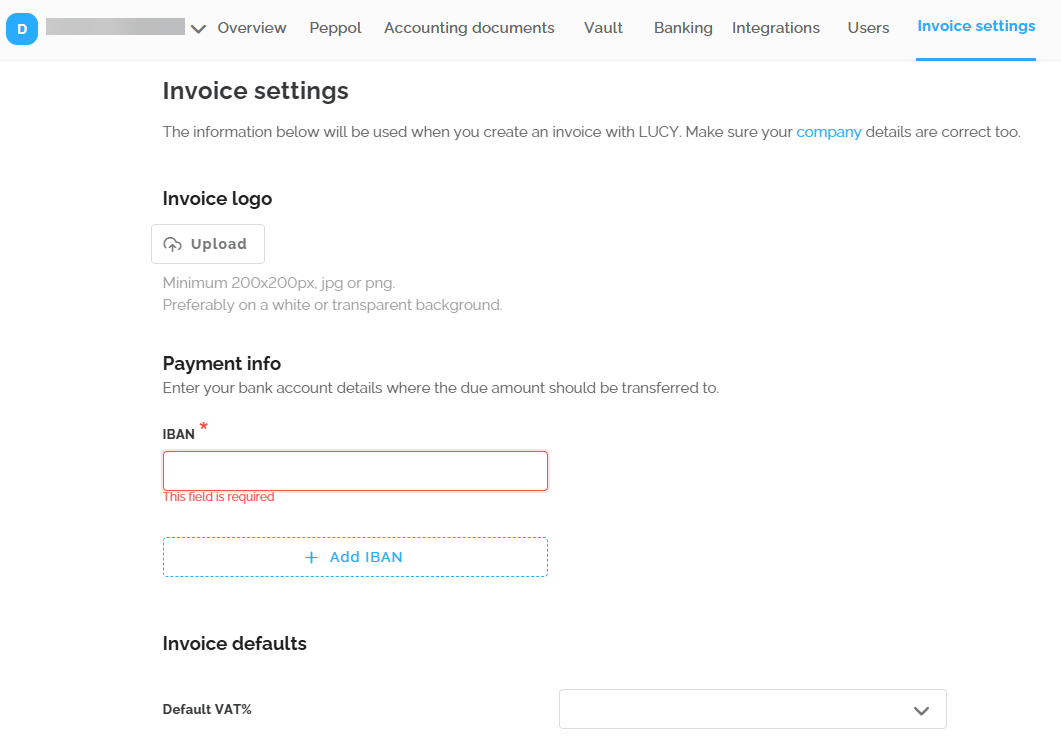
In the invoice settings, you can help your customer configure the necessary options to start invoicing in Lucy.