Creating quotations is available starting from the Lucy Business subscription.
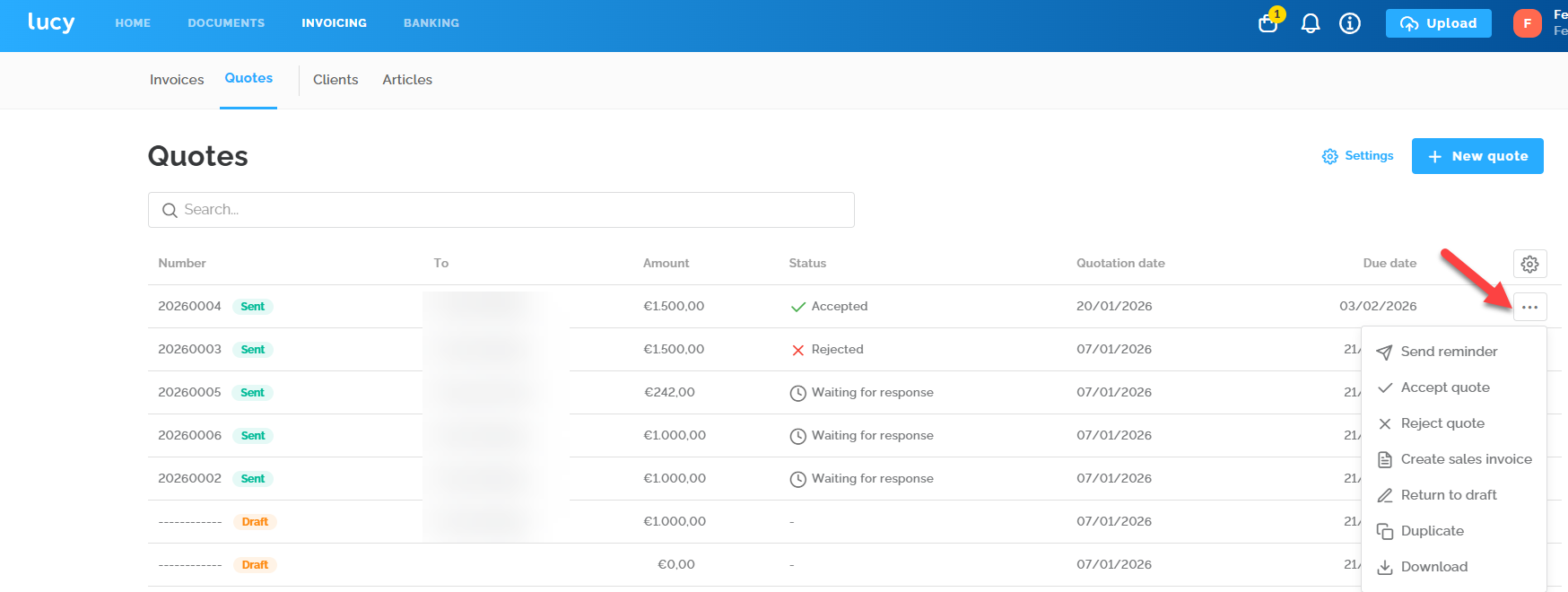
You can create quotes from the Invoicing tab via the Quotes overview.

- Creating a Quote
- Add additional notes & Attachments
- The lay-out of your quote
- Finalizing your quote
- Post-Sending
Creating a Quote
Click the + New quote button. Then, fill in the required fields. Before creating quotes, you can set the numbering format and the email template via the settings.
When creating a sales invoice in Lucy, you can configure the following fields in the Quotation info section:
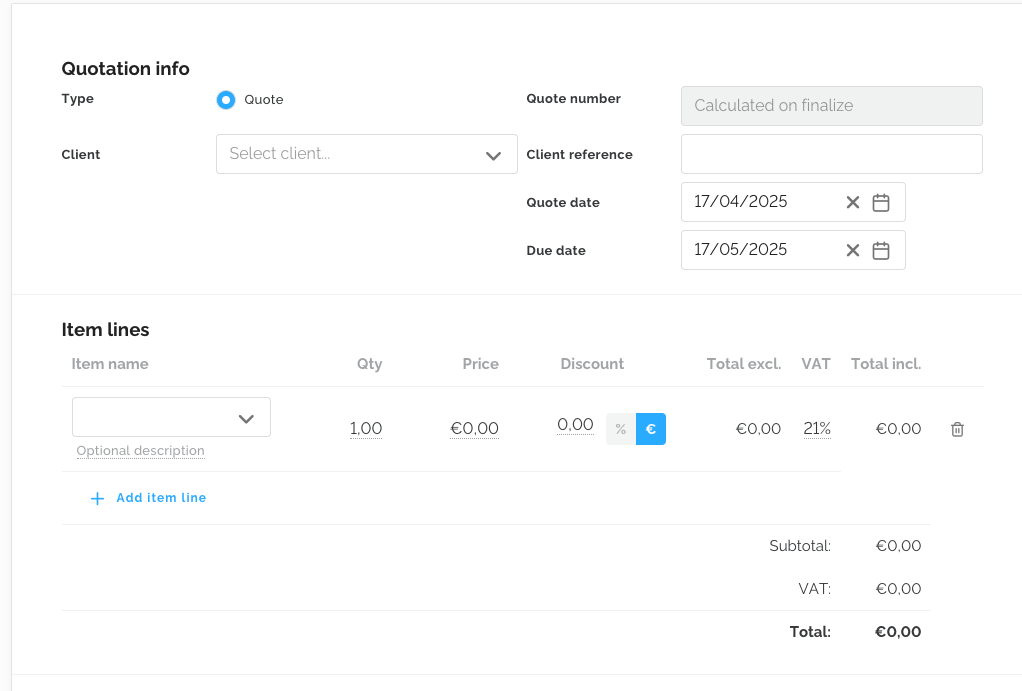
- Client: You can search for existing ciients or create a new client directly from this screen. Clients details can always be edited.
- Quote number: The quote number is generated when the quote is finalized. Lucy uses the settings to determine the numbering.
- Client reference: this field can be filled in manually.
- Quote date: the date is automatically set to the current date, but can be modified.
- Due date: the date is also auto-filled based on the settings but can be changed as needed.
In the item lines section, you can then add your articles to the invoice:
- You can select one or more items and customize each field if needed. You can also add a new item by typing it in and clicking + New Item. It's also possible to add an optional description below each item.
Add additional notes & Attachments
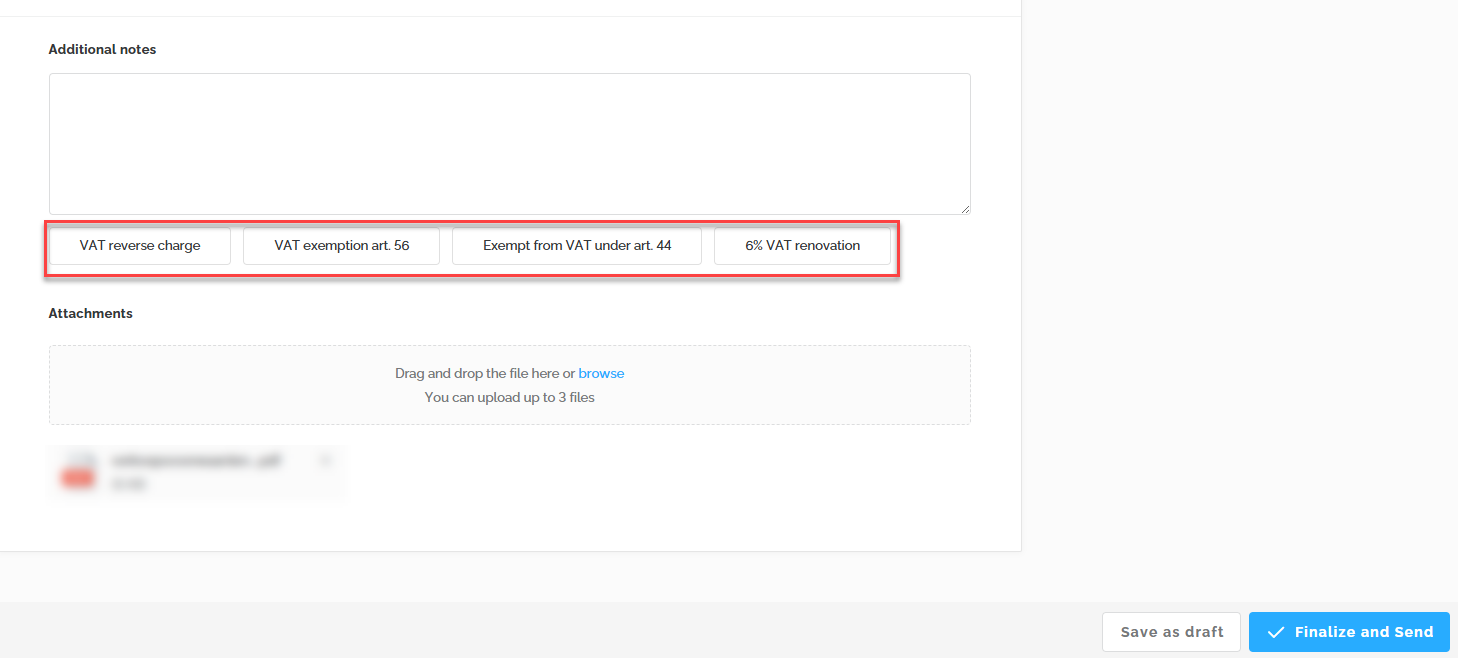
With 'clickable chips,' you can easily add legally required notifications to your quotes. Currently, it's not possible to customize these chips or create personalized ones. However, you can manually enter the desired text in the field to have it displayed on the quote.
You can also add attachments to your quote. You have the option to add up to three PDF documents, each of which must not exceed 2 MB.
The lay-out of your quote
You can always preview what the quote will look like by clicking on the Preview tab, where you can also choose between two different layouts.

Finalizing your quote
Once your quote is ready, you can either save it as a draft or finalize it. Draft quotes can be reopened from the main overview to continue editing.
Once the quote has been finalized, it can be sent by email. This will not be done via the Peppol network.

Post-Sending
Manage the status of your quotes
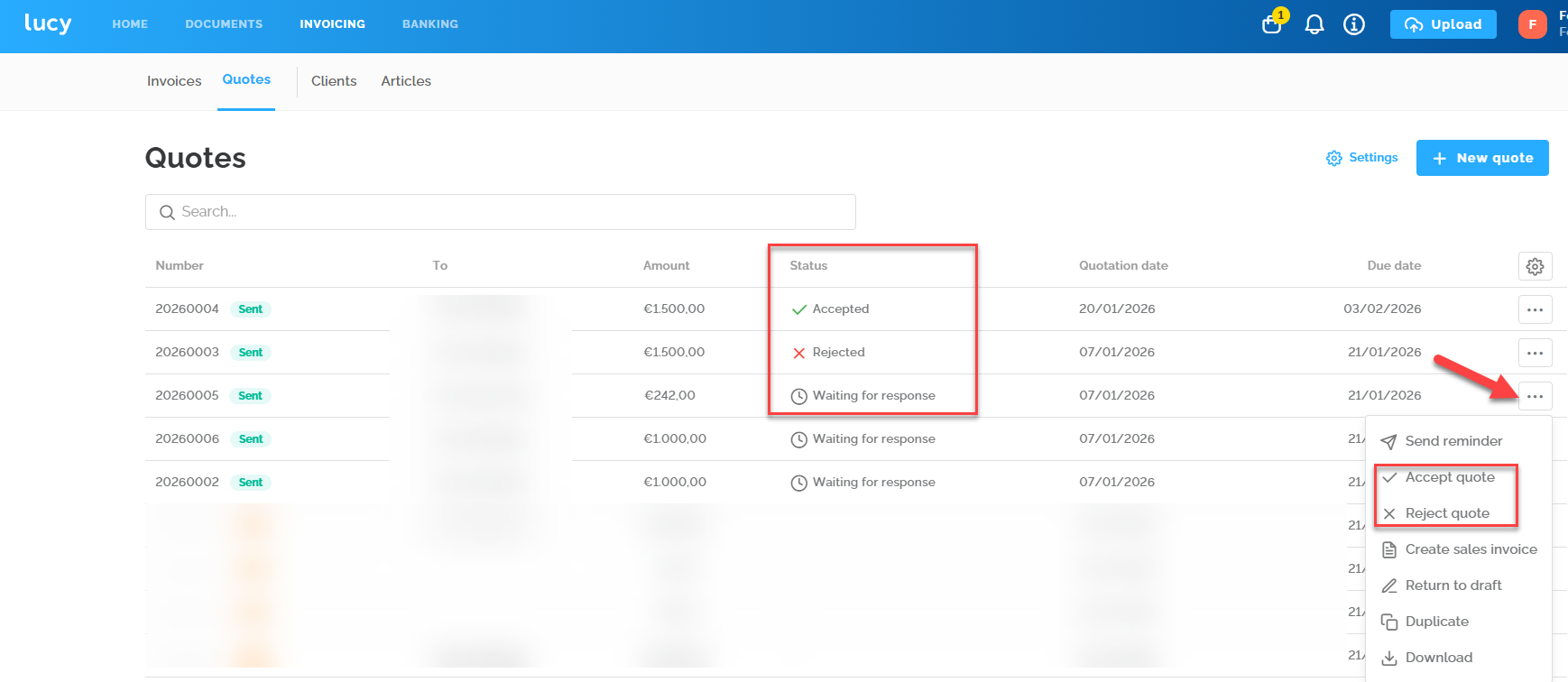
In the quote overview, you can see the status of each quote. Once a quote has been created, it will have the status "Open". By clicking on the three dots next to the quote, you can choose to accept or reject it. This always needs to be adjusted manually in the software.
 Convert a quote into a sales invoice
You can easily convert a quote into a sales invoice in Lucy. There are two ways to do this:
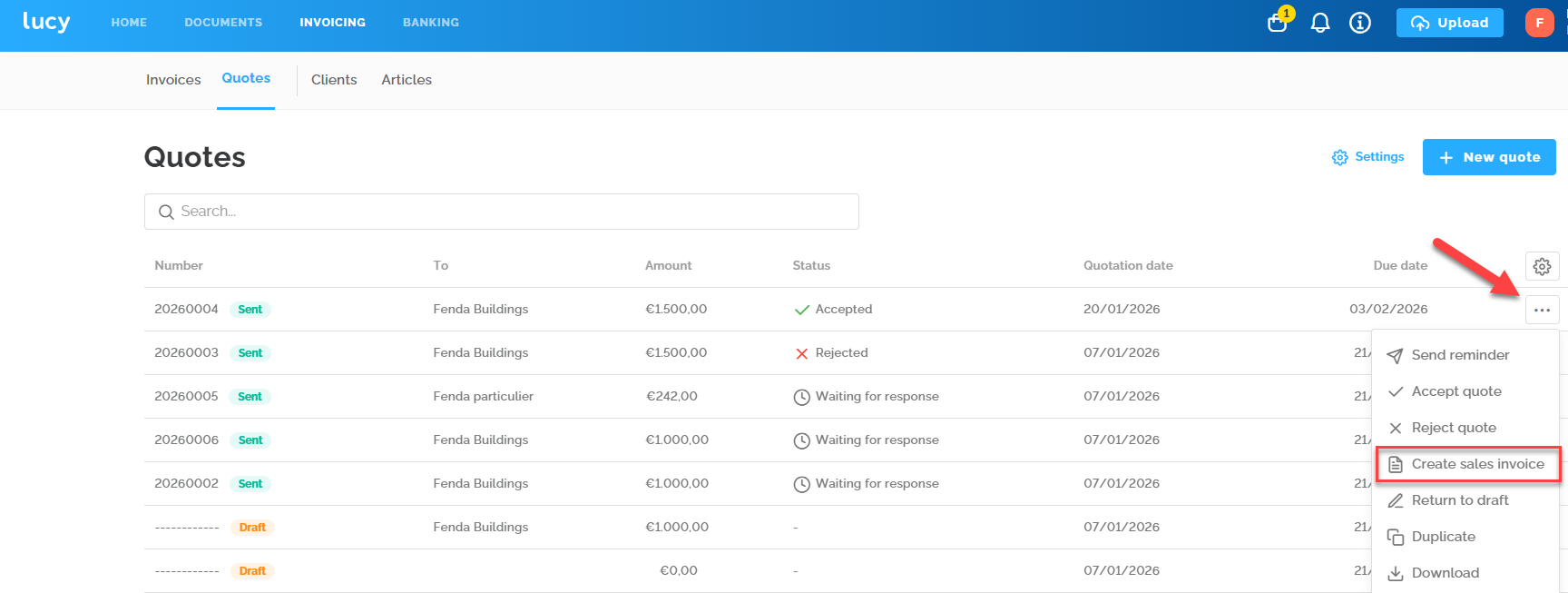
1. Via actions: Click on the three dots (...) at the end of the row and select the action 'Create sales invoice'.
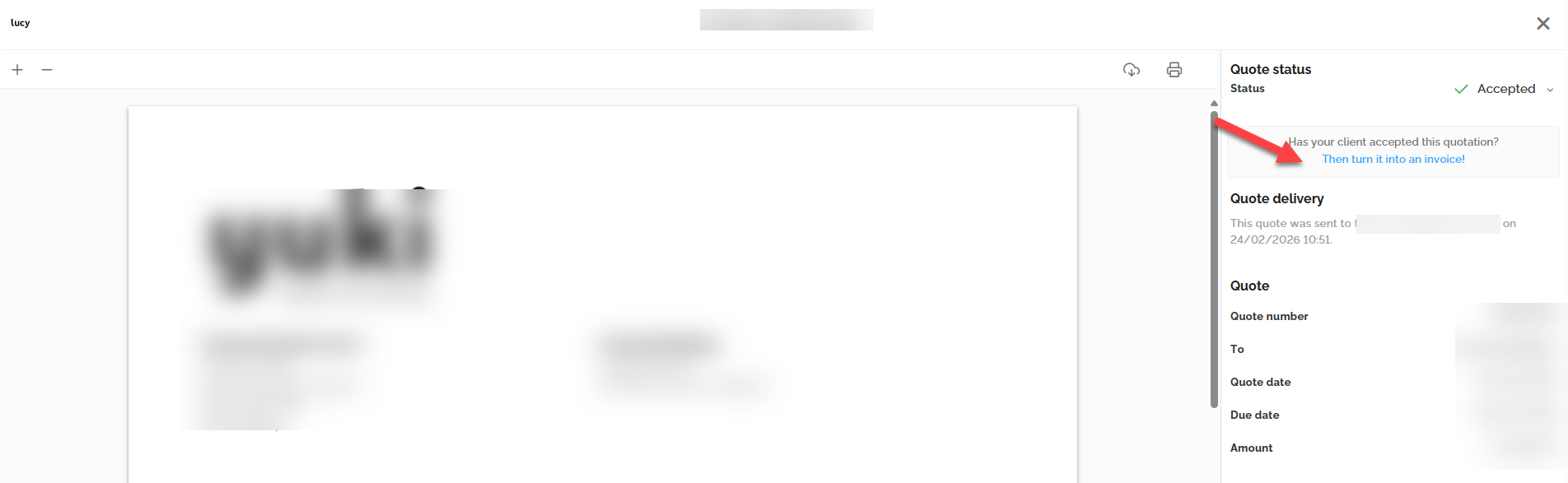
2. From the quote itself: You can also create a sales invoice directly from within the quote using the option 'Then turn it into an invoice!'.
Splitting a quote into an advance payment and a final invoice
It is also possible to split a quote into an advance invoice and a final invoice for the remaining balance: You can create an advance invoice from the sent quote by clicking the option 'create a sales invoice' next to the quote line.
A new invoice will then be generated. You can simply remove all other items, change the advance amount to a positive number (do not leave it negative), and send this as a partial invoice.
For the final invoice covering the remaining balance, you can return to the sent quote and select the option 'create a sales invoice' once again. A new invoice will be generated containing all items from the original quote, including the negative advance payment and all listed items.
Please make sure to always check the invoice date when converting a quote to an invoice and adjust it to the actual sending date. In this case, the quote will always retain the same numbering (as long as you do not resend it as a quote), regardless of how many times you convert it into a sales invoice. Naturally, a new invoice number will be generated for each sales invoice created.
Actions
From a sent quote, you can also perform the following actions:
- Send a reminder maximum once per da
- Revert the quote to draft
- Duplicate the quote
- Download the quote as a PDF