This article explains how you, as an accountant, can unlink a client from your accountant portal. Once unlinked, the client is no longer visible in your accountant portal. We also explain what to do when the company file is transferred to another accountant.
TABLE OF CONTENTS
- How do you unlink a client?
- Transfer: your client is moving to another accountant
- Transfer: as the new accountant, you want to add a company file to your own Lucy portal
- Do you want to close a company file completely for the client?
How do you unlink a client?
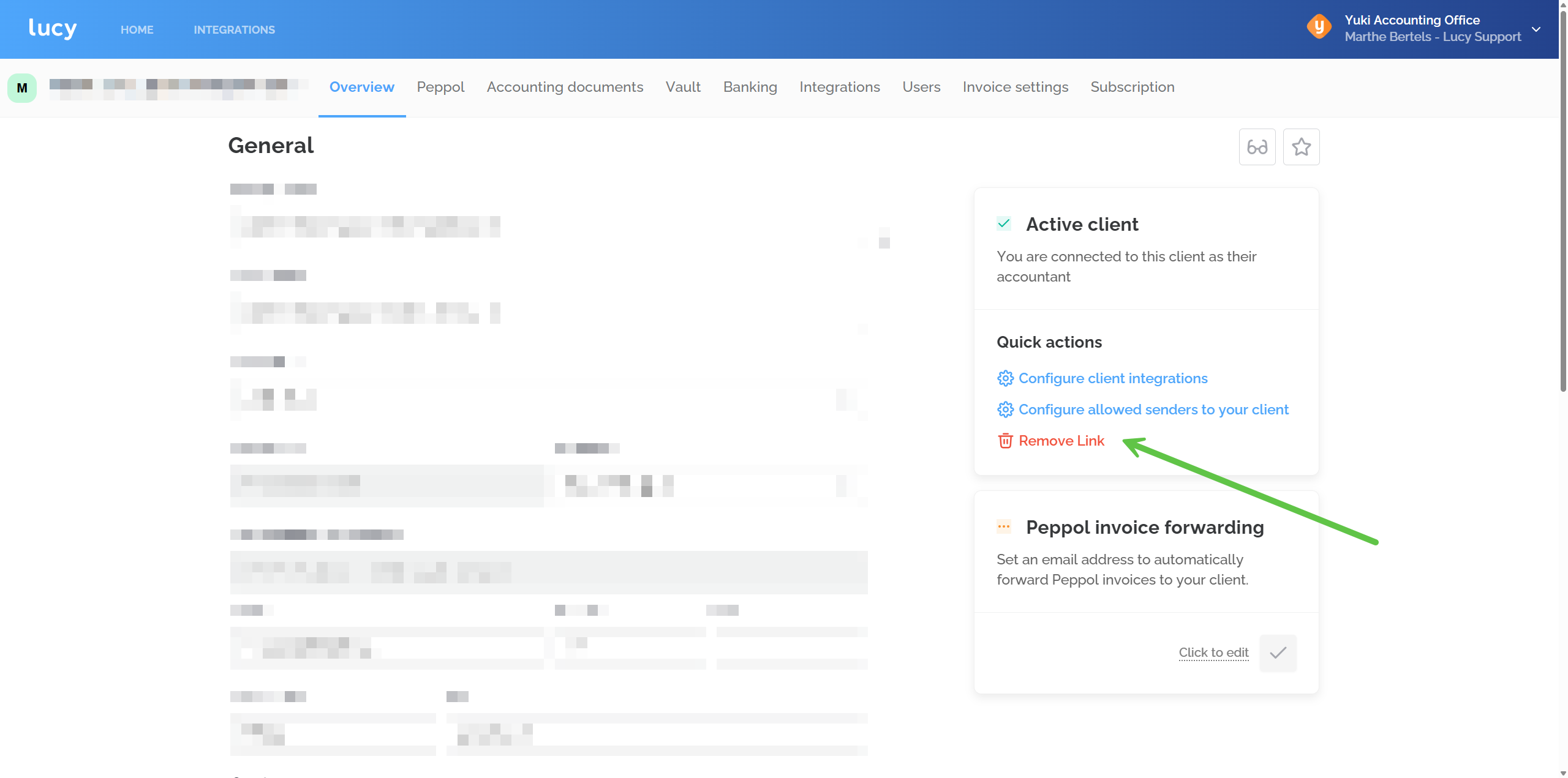
Go to the client's Overview tab and click Remove Link under Quick actions. You need the Admin role in the portal to do this. Without this role, you won't see the option. In that case, ask a colleague who has this role to unlink the client. Does the company file have the status Created or Invited? Then you can't unlink it yourself. In that case, please contact our Support team.
The entrepreneur cannot unlink the company file themselves.
What happens after unlinking?
- The company file disappears from your client list and is unlinked from your portal.
- The integration with your accounting software is disconnected. Integrations the entrepreneur set up themselves, such as a multisender, are kept.
- Your client's current subscription remains in place and is not cancelled automatically. This applies to both Split Bill and One-Stop-Shop entrepreneurs.
- Exception: if they have an Inbox subscription, they fall back to the next paid subscription (Invoicing) when they are unlinked. So feel free to let them know when you unlink them as part of a transfer. Tell them they can switch back to an Inbox subscription as soon as their new accountant has accepted them in their portal.
- Your client's Peppol registration remains active.
- Your client can simply keep working in Lucy and can link a new accountant themselves if they switch.
- Alternatively, your client can cancel the subscription themselves and follow the steps on this support page: Closing an Account in Lucy
Do you work with One-Stop-Shop (OSS)?
Then your firm currently pays for your client's subscription. Once the client is unlinked, that cost stops. If your client does not link a new accountant, or moves to a firm that uses Split Bill, your client will pay for the chosen subscription themselves from then on.
Transfer: your client is moving to another accountant
As the accountant, you can unlink the company file yourself:
- Unlink the client as described above.
- Let your client know they can link their new accountant themselves via Settings > Accounting > Select your accountant.
- As mentioned above: if they have an Inbox subscription, they fall back to the next paid subscription (Invoicing) when they are unlinked. So feel free to let them know when you unlink them as part of a transfer. Tell them they can switch back to an Inbox subscription as soon as their new accountant has accepted them in their portal.
1. The new firm also uses Lucy
The new firm receives a notification and can add your former client to its portal right away.
2. The new firm does not use Lucy
As soon as the client selects their new accountant, an email is automatically sent to the email address entered, letting the new accountant know that this client uses Lucy.
We'll transfer the company file for you via Support if:
- it concerns many company files at once (10+);
- the company file has the status Created or Invited;
- more than 5 company files with an Inbox subscription need to be transferred;
- your client also has a Yuki administration that needs to move to another portal in Yuki. We'll include this in the process right away.
In that case, send us the following details:
- the company name and company number of each company file (for multiple company files, a list is fine)
- the name and VAT number of the new firm
- whether the Yuki administration also needs to be transferred
- how many Inbox company files need to be transferred
- the date from which the transfer should take effect
Transfer: as the new accountant, you want to add a company file to your own Lucy portal
Then we need written consent from the previous firm. Unfortunately, an email from the new firm is not enough. So it's best to request that consent before you contact us. That way, we can carry out the transfer right away.
Does the company file have the status 'Active' in the previous accountant's client portal? Then the previous firm can simply unlink the client themselves, after which your client links you as their new accountant. No Support involvement is needed in that case.
Do you want to close a company file completely for the client?
The entrepreneur no longer wants to use Lucy and wants to close the entire company file.
The company file has the status 'Created' or 'Invited'
Your client has never had access to the company file and the Remove Link button is not visible. Contact Support and let us know whether they are sure they no longer want to use Lucy, and whether they have downloaded or received all their documents from the company file. At your request, we'll then carry out the necessary checks in the company file and deactivate it.
The company file has the status 'Active'
In this case, your client can close the company file themselves by following the steps on this page: Closing an Account in Lucy
As soon as your client confirms these steps have been completed, you can unlink the company file from your portal. We only delete company files with the entrepreneur's written confirmation. So if you need us to carry out this action, copy your client in or forward their confirmation to us by email.
Do you only want the company file removed from your client list? Then unlinking it is enough, after which the entrepreneur can carry on independently.
Your One-Stop-Shop client has stopped their business activity
Send them the steps from our support page: Closing an Account in Lucy
Once they have confirmed, don't forget to unlink the company file from your portal. That way, it no longer appears in your client list and is no longer charged to your firm.