Under the 'Documents' tab, you'll find a general inbox where all documents are collected. The 'Accounting' overview consists of three lists: Inbox, Archive and All.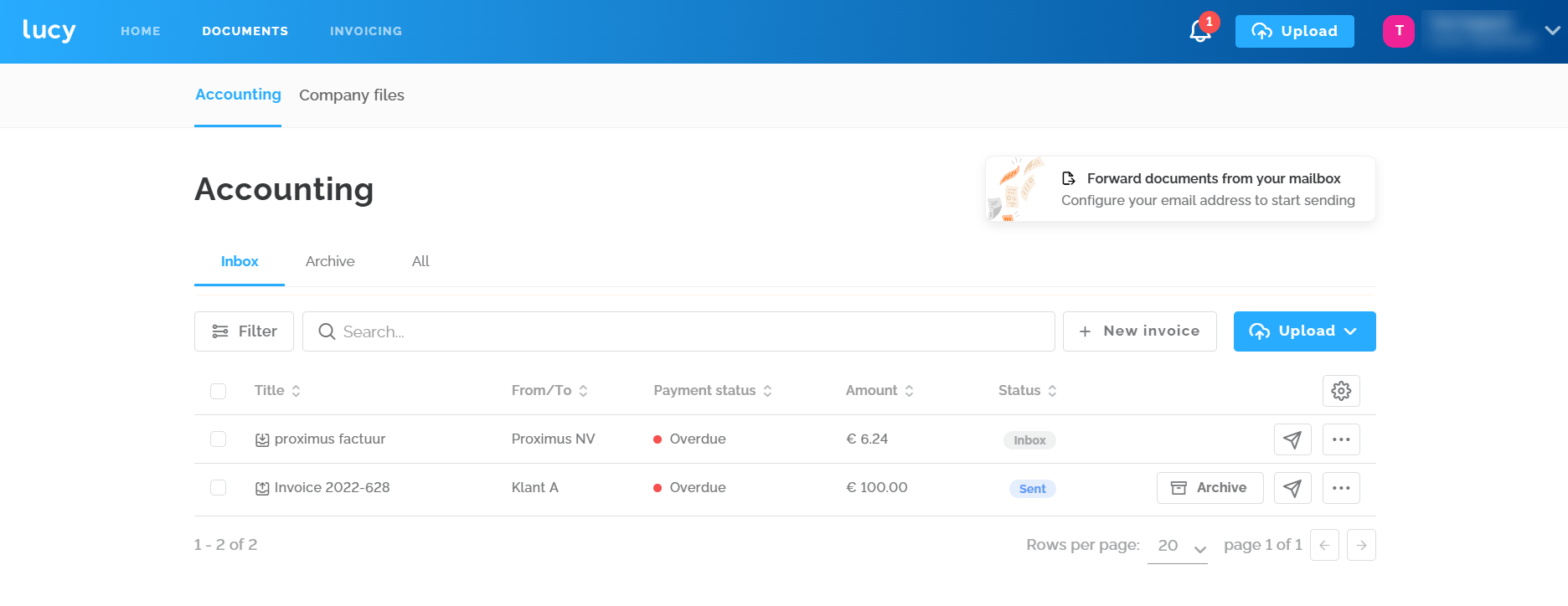
TABLE OF CONTENTS
Watch the video or read the full explanation below.
Your personal Lucy Inbox
Delivery methods
- Peppol
Are you registered to receive Peppol invoices via Lucy? Then you'll find them in your Lucy inbox as soon as they arrive. - Via the 'upload' button
Currently, the following file types can be uploaded manually in Lucy: .png, .jpg, .jpeg, .pdf, .xml, .e-fff. - Via your personal Lucy email address
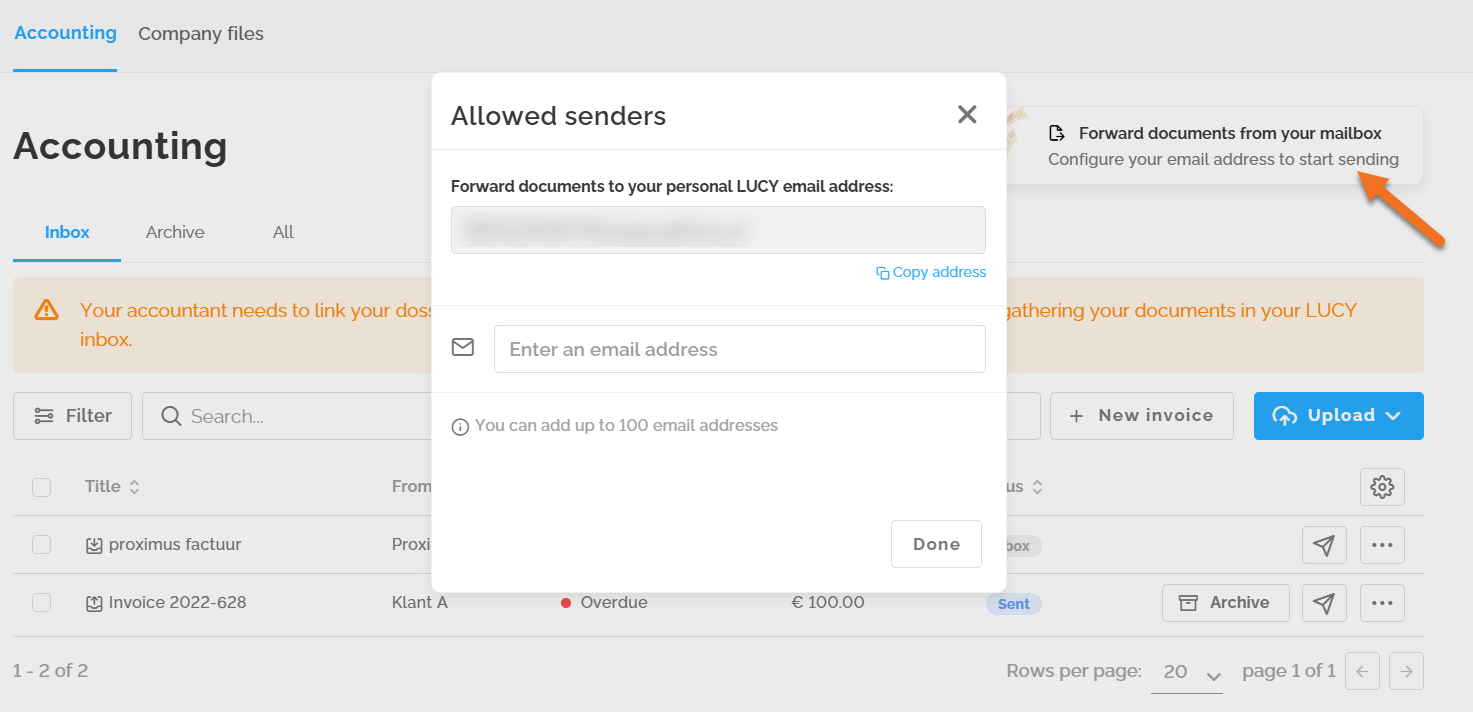
- BEXXXXXXXXXX@app.getlucy.ai
- The email address always consists of your VAT number and the URL of our application: {VAT-number@app.getlucy.ai}
- Only XML and PDF are accepted.
- Requirement: add Authorized Sendersto the whitelist to make sure that only the addresses set here can send documents.
- You can add up to 100 email addresses.
- Do you have a paper invoice, for example? Scan it and send it directly from your scanner to Lucy. You can validate your scanner's email address by adding it as an Authorized Sender.
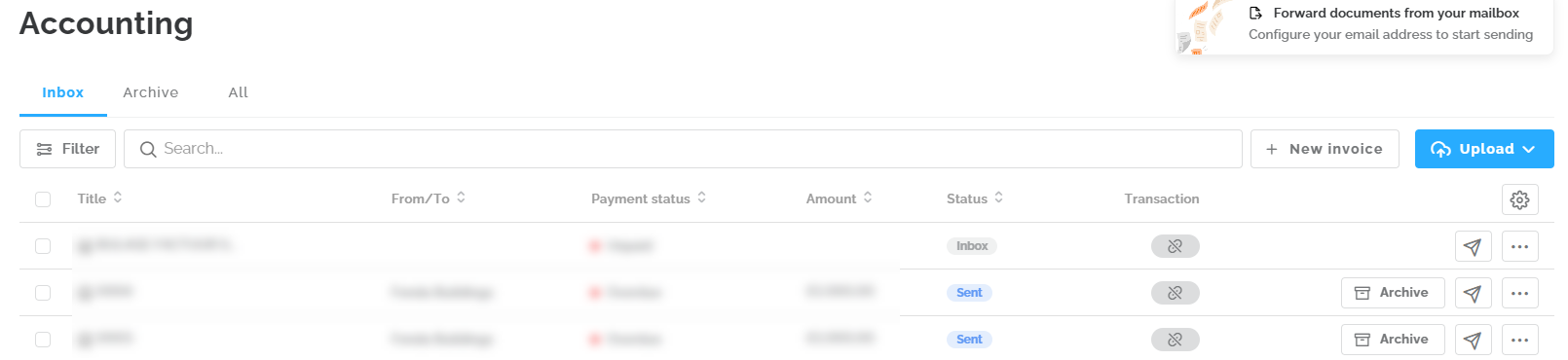
Duplicate notification
When a document arrives twice in your inbox, a duplicate notification appears.
You can delete the duplicate as long as it hasn't been sent to the accountant (support page).
Forwarding documents to your accounting
All submitted documents automatically receive the 'Inbox' status and can be sent to your accountant from your Inbox, either manually or automatically. As soon as an invoice has been sent to the accountant, its status in the overview changes to 'Sent'.
You can change the file name and details of an uploaded document or an incoming purchase invoice from Lucy Business.
Sending manually
You can send the document manually by clicking the arrow and then choosing 'Send'. With the Multisender feature, you can also send the document to multiple destinations. Note: Multisender is only available with Lucy Business.

Does the paper plane icon or the 'Send to accountant' button stay grey, so you can't send the documents to your accountant?
- Cause 1: your file is not yet linked to your accountant
- Cause 2: the document type has not been recognized yet
Sending automatically
Automatic sending can be set up via Settings, under the 'Accounting' tab. Here you can select that documents with a document type are automatically sent to your accountant.

Requirements for automatic sending:
A document is sent automatically when four requirements are met:
- Automatic sending is turned on. You'll find this under Settings, Accounting tab, with the option "Send documents automatically".
- Your file is linked to an accountant. Working without an accountant? Then set up your own company as the accountant.
- The document has a document type.
For a purchase invoice, you'll see an arrow pointing down; for a sales invoice, an arrow pointing up. If there's no icon, the type hasn't been recognized and the document won't be sent until you set the type yourself. Peppol invoices always have a document type, so they're sent right away. The same applies to any other document that gets a type when it's uploaded, including tickets and receipts. If a document is sent with the wrong type, you can no longer change it in Lucy afterwards. - The file isn't too large for the integration with your accounting software.
When the document is sent, its status changes from "Inbox" to "Sent". From then on, you can no longer delete the document (support page).
How quickly and how often are your documents automatically forwarded to your accounting software?
The documents are forwarded immediately.
Archive
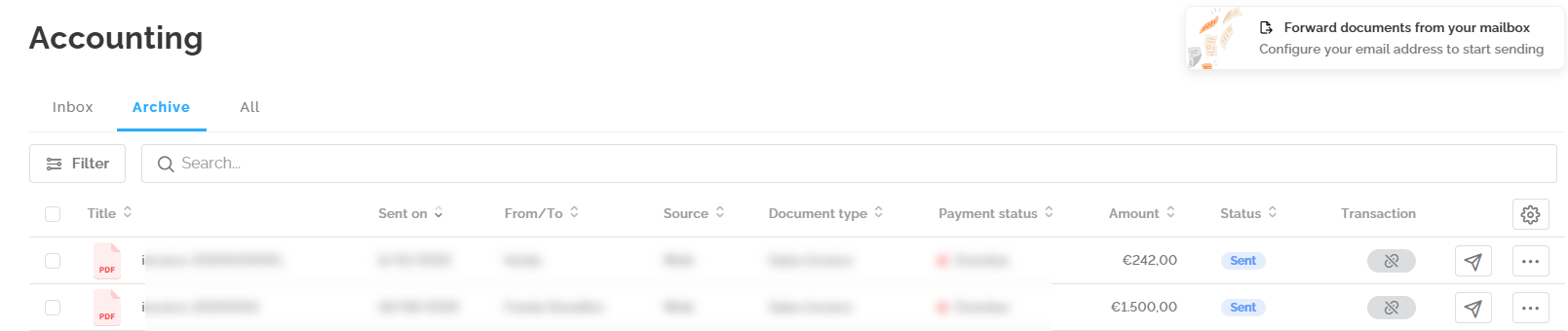
You can archive documents by clicking the 'Archive' button. This button only appears once a document has the 'Sent' status.
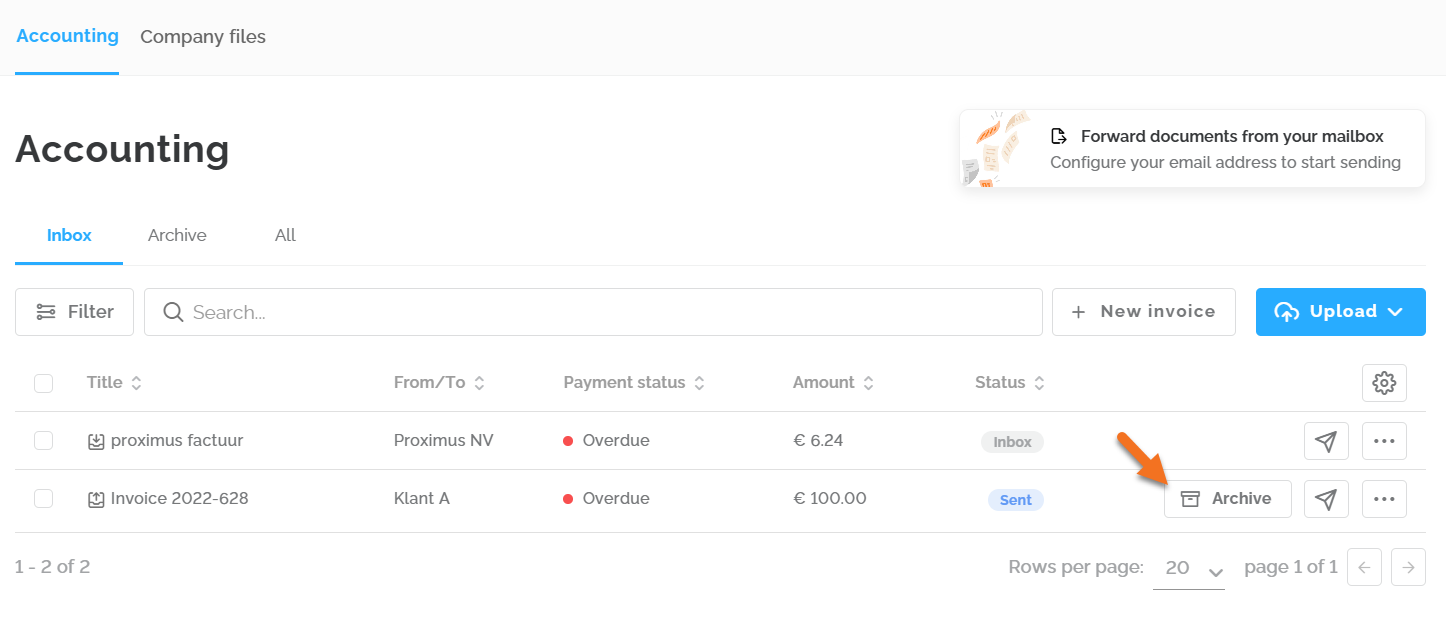
Archiving a document moves it to the 'Archive' overview.
How do I restore an archived document?
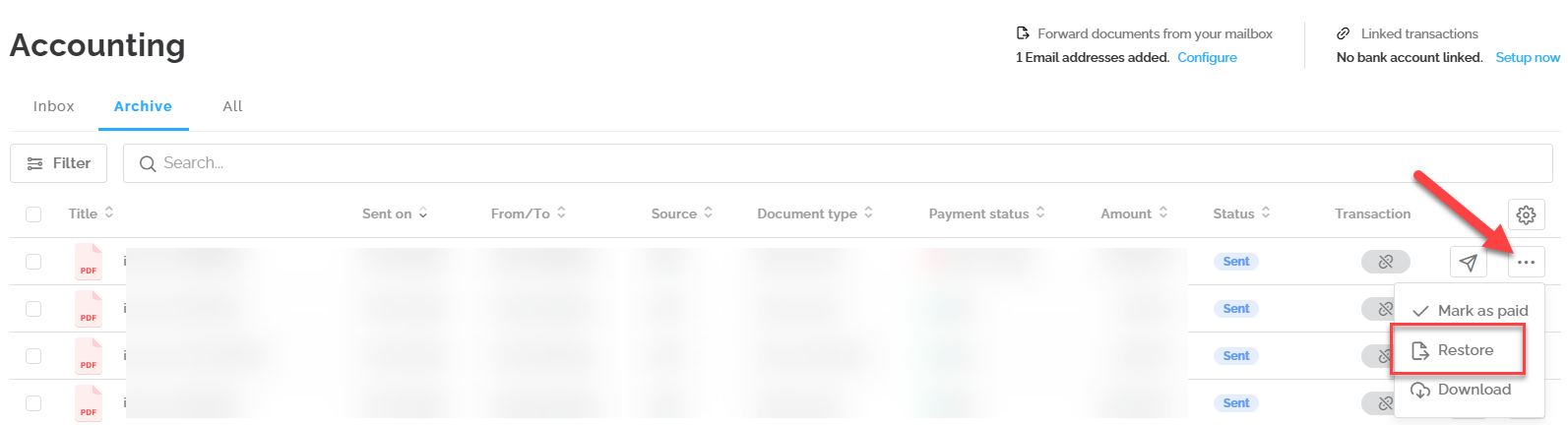
You can move an archived document back to your inbox at any time. Click the three dots (...) next to the document and choose the 'Restore' option.
Important: Lucy does not support organizing documents into subfolders within the archive environment.All
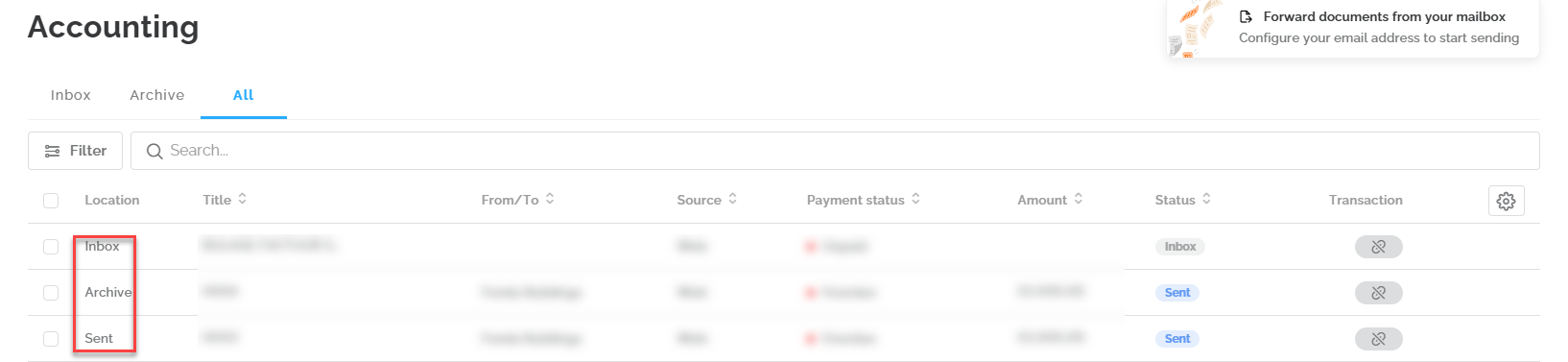
In the 'All' overview, you can see all documents with their current location and status:
- Inbox = documents that have not yet been sent to your accountant.
- Sent = documents that have already been sent to your accountant.
- Archive = documents that have been sent to your accountant and then archived.
Filtering and searching
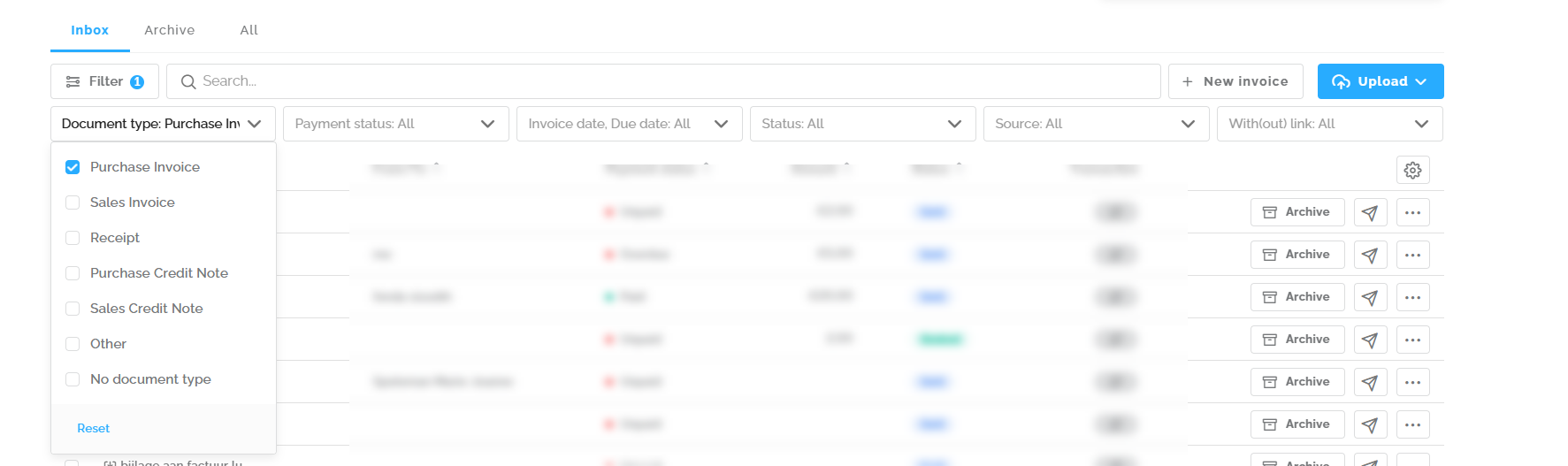
In each overview, you can filter by various criteria, such as:
- Document type
- Payment status
- Invoice date, due date
- Status
- Source
You can also search by name, description and amount. Via the gear icon, you can add extra columns, and via the three dots on the far right, you can:
- Mark the document as paid
- Download the document
- Delete the document (if not yet sent)
Viewing documents and attachments
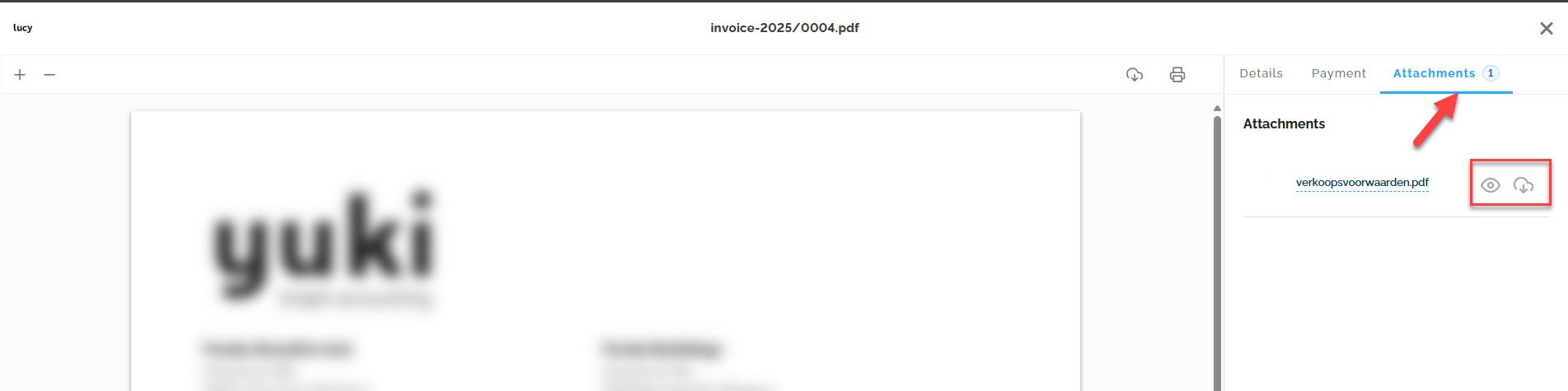
In this overview, you can view all incoming documents and issued sales invoices. Attachments added to a purchase or sales invoice can be displayed via the 'Attachments' tab. You can both view and download these attachments.
For XML invoices without an embedded PDF, Lucy shows a visual representation. It's always marked with a watermark (red text), as in the image below. This way, you get a visual display of all the information alongside the original invoice.
Important disclaimer: this mock-up PDF is not a legal document. It serves only as visual support. That's why you can't print or download it from Lucy, and it isn't forwarded to other software.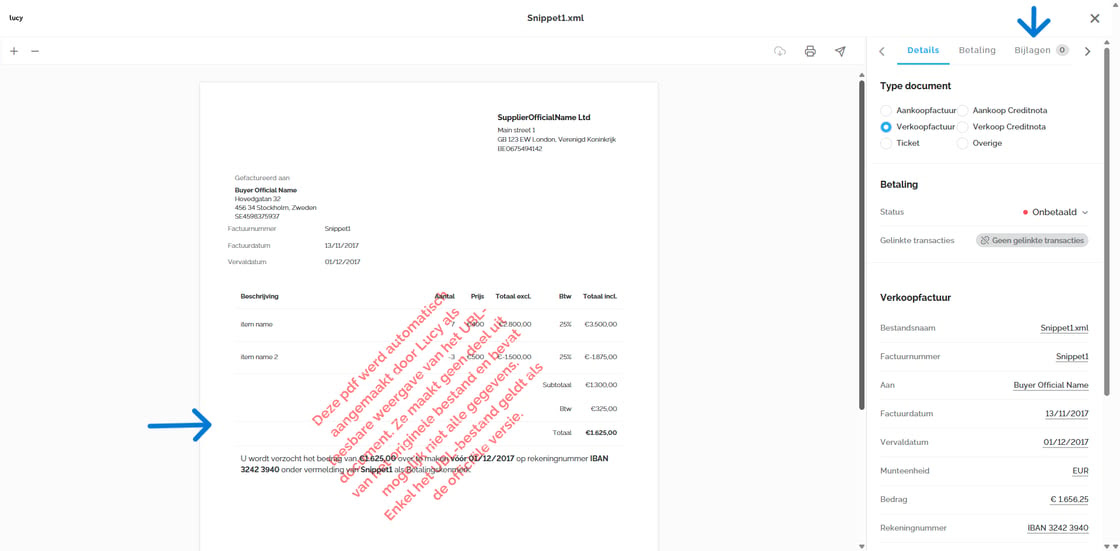
A maximum of 10 PDF files can be displayed for a purchase invoice. For sales invoices, the limit is 4 PDF files (3 PDF files plus the general terms and conditions).